Wikipedia’s software list turns into a tool map
I break down Wikipedia’s FOSS list into a practical way to pick, compare, and copy the software stack you actually need.

A practical way to turn Wikipedia’s FOSS catalog into a usable software stack.
I've been using lists like this for years, and honestly, they usually make me feel worse before they help. You open a page like Wikipedia’s List of free and open-source software packages, scroll past a wall of categories, and then realize the real problem: the list is too broad to answer anything useful. It tells you that there are dozens of tools for AI, CAD, security, media, and office work, but it doesn’t tell you what to pick, what to ignore, or how to build a sane stack without wandering into software hoarding. I’ve done that dance. I’ve bookmarked five alternatives for one job, then spent an hour comparing licenses and docs instead of shipping anything.
What finally clicked for me is that this page is not a recommendation list. It’s a taxonomy. Once I stopped treating it like a shopping cart and started treating it like a map, it got useful. The categories tell you where the ecosystem is mature, where it’s fragmented, and where you’ll want one boring default instead of ten clever choices. That’s the lens I’m using here.
I’m pulling this apart from the original Wikipedia page itself, which is maintained as a living directory of free and open-source software packages. The page links out to surrounding material like the Free Software Definition, the Open Source Definition, and the broader FOSS overview. I’m not repeating the directory. I’m translating it into something you can actually use when you’re choosing tools.
This is a taxonomy, not a recommendation engine
Get the latest AI news in your inbox
Weekly picks of model releases, tools, and deep dives — no spam, unsubscribe anytime.
No spam. Unsubscribe at any time.
“This is a list of free and open-source software (FOSS) packages, computer software licensed under free software licenses and open-source licenses.”
What this actually means is simple: the page is organized by category, not by quality. That matters because developers keep reading lists like this as if the top item is the best item. It usually isn’t. The page is trying to answer “what exists?” not “what should I use?”
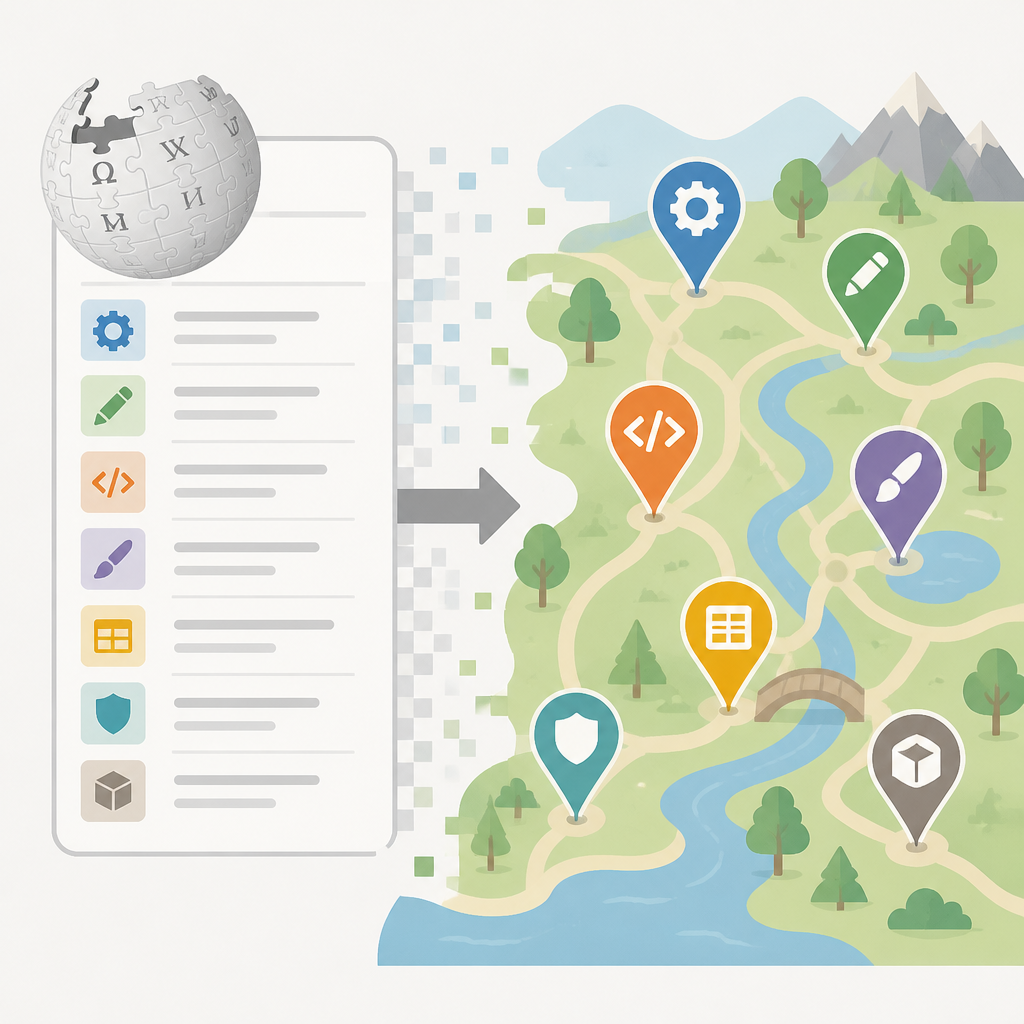
I ran into this the hard way when I was looking for a replacement for a proprietary internal tool. I started in the wrong mindset: I wanted “the best open-source one.” That phrasing is almost always a trap. Best for what? Small team? Offline use? Embedded? Enterprise auth? The Wikipedia page quietly reminds you that software exists in families. You don’t pick from the whole universe. You pick from the slice that matches the job.
How to apply it: when you read the list, ignore the urge to compare across categories. Compare within a category only after you define the job. If you need a text editor, don’t waste time evaluating a database or a file manager. If you need a robotics stack, don’t compare it to a Markdown app. Sounds obvious, but I still catch myself doing it when I’m tired and hunting for a “better” tool.
Use the page as a map of domains. If a category is missing from your stack, that’s your signal to ask whether you’re under-equipped. If a category has twenty entries, that’s your signal that you need a narrower selection rule. For me, that rule is usually: active maintenance, sane docs, a license I can live with, and a community that answers real questions.
Big categories tell you where the open-source world is mature
The table of contents is the first clue. Wikipedia splits the page into huge areas like Artificial intelligence, CAD, Cybersecurity, Data storage and management, Operating systems, and Programming language support. That’s not just page structure. It’s a signal about where the ecosystem has enough depth to support real workflows.
What this actually means is that open source is not evenly distributed. Some categories are crowded because the pain is universal. Operating systems, editors, web browsers, and version control have tons of options because everybody needs them. Other categories are smaller because the work is niche, expensive, or hard to standardize. When you see a fat category, you should expect choice overload. When you see a thin category, you should expect tradeoffs and maybe one or two serious options.
I like to read category density as a proxy for ecosystem pressure. If there are many entries in a section, there’s probably a lot of competition, a lot of forks, and a lot of “my team uses this because we’ve already paid the migration cost.” If there are just a few, the default may be obvious, or the field may still be messy. Neither is bad. It just changes how I evaluate tools.
- Dense category: expect overlap, similar features, and weird edge-case differences.
- Thin category: expect sharper tradeoffs and more integration work.
- Huge category with subcategories: expect the real decision to happen one layer down.
How to apply it: when you land on a category, ask three questions before clicking anything. First, is this category broad because the problem is common? Second, am I looking for a core tool or a specialized extension? Third, do I need the tool itself, or do I need the ecosystem around it? That last one matters a lot for things like Emacs, Vim, or Firefox, where the surrounding community is half the value.
The best part is the boring stuff people skip
Everyone jumps to AI, security, and graphics because those are the flashy sections. I get it. But the boring categories are where you save the most time. Wikipedia includes office software, file managers, backup software, database systems, build automation, static analysis, documentation generators, and configuration management. That’s the layer that keeps a team from turning into a pile of ad hoc scripts and tribal knowledge.
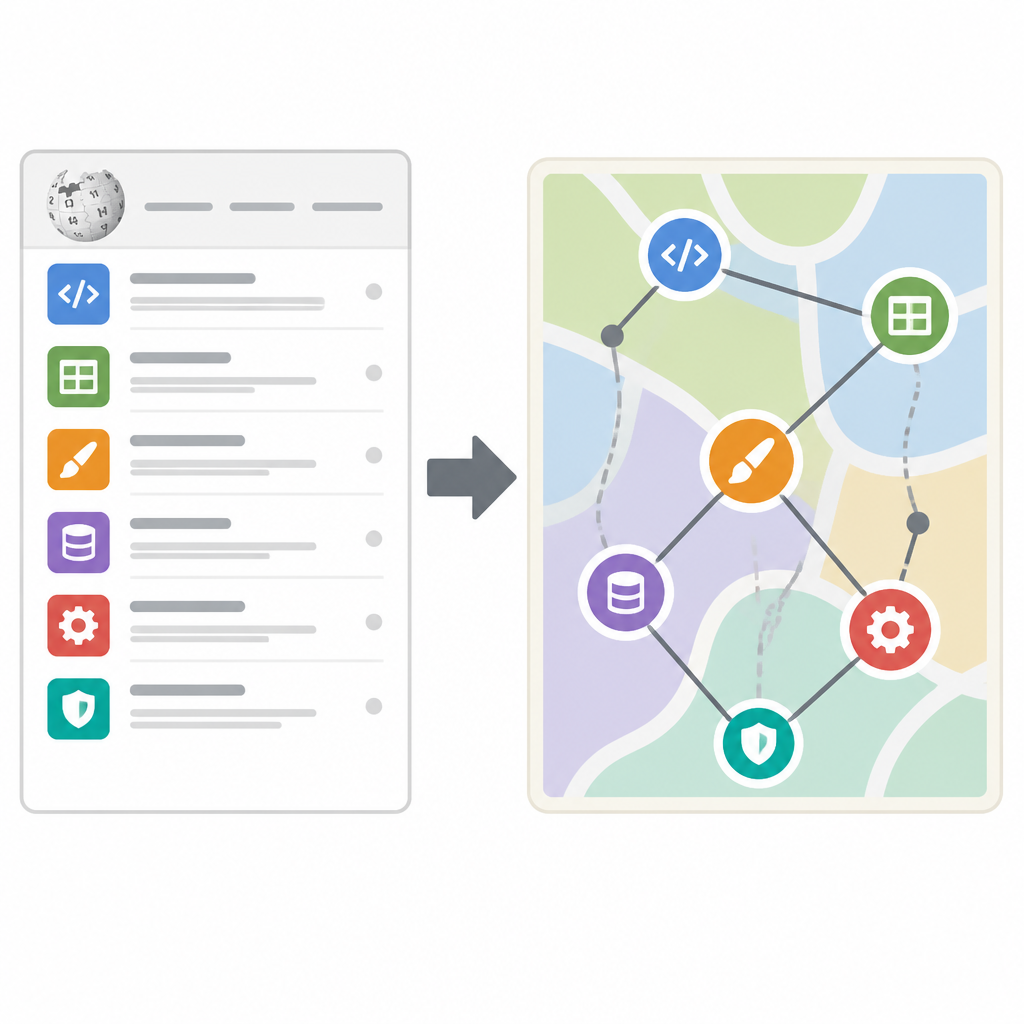
What this actually means is that “open source stack” is not just your app code. It’s the glue. It’s the tools that keep data moving, releases reproducible, and mistakes recoverable. I’ve seen teams obsess over the frontend framework while running backups with a shell script nobody trusts. That’s backwards. The list is useful because it exposes the unglamorous categories that actually determine whether your system survives contact with reality.
I’ve been burned by this in production more than once. The app was fine. The problem was the support layer: no decent backup policy, weak observability, and a build process that only worked on one laptop. The Wikipedia list reminded me that mature software ecosystems always include the dull, necessary stuff. You don’t get to skip it just because it doesn’t demo well.
How to apply it: build your stack in layers. Start with storage, backup, and source control. Then add build and test tools. Then add the user-facing app layer. If you’re evaluating open-source options, don’t stop at the shiny package. Ask whether the project has adjacent tools for export, recovery, automation, and monitoring. If it doesn’t, you’re signing up for more maintenance than you think.
- Core layer: OS, shell, editor, version control, package management.
- Safety layer: backup, encryption, password management, recovery.
- Operations layer: monitoring, deployment, logs, automation.
License labels matter more than pretty screenshots
The page opens by drawing a line between free software and open source, and that distinction is not cosmetic. It points to the GNU Free Software Definition and the Open Source Initiative’s Open Source Definition. Wikipedia also notes that some software may be “more appropriately called free software” in the GNU sense. That’s a reminder that licensing is not a footnote. It’s part of the product.
What this actually means is that you can’t treat “open source” as a single bucket. The license tells you what kind of reuse, redistribution, modification, and integration you can expect. If you’re building internal tooling, shipping a product, or planning to embed a library, the license can matter more than the feature list. I’ve watched teams fall in love with a tool and then discover the license makes their planned use awkward or expensive. That’s not a fun meeting.
When I’m evaluating software from a directory like this, I check the license before I check the screenshots. That sounds unromantic, but it saves me from wasting time. A beautiful project with a license I can’t use is still a dead end for my use case. A plain project with a sane license and active maintenance is often the better choice.
How to apply it: make license review a first-pass filter. If you’re just using a tool internally, your bar may be different than if you’re shipping it to customers or redistributing it. In practice, I keep a short list of acceptable licenses for my team and I don’t negotiate with myself after I’ve already fallen for the UI. If a project is ambiguous about licensing, I move on.
Use the list to find a default, not a collection
The page includes entire families of software: Linux distributions like Debian, Ubuntu, Fedora, openSUSE, and NixOS; browsers like Firefox; editors like Emacs and Vim; and infrastructure tools spread across networking, storage, and deployment. That breadth can trick you into collecting tools instead of standardizing on them. I’ve done that too. It feels productive for a week and then turns into maintenance debt.
What this actually means is that the list is best used to pick defaults for repeatable work. One default OS. One default editor. One default backup path. One default image tool. One default database for a class of projects. You can still allow exceptions, but the default should do most of the work. The more categories you standardize, the less time your team spends re-litigating the same decisions.
My own rule is boring on purpose. I want one tool per recurring job unless there’s a clear reason not to. If a new package enters the stack, it has to beat the default on a concrete axis: deployment time, maintenance burden, compatibility, or team familiarity. “Feels nicer” is not enough. It never is.
How to apply it: turn the Wikipedia page into a shortlist generator. Pick one category, choose three candidates, and write down the job description before reading docs. Then test only what matters. For a browser, that might be extension support and sync. For a database, it might be migration tooling and backup/restore. For a distro, it might be package availability and upgrade behavior. The point is to stop treating the whole directory like a buffet.
The structure tells you where integration pain will show up
Look at the subcategories and you can predict where integration pain will appear. There are separate sections for containers and orchestration, documentation generators, testing, static analysis, configuration management, remote access, monitoring and observability, and web-related tools. That’s basically a list of the places where software systems become messy.
What this actually means is that the directory is quietly admitting that a tool rarely lives alone. A code generator needs build tooling. A service needs monitoring. A deployment tool needs configuration management. A testing framework needs CI. The list’s structure mirrors the way real systems are assembled, which is why it’s more useful than a random “best of” roundup.
I’ve found this especially useful when designing internal platform work. If a product team asks for a new tool, I don’t just ask “does it work?” I ask “what does it touch?” If it needs auth, backups, logs, storage, and deployment hooks, the tool is not one tool anymore. It’s a whole chain. The Wikipedia page is a good reminder that chains are where the hidden costs live.
How to apply it: when you evaluate a package, map the neighboring categories too. If you’re looking at a database, check the backup, admin, and monitoring options in the same ecosystem. If you’re looking at a robotics package, check simulation, control, and hardware support. If you’re looking at a browser, check privacy, extension, and sync behavior. Integration is where the real review starts.
Read the list like a filter, not a catalog
There’s a better way to use giant software lists, and it’s not browsing for inspiration. It’s filtering. Wikipedia has already done the annoying part of sorting software into buckets like AI, education, media, networking, office, science, and programming support. Your job is to turn that into a working filter for your own environment.
What this actually means is that you should ask: what class of problem am I solving, what constraints do I have, and what do I refuse to maintain? That last one matters. Some tools are cool until you’re the person on call for them. Then the novelty evaporates fast. A directory like this helps because it broadens the search space, but it also exposes how much of software choice is really about operational tolerance.
I use a simple pass/fail checklist now. If a package fails maintenance, docs, or license fit, I stop. If it passes, I test it in the context I actually care about. That’s how I keep giant lists from turning into hobby projects. The page is useful precisely because it’s exhaustive enough to force discipline.
The template you can copy
# FOSS tool selection template

## 1) Define the job
- What exact problem am I solving?
- What category does it belong to?
- What is the default tool I already use?

## 2) Set hard filters
- License:
- Maintenance status:
- Platform support:
- Deployment model:
- Data export/import needs:

## 3) Pick 3 candidates
- Candidate A:
- Candidate B:
- Candidate C:

## 4) Compare only what matters
- Setup time:
- Docs quality:
- Upgrade path:
- Backup/restore:
- Auth/security:
- Team familiarity:
- Integration with adjacent tools:

## 5) Decide the default
- Chosen tool:
- Why it wins:
- What would make me replace it later:

## 6) Write the operating rule
- When to use this tool:
- When not to use it:
- Who owns it:
- How it is backed up:
- How it is monitored:

## 7) Keep the escape hatch
- Migration plan:
- Data format to preserve:
- Rollback path:
- Exit criteria:
That’s the version I wish I had years ago. It turns a giant directory into a decision process instead of a weekend of tabs. You can paste it into a team doc, fill it out for one category at a time, and stop pretending that software choice is a vibes-only exercise.
My honest take: Wikipedia’s list is valuable because it’s not trying to sell you anything. It’s a map of what exists, and that’s enough if you know how to read it. The trick is to use it as a starting point for a narrow, practical decision, not as a place to collect options forever.
Source attribution: original directory at Wikipedia. My breakdown is original commentary and workflow advice built from that source, not a reproduction of the full list.
// Related Articles
- [TOOLS]
Windsurf’s IntelliJ plugin is a shortcut, not a strategy
- [TOOLS]
SWE-1.7 free preview lands in Devin Desktop
- [TOOLS]
Vibe Island’s changelog shows the right product bets
- [TOOLS]
OpenAI Newsroom turns announcements into a digest
- [TOOLS]
Trendshift monthly repos let you spot real momentum
- [TOOLS]
Rust vs Go in 2026: pick the right fit