Windows Docker Desktop installs cleanly with WSL 2
A practical Windows install flow for Docker Desktop with BIOS virtualization, WSL 2, ARM64, and a copy-ready verification block.

A Windows Docker Desktop install flow with WSL 2, ARM64, and verification commands.
I've been walking people through Docker Desktop on Windows for years, and the same thing keeps happening: the installer looks simple, then Windows starts acting like a prankster. The app downloads fine, the setup wizard opens, and then you get hit with one of three annoyances. Virtualization is off in BIOS. WSL is half-installed. Or the thing is technically installed but the engine never comes up, so you stare at a whale icon like it owes you money.
What finally stopped the back-and-forth for me was treating the install as a chain, not a single click. Hardware virtualization has to be on. WSL 2 has to be current. You need the right installer for x64 or ARM64. And you need a verification step that proves Docker can actually run containers, not just that the desktop app launches. That’s the version I’m breaking down here, because the “just install it” advice is how people lose an afternoon.
If you want the source this is based on, I’m pulling from usedocker.com/install/windows, the Windows install guide from usedocker.com. I’m also cross-checking against Docker’s Windows install docs and Microsoft’s own WSL install guide, because I’d rather not trust a single page when Windows is involved.
Stop treating virtualization like a Docker setting
Get the latest AI news in your inbox
Weekly picks of model releases, tools, and deep dives — no spam, unsubscribe anytime.
No spam. Unsubscribe at any time.
Confirm each one now and you’ll skip the most common first-launch errors.
What this actually means is that Docker Desktop is not the place where virtualization gets turned on. Docker just complains after the fact. If Intel VT-x, AMD-V, or SVM is disabled in firmware, Docker Desktop can’t paper over that. The app can be perfectly installed and still fail because the machine itself is missing the one feature the backend needs.
I ran into this on a laptop that looked fine in every normal Windows screen. Task Manager said virtualization was disabled, and that was the whole story. No amount of reinstalling Docker fixed it. The fix was buried in UEFI, under a menu that had nothing to do with Docker. That’s the part people miss: Docker Desktop is downstream of your firmware settings.
The source guide tells you to check Task Manager first, which is exactly what I do now. Open Task Manager, go to Performance, click CPU, and look for Virtualization: Enabled. If it says disabled, reboot into BIOS or UEFI and turn on the virtualization setting for your chip.
How to apply it:
- Check virtualization in Task Manager before touching the installer.
- Enable Intel VT-x, AMD-V, or SVM in firmware if it’s off.
- Reboot back into Windows and confirm the status changed.
If you want the official Microsoft side of this, the WSL docs explain the kernel and platform requirements that sit underneath Docker’s WSL 2 backend: Microsoft Learn: Install WSL. If you want Docker’s own requirements page, use Docker Desktop for Windows. I’m linking both because Windows install guides age badly and then everybody pretends the old advice still works.
WSL 2 is the real backend, so install that first
Docker Desktop’s default backend is WSL 2.
That sentence matters more than most install pages admit. Docker Desktop on Windows is no longer about the old Hyper-V-first world for most developers. The recommended path is WSL 2, which means Docker is running Linux containers through a lightweight Linux environment integrated with Windows. If WSL 2 is missing or stale, Docker Desktop starts acting weird before you even get to your first container.
The guide’s shortcut is the right one for fresh systems: run wsl --install in an elevated PowerShell window, reboot, and let Windows install the pieces it needs. If WSL already exists, update it with wsl --update. That’s the bit I wish more install guides said plainly. People keep reinstalling Docker when the actual problem is an old WSL kernel.
I’ve seen this especially on machines that had WSL 1 distros hanging around from an old setup. The Docker install technically completes, but the backend never quite settles. Updating WSL first removes a whole class of nonsense. And yes, you do need to reboot. Windows loves making kernel updates look optional until they are not.
How to apply it:
- Open PowerShell as Administrator.
- Run
wsl --installon a fresh machine. - Run
wsl --updateif WSL already exists. - Reboot before launching Docker Desktop.
Microsoft’s WSL install page is the canonical reference here: Install WSL on Windows. If you want the command reference itself, Microsoft keeps that under basic WSL commands. I’m being picky about links because “just Google it” is how you end up on a five-year-old forum post that tells you to enable the wrong feature.
Pick the right installer or you’ll waste time on the wrong binary
Pick the installer that matches your CPU architecture.
What this actually means is that Windows laptops are no longer one-size-fits-all. If you’re on Intel or AMD, you want the x64 build. If you’re on a Snapdragon X machine or another ARM-based Windows laptop, you need the ARM64 installer. Install the wrong one and you can end up debugging a problem that is really just a bad match between hardware and package.
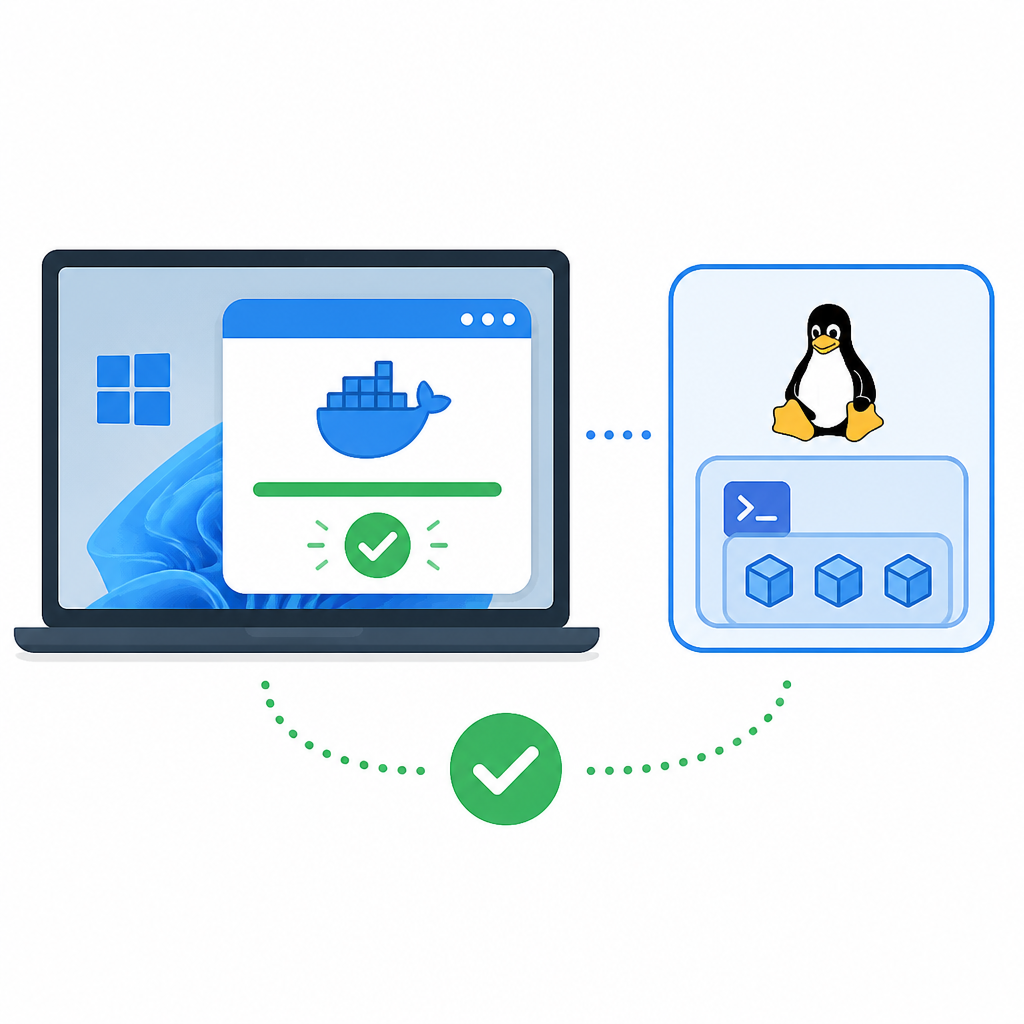
The source page is smart to call this out explicitly. A lot of people still assume “Windows installer” is a single file. It isn’t, and ARM64 matters more now because Windows on ARM is no longer some niche experiment. The installer should be code-signed too, and if the signature looks wrong, I would not keep going. Re-download from the official source and avoid the mystery file from wherever.
I ran into this on a Surface device where the user had grabbed the x64 build out of habit. The installer didn’t fail loudly enough to make the mistake obvious. It just created confusion later. Since then, I tell people to verify the architecture first, then download once, not three times.
How to apply it:
- Use x64 for Intel and AMD systems.
- Use ARM64 for Snapdragon X and other ARM-based Windows PCs.
- Check the file signature before running the installer.
- Download from Docker’s official Windows page or the guide you trust.
For the official download page, use Docker Desktop. For ARM64-specific Windows support, Docker’s install docs are clearer than most third-party writeups: Docker Desktop install on Windows. If you’re on ARM and want more background on Windows-on-ARM behavior, Microsoft’s device docs are the sane place to start: Windows on Arm.
The installer is easy; the session change is what people miss
The installer copies ~600 MB of files, adds your user to docker-users, and registers a Windows service.
What this actually means is that Docker Desktop changes system state, not just app state. It installs a service, updates group membership, and sets up the backend pieces that let your user talk to the engine. That’s why the guide tells you to log out after install. New group membership does not magically apply to the session you already have open.
This is one of those annoying Windows truths that keeps showing up in dev tooling. You can finish the installer, launch the app, and still not have permission to talk to Docker correctly until you start a fresh session. The “it installed but doesn’t work” complaint often turns out to be “you never logged out.”
I’ve watched people reinstall Docker three times because they skipped the logout step. I get it. The wizard says finished, and your brain wants the story to be over. But if the installer added you to docker-users, you need a new login session for that membership to matter.
How to apply it:
- Run the installer as an admin user.
- Leave Use WSL 2 instead of Hyper-V checked unless you have a specific reason not to.
- After install, log out and log back in.
- Don’t skip the session refresh.
If you want the official backend preference and service behavior, Docker documents it in their Windows setup docs: Docker Desktop for Windows. The source guide also points out the docker-users group and the com.docker.service service, which are the details I wish more beginner guides included.
First launch is where licensing and sign-in show up
You’re prompted to accept the Docker Subscription Service Agreement.
What this actually means is that Docker Desktop is not just a local app you install and forget. There’s a licensing model attached to it, and the first launch is where Docker makes you face it. If you use Docker personally, in education, on qualifying open-source work, or in a small business under the stated limits, that’s one thing. If you’re at a larger company, that’s another conversation.
The guide is right to say you can sign in with a Docker Hub account but don’t have to. Sign-in is useful because it can improve pull limits and unlock extras like Docker Scout, but it is not the same as the install itself. I’ve seen teams confuse “sign in” with “license compliance,” and those are not interchangeable.
Also, the whale icon is not decorative. It’s your status indicator. If the app says starting forever, that usually means the backend never came up cleanly. At that point I stop guessing and go straight to troubleshooting rather than clicking around the UI like it owes me answers.
How to apply it:
- Read the subscription agreement before accepting it.
- Sign in if you need Docker Hub features or Docker Scout.
- Watch the tray icon for the engine state.
- Do not assume a signed-in account fixes backend issues.
For the licensing and subscription details, Docker’s official pricing and subscription pages are the place to check: Docker pricing. For Docker Hub, use Docker Hub. I’m linking these because a lot of install guides pretend licensing is a footnote. It isn’t.
Verification is the only part that matters
Run docker --version and docker run --rm hello-world.
What this actually means is that an installed app is not the same thing as a working container engine. I care about the verification commands more than the installer splash screen because they prove the path end to end: your shell can talk to Docker, Docker can start a container, and the container can print something back.
This is the part I use when I’m helping someone remotely. If docker --version works but docker run --rm hello-world fails, we know the CLI exists but the daemon path is broken. If both work, we’re done. That’s the cleanest possible signal and it saves a lot of hand-wavy “maybe restart it again” nonsense.
Use a fresh PowerShell window after install, especially if you just logged out and back in. Then run the commands exactly as written. If the hello-world container prints the standard success message, the engine is reachable and the install is good enough to start real work.
How to apply it:
- Open a new PowerShell window after reinstalling or logging back in.
- Run
docker --version. - Run
docker run --rm hello-world. - Only move on once both succeed.
The official hello-world image lives here: hello-world on Docker Hub. If you want to compare behavior with Docker’s docs, their getting started page is still useful: Docker Get Started. I’m not pretending the verification command is glamorous. It’s just the one that tells the truth.
Use the optional settings only when they solve a problem
Cap the resources Docker Desktop is allowed to use.
What this actually means is that Docker Desktop can be pretty polite on a shared machine, but you still need to know where the knobs are. The WSL 2 backend borrows memory dynamically from Windows, which is nice until you want a hard ceiling. Then you edit %USERPROFILE%\.wslconfig and set memory and CPU limits explicitly.
I like this section because it keeps people from over-tuning too early. Don’t enable Kubernetes just because the checkbox is there. Don’t pin resource limits unless you know why you need them. But if Docker is eating too much memory on a laptop or you want startup behavior under control, the settings are useful and practical.
I’ve used the .wslconfig route on machines where Docker was competing with browsers, editors, and local databases. A hard cap made the machine behave better overall. On the other hand, enabling Kubernetes on a machine that only needed container builds was just self-inflicted pain. Less is often better here.
How to apply it:
- Use
.wslconfigfor memory and CPU limits if needed. - Run
wsl --shutdownafter changing WSL settings. - Only enable Kubernetes if you actually need a local cluster.
- Turn on auto-start only on machines that benefit from it.
For Docker’s resource settings, see Docker Desktop settings on Windows. For WSL config syntax, Microsoft documents it here: WSL configuration. Those two pages are where I go when I need the exact knob names instead of folk wisdom.
The template you can copy
# Docker Desktop on Windows install checklist

## Before you install
- [ ] Windows 10 21H2+ or Windows 11
- [ ] Hardware virtualization enabled in BIOS/UEFI
- [ ] Admin account available
- [ ] Correct installer downloaded for CPU architecture
  - x64 for Intel/AMD
  - ARM64 for Snapdragon X / other ARM Windows PCs

## WSL 2 setup
Open PowerShell as Administrator:

powershell
wsl --install
# or, if WSL already exists:
wsl --update


Reboot after the command finishes.

## Install Docker Desktop
1. Run `Docker Desktop Installer.exe`
2. Leave **Use WSL 2 instead of Hyper-V** checked
3. Finish the install
4. Log out and log back in

## First launch
1. Open Docker Desktop from the Start menu
2. Accept the subscription agreement
3. Sign in only if you need Docker Hub features or Docker Scout
4. Wait for the whale icon to show Docker Desktop is running

## Verify the install
Open a fresh PowerShell window and run:

powershell
docker --version
docker run --rm hello-world


If both commands succeed, Docker Desktop is ready.

## Optional tuning
Edit `%USERPROFILE%\.wslconfig` if you need resource limits:

ini
[wsl2]
memory=8GB
processors=4


Apply changes with:

powershell
wsl --shutdown


## Common fixes
- Virtualization disabled: enable Intel VT-x / AMD-V / SVM in BIOS
- WSL 2 incomplete: run `wsl --update`, then reboot
- Docker stuck starting: restart Windows, then re-check the tray icon
- Permission issues: confirm you logged out after install
This is the part I’d copy into a team wiki without much editing. It keeps the install sequence honest, and it forces the verification step to happen before anyone declares victory.
Source attribution: the workflow above is based on the Windows install guide at https://usedocker.com/install/windows, with supporting references from Docker and Microsoft. The checklist is my distilled version of that material, not a verbatim copy.
// Related Articles
- [TOOLS]
Windsurf’s IntelliJ plugin is a shortcut, not a strategy
- [TOOLS]
SWE-1.7 free preview lands in Devin Desktop
- [TOOLS]
Vibe Island’s changelog shows the right product bets
- [TOOLS]
OpenAI Newsroom turns announcements into a digest
- [TOOLS]
Trendshift monthly repos let you spot real momentum
- [TOOLS]
Rust vs Go in 2026: pick the right fit