Connect Qwen 3.8 Max to CLI Agents
Set up Qwen 3.8 Max with OpenAI and Anthropic-compatible CLI tools.
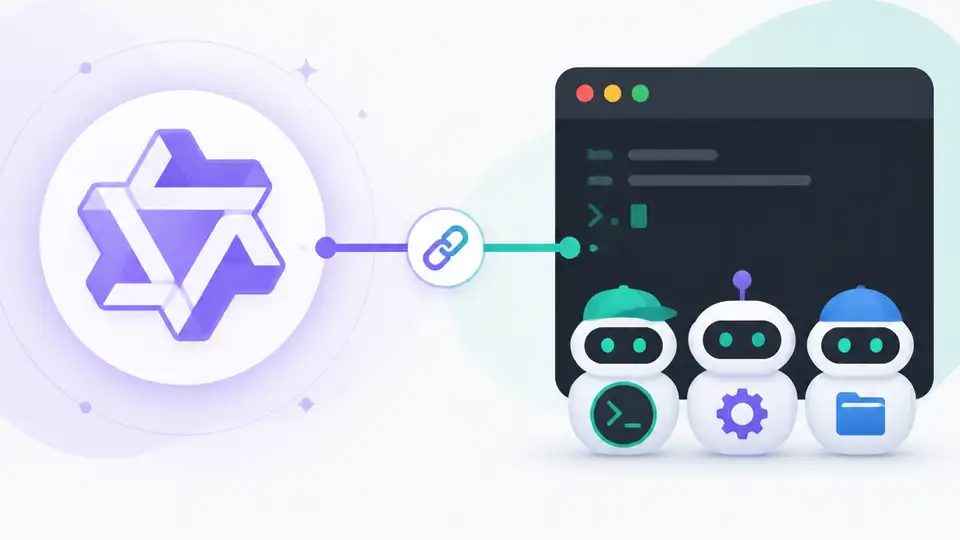
How do you connect Qwen 3.8 Max to Claude Code-style CLI tools?
Set up Qwen 3.8 Max with OpenAI and Anthropic-compatible CLI tools.
This guide is for developers who want to use Alibaba Cloud's Qwen 3.8 Max in code-focused agent workflows. After following the steps, you will have a working API setup, a CLI client configured for reasoning levels, and a quick way to verify that the model responds through either OpenAI or Anthropic protocol compatibility.
Before you start
Get the latest AI news in your inbox
Weekly picks of model releases, tools, and deep dives — no spam, unsubscribe anytime.
No spam. Unsubscribe at any time.
- An Alibaba Cloud account with access to Qwen 3.8 Max
- An API key for the model endpoint
- Node.js 20+ or Python 3.11+
- A CLI agent or client that supports OpenAI-compatible or Anthropic-compatible APIs
- Git installed on your machine
- Access to the official docs and repo references for your chosen client, such as the OpenAI API docs and Anthropic SDK GitHub repo
Step 1: Create your API access
Your first goal is to obtain a valid API key and endpoint details for Qwen 3.8 Max so the rest of the setup can point at a real service instead of a placeholder.
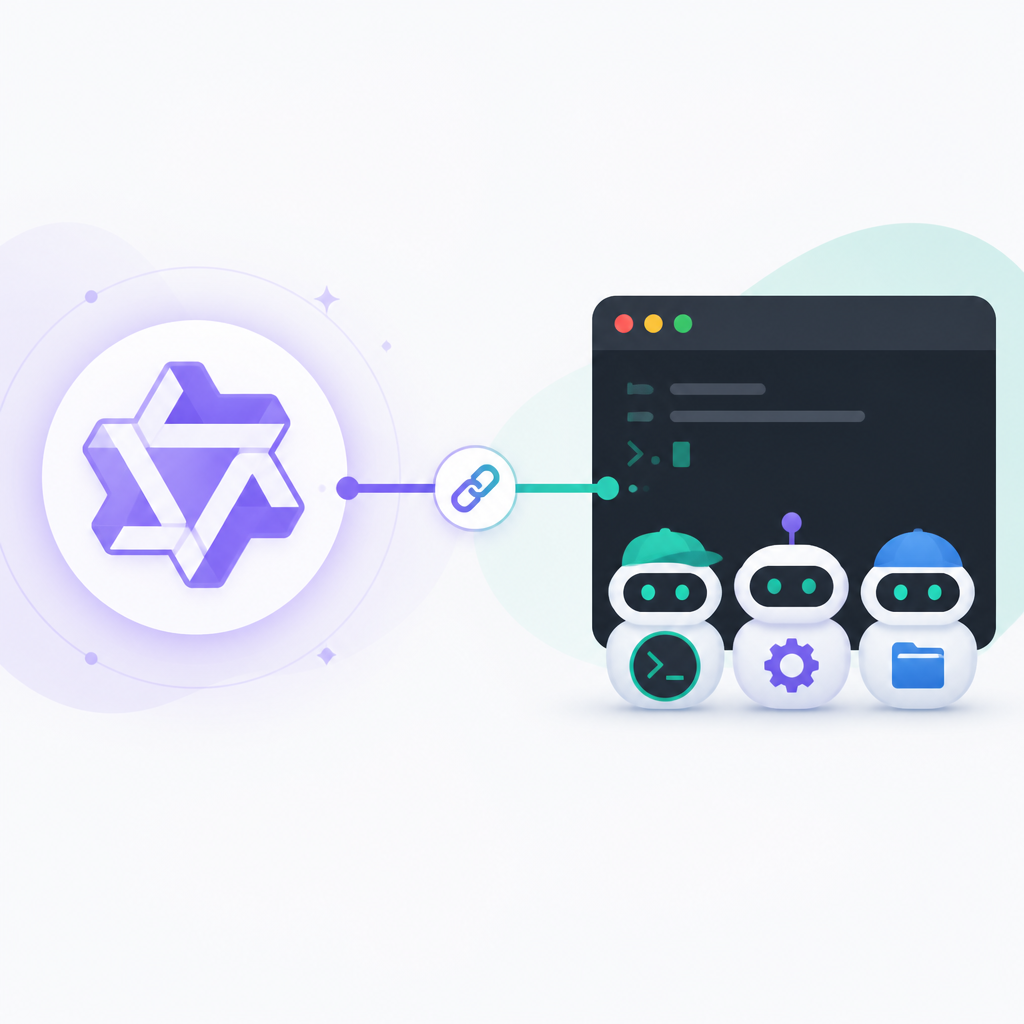
export QWEN_API_KEY="your_api_key_here
echo $QWEN_API_KEY
Verify that your key is available in the shell and that your provider dashboard shows the model as enabled. You should see the key echoed back and no permission errors when you open the model page.
Step 2: Choose the protocol your client will use
The next goal is to decide whether your agent will talk to Qwen through an OpenAI-compatible endpoint or an Anthropic-compatible endpoint. This matters because many existing tools can switch providers without code changes if the wire format matches.
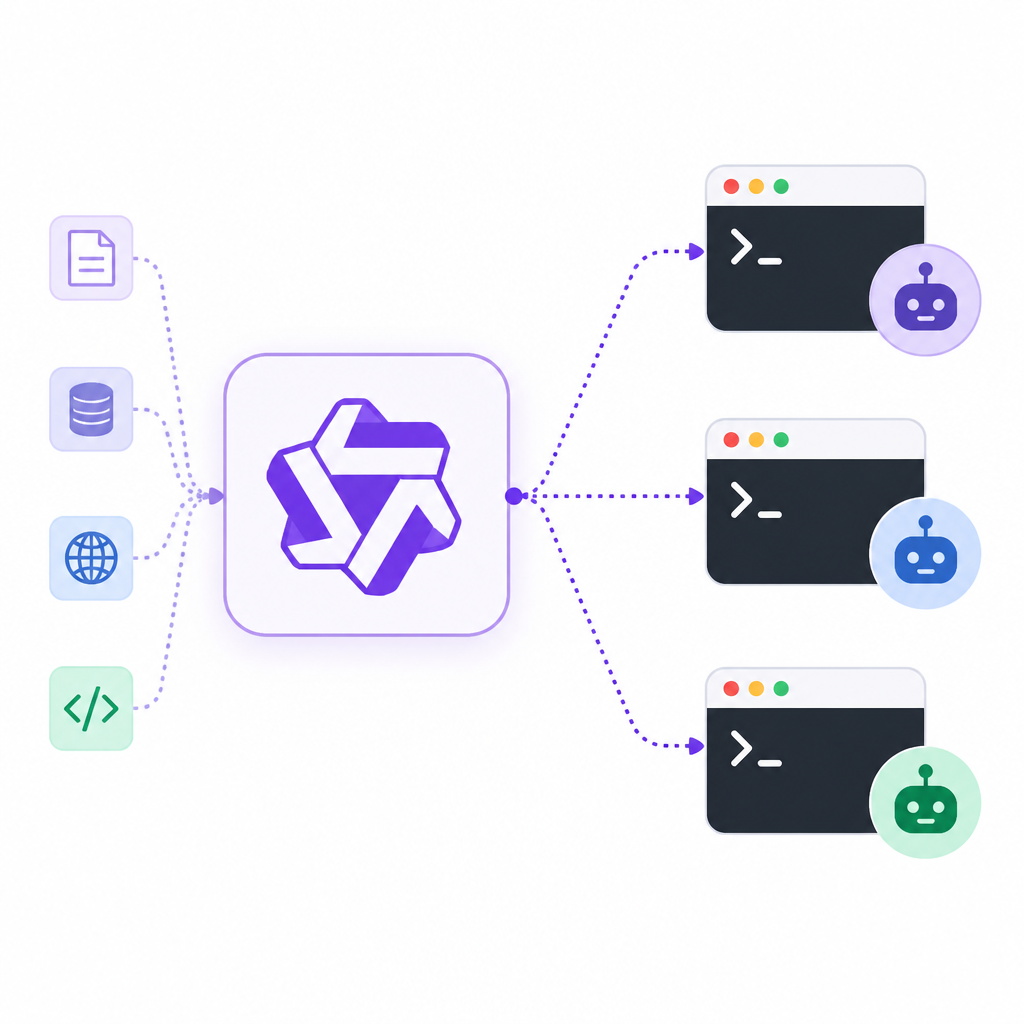
If your tool already supports OpenAI-style configuration, point it at the Qwen endpoint and set the API key. If it supports Anthropic-style configuration, use the Anthropic-compatible base URL and the same key pattern required by your provider.
Verify the client can load the configuration without rejecting the base URL. You should see the tool start normally and list the provider as available.
Step 3: Set reasoning effort for agent work
Your goal here is to tune the model for the task at hand by selecting one of the reasoning levels exposed by the API: xhigh, medium, or low. This is the key control for CLI workflows that need either deeper planning or faster responses.
// Example request shape
{
  "model": "qwen-3.8-max",
  "reasoning_effort": "xhigh",
  "messages": [
    { "role": "user", "content": "Refactor this module and explain the changes." }
  ]
}
Verify the request is accepted and that the response time changes when you switch between low and xhigh. You should see shorter, more direct answers at low and more deliberate responses at xhigh.
Step 4: Wire the model into your CLI tool
The goal now is to make your agent or command-line assistant call Qwen 3.8 Max instead of a default model. This is where compatibility pays off, because many tools only need endpoint, key, and model name updates.
Update the client config, then run a simple prompt such as code explanation, file editing, or test generation. Keep the prompt small at first so you can isolate configuration issues from prompt quality issues.
Verify the tool returns a completion through Qwen and not a fallback provider. You should see the model name in logs or output metadata, plus a coherent answer to your test prompt.
Step 5: Test migration from another agent stack
Your final goal is to confirm that an existing Claude Code, Qoder, or OpenClaw workflow can be moved over with minimal changes. This step proves the compatibility claim in a real developer setup, not just in theory.
Run one familiar task from your current stack, such as editing a function, generating a test, or summarizing a diff. Then compare the prompt format, tool behavior, and output quality against your previous model.
Verify that your old workflow still works after the provider swap. You should see the same commands, similar tool behavior, and no protocol translation errors.
| Metric | Before/Baseline | After/Result |
|---|---|---|
| CLI integration path | New custom adapter required | OpenAI or Anthropic-compatible configuration |
| Reasoning control | Single default mode | xhigh / medium / low |
| Migration effort | Rebuild agent wiring | Reuse existing Claude Code-style setup |
Common mistakes
- Using the wrong base URL. Fix: match the endpoint to the protocol your tool expects, then retry with a minimal prompt.
- Leaving reasoning_effort unset. Fix: choose low for speed, medium for balanced tasks, or xhigh for deeper planning.
- Assuming every CLI tool supports both protocols. Fix: check the tool's docs first and confirm it accepts OpenAI-compatible or Anthropic-compatible settings.
What's next
Once the model is running in your CLI, the next step is to benchmark it on your own codebase tasks, then compare output quality, latency, and edit reliability against your current agent model.
// Related Articles
- [AGENT]
FaithEyes lets you train tool-faithful vision agents
- [AGENT]
Fine-tune a small LLM for legal labeling
- [AGENT]
SALA Boosts Long Context on Edge AI
- [AGENT]
Anthropic’s breach proves AI agents need hard security limits
- [AGENT]
GenAI.mil turns a scary prompt into a report
- [AGENT]
EPAM’s OpenAI deal turns pilots into production