Deploy MiniMax M3 with vLLM OpenAI API
Run MiniMax M3 locally with vLLM and expose an OpenAI-compatible API.

Run MiniMax M3 locally with vLLM and expose an OpenAI-compatible API.
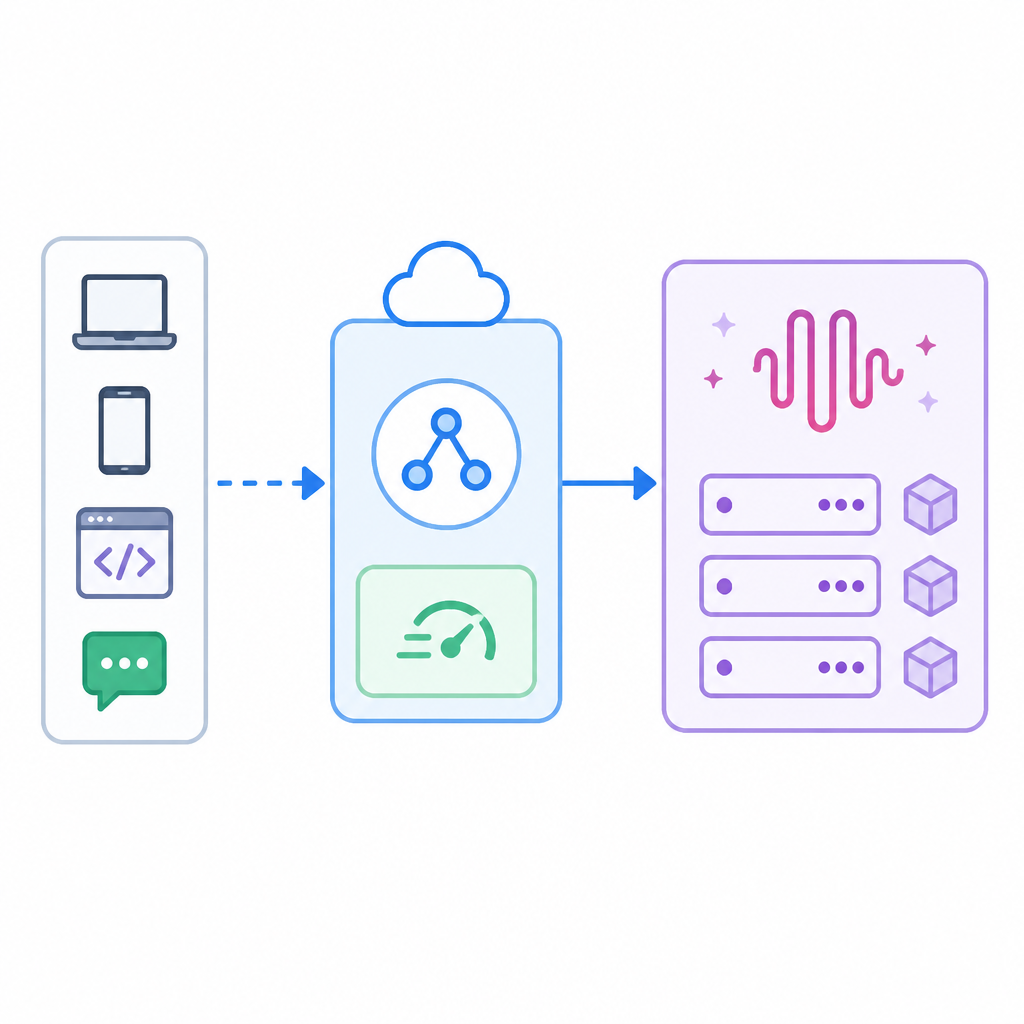
This guide is for developers who want to serve MiniMax M3 with vLLM and keep the interface OpenAI-compatible. By the end, you will have a running model server, tool-calling and reasoning parsers enabled, and a quick way to verify that requests reach the endpoint.
You will also know which runtime pieces matter most: GPU access, Hugging Face cache mounting, tensor parallelism, and the exact flags used by the MiniMax M3 recipe in vLLM.
Before you start
Get the latest AI news in your inbox
Weekly picks of model releases, tools, and deep dives — no spam, unsubscribe anytime.
No spam. Unsubscribe at any time.
- Docker installed, version 24+.
- NVIDIA GPU with CUDA-capable drivers installed.
- At least 1 GPU; 8 GPUs recommended for the sample tensor parallel setting.
- Hugging Face account and access to the
MiniMaxAI/MiniMax-M3-MXFP8model. - Hugging Face token configured locally with
huggingface-cli loginor an equivalent secret mount. - Linux host with
--privilegedand--ipc=hostsupport for the container run command. - Enough disk space for model weights and cache, ideally 100 GB+ free.
Step 1: Pull the vLLM OpenAI image
Your first outcome is a ready-to-run container image that already includes the OpenAI-compatible server entrypoint used by the MiniMax M3 recipe.

docker pull vllm/vllm-openai:minimax-m3After the pull completes, you should see Docker report the image as downloaded locally. If you run docker images, you should see vllm/vllm-openai with the minimax-m3 tag.
Step 2: Mount the Hugging Face cache
Your next outcome is persistent model caching, so the weights do not download again every time you restart the server.
mkdir -p ~/.cache/huggingfaceThen make sure your Hugging Face credentials are available to the runtime. A common path is to log in once on the host and mount the cache into the container, as shown in the final run command. You should be able to list files under ~/.cache/huggingface and see token and model cache directories after the first download.
Step 3: Start the MiniMax M3 server
Your main outcome is a live API server on port 8000 that loads MiniMax M3 with the recipe settings from the source guide.
docker run --gpus all --privileged --ipc=host -p 8000:8000 \
  -v ~/.cache/huggingface:/root/.cache/huggingface \
  vllm/vllm-openai:minimax-m3 MiniMaxAI/MiniMax-M3-MXFP8 \
  --block-size 128 \
  --tensor-parallel-size 8 \
  --tool-call-parser minimax_m3 \
  --enable-auto-tool-choice \
  --reasoning-parser minimax_m3
When the container starts correctly, you should see vLLM logs that mention model loading, tokenizer setup, and the OpenAI-compatible server binding to 0.0.0.0:8000. If the model is downloading, expect extra progress output before the server becomes ready.
Step 4: Verify the OpenAI-compatible endpoint
Your outcome here is proof that the server is reachable and responding to API calls, not just running in the background.
curl http://localhost:8000/v1/modelsYou should see a JSON response that lists the loaded model or available model entry. If that request returns model metadata, the server is healthy and the OpenAI-style route is working.
Step 5: Confirm tool calling and reasoning parsers
Your final outcome is a server configured for agentic workflows, with MiniMax M3-specific tool-call and reasoning parsing enabled.
curl http://localhost:8000/v1/chat/completions \
  -H 'Content-Type: application/json' \
  -d '{
    "model": "MiniMaxAI/MiniMax-M3-MXFP8",
    "messages": [{"role": "user", "content": "List two tools you would use to inspect a repo."}],
    "max_tokens": 64
  }'
You should see a chat-completions response rather than an error, and the server logs should show the request passing through the MiniMax M3 parser path. If you later connect an agent framework, this is the endpoint you will point it at.
| Metric | Before/Baseline | After/Result |
|---|---|---|
| API compatibility | No local endpoint | OpenAI-compatible server on port 8000 |
| Tool-calling support | Disabled | --enable-auto-tool-choice and --tool-call-parser minimax_m3 |
| Reasoning parsing | Disabled | --reasoning-parser minimax_m3 enabled |
| Parallelism | Single-device default | --tensor-parallel-size 8 |
Common mistakes
- Using the wrong model name. Fix: keep
MiniMaxAI/MiniMax-M3-MXFP8exactly as shown in the recipe unless the vLLM docs say otherwise. - Forgetting GPU support in Docker. Fix: install the NVIDIA Container Toolkit and rerun with
--gpus all. - Setting tensor parallelism higher than available GPUs. Fix: match
--tensor-parallel-sizeto the number of visible GPUs, or reduce it for a smaller machine.
What's next
Once the server is stable, the next step is to connect an agent framework or client SDK to http://localhost:8000/v1, then tune context length, batching, and GPU memory settings using the vLLM recipe and the MiniMax M3 source notes.
// Related Articles