Run Linux containers on WSL with wslc
Set up WSL 2.9.3+ and use wslc.exe to build, run, and inspect Linux containers on Windows.
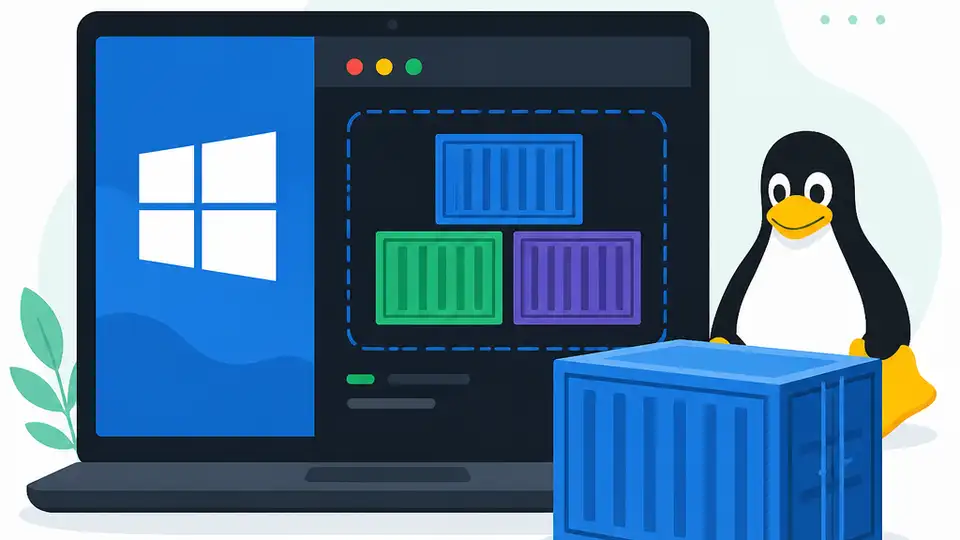
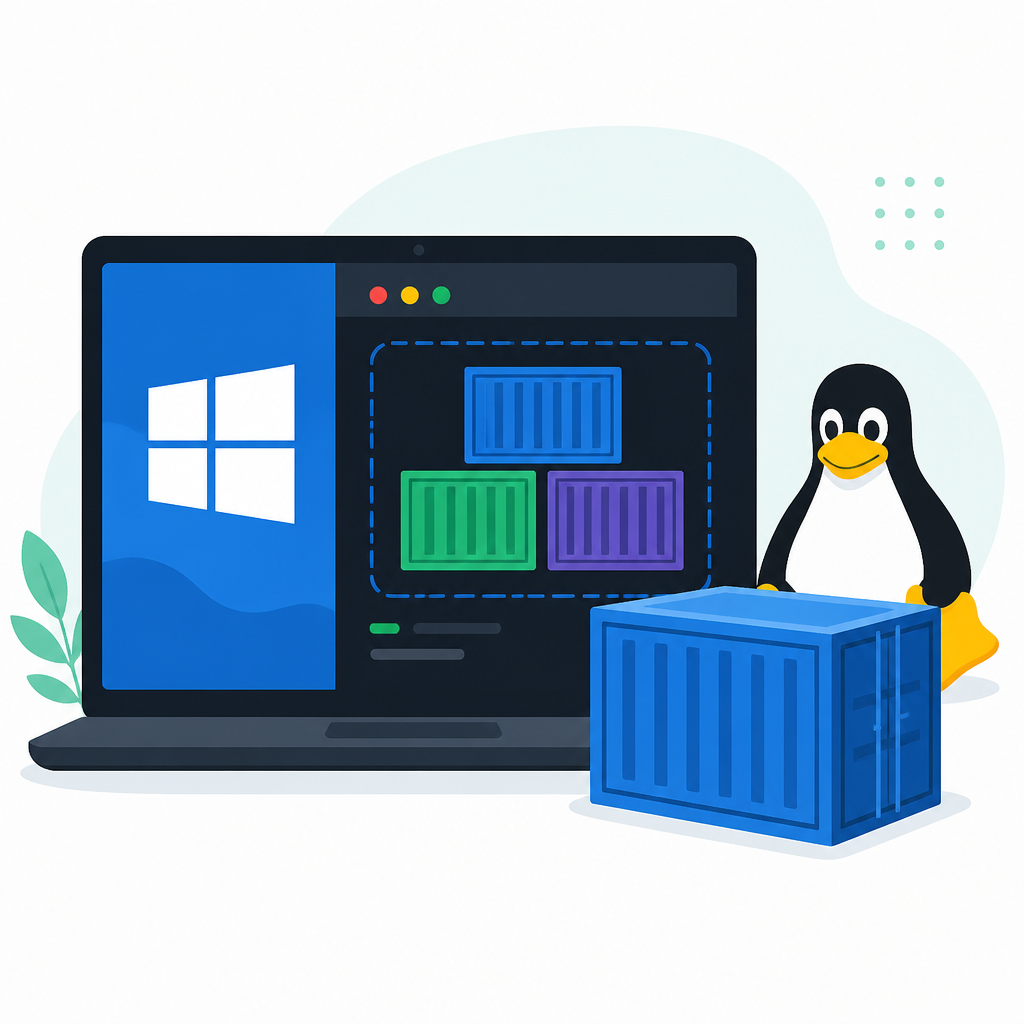
Use wslc.exe on WSL to build and run Linux containers from Windows.
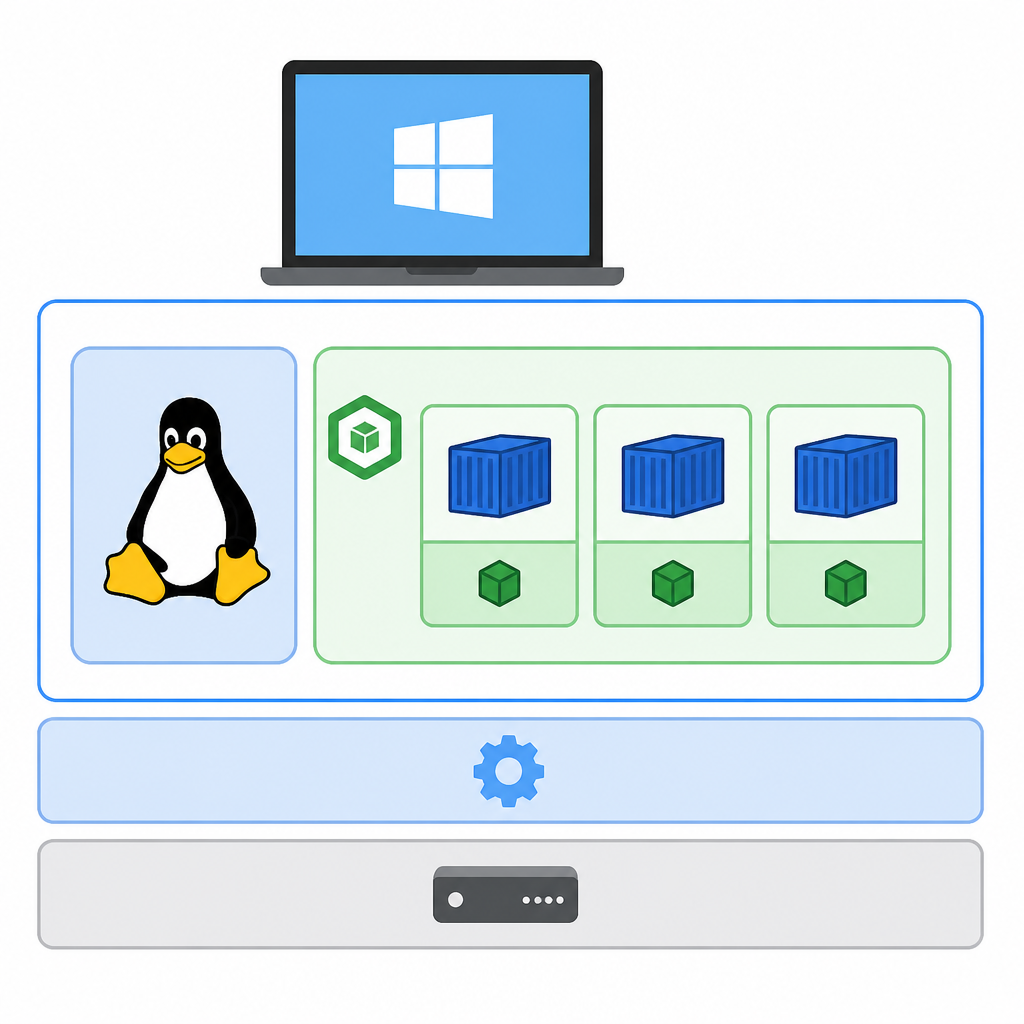
This guide is for Windows developers who want a local container workflow inside Windows Subsystem for Linux (WSL), with no separate container engine to install. After you follow the steps, you will have WSL updated, wslc verified, a sample container running, and a path to build your own app image.
You will also know how to publish ports, inspect logs, and clean up stopped containers so the setup stays fast and easy to maintain. The workflow works well with Visual Studio Code and a Linux distro such as Ubuntu.
Before you start
Get the latest AI news in your inbox
Weekly picks of model releases, tools, and deep dives — no spam, unsubscribe anytime.
No spam. Unsubscribe at any time.
- Windows 11 or Windows 10 with WSL installed
- WSL version 2.9.3 or higher
- PowerShell access on Windows
- Optional: Visual Studio Code with the WSL extension
- Optional: Windows Terminal
- Git installed in your WSL distro
- A Linux distro such as Ubuntu installed in WSL
Step 1: Update WSL to a pre-release build
Your first outcome is a WSL install that includes the built-in wslc.exe CLI. Microsoft’s tutorial requires WSL 2.9.3 or higher, and that version is currently available only in pre-release builds.
wsl --update --pre-release
wsl --version
You should see a WSL version at 2.9.3 or higher in the version output. If the update succeeds, you have the base runtime needed for container commands.
Step 2: Confirm wslc is available
Next, verify that the container CLI shipped with WSL is ready to use. This confirms the tool is installed and responding before you try to run any images.
wslc version
wslc --help
You should see a version string for wslc and a help page listing commands such as run, build, image, container, and stats. That means the CLI is reachable from PowerShell.
Step 3: Run the hello-world container
Now prove the container path works end to end by pulling and running a tiny built-in image. This is the fastest check that WSL, the image pull, and the runtime are all connected correctly.
wslc run --rm hello-worldYou should see a Hello message that confirms the installation appears to be working correctly. If that message shows up, you have a working container runtime on WSL.
Step 4: Start a web container and publish a port
After the smoke test, run a real container in the background and map it to a Windows port. This gives you a practical loop for testing a service from your browser or local tools.
wslc run -d --rm -p 8080:80 --name web nginx
curl localhost:8080
wslc container list
wslc exec web cat /etc/os-release
wslc container stop web
You should see a response from localhost:8080, the container listed as running, and Linux details from inside the container. When you stop it, the container is removed automatically because --rm was used.
Step 5: Build your own image in WSL
Now move from a stock image to your own app image. The key outcome here is a Containerfile in your project root and a tagged image you can run later.
FROM python:3
WORKDIR /app
COPY requirements.txt .
RUN pip install --no-cache-dir -r requirements.txt
COPY . .
EXPOSE 8000
CMD ["python", "manage.py", "runserver", "0.0.0.0:8000"]
From the folder that contains the Containerfile, build the image with a tag you can reuse. Microsoft recommends keeping project files on the WSL file system for better performance when Linux tools access them.
wslc build -t helloworld-django .
wslc image list
You should see the new image in the image list. If you build from the WSL file system, file access should feel much faster than working from the Windows file system.
Step 6: Run, inspect, and clean up the app container
Finish by running your image, checking logs, and then cleaning up resources. This gives you a repeatable workflow for development and troubleshooting.
wslc run -d --rm -p 8000:8000 --name django helloworld-django
wslc container list
wslc container logs django
wslc exec django uname
wslc container stop django
wslc container prune
wslc image prune
You should see the app available at http://localhost:8000/, logs from the container, and uname reporting Linux. After cleanup, stopped containers and unused images should be removed.
| Metric | Before/Baseline | After/Result |
|---|---|---|
| WSL version | Below 2.9.3 | 2.9.3 or higher with pre-release update |
| Container CLI | No wslc.exe access | wslc version returns a valid CLI version |
| Smoke test | No container verification | hello-world prints the Hello confirmation |
| Port publishing | No local service exposure | localhost:8080 or localhost:8000 reaches the container |
Common mistakes
- Using WSL below 2.9.3. Fix: run
wsl --update --pre-releaseand confirm withwsl --version. - Storing project files on the Windows file system. Fix: keep the code in the WSL file system so Linux tools can read and write it faster.
- Forgetting to publish the container port. Fix: add
-p host:container, such as-p 8000:8000, before testing in a browser.
What's next
From here, explore the WSL container overview, the container API samples, and the VS Code WSL workflow so you can debug, automate, and extend this setup for your own services.
// Related Articles
- [TOOLS]
Claim Alibaba Cloud Free Trial Credits on ECS
- [TOOLS]
DeepSeek V4 Flash turns Agent work cheap
- [TOOLS]
GPT-5.6 Sol cuts GPU costs 20%
- [TOOLS]
Astra Turns a Math Post Into a Model Launch
- [TOOLS]
OpenAI’s API changelog adds spend caps, transcribe, and Fast mode
- [TOOLS]
Windsurf’s IntelliJ plugin is a shortcut, not a strategy