Install OpenClaw on Windows with PowerShell
Set up OpenClaw on Windows with PowerShell, WSL2, or Kimi Claw.

Set up OpenClaw on Windows with PowerShell, WSL2, or Kimi Claw.
This guide is for Windows developers who want OpenClaw running locally or in the cloud with the fewest surprises. After you follow the steps, you will have a working install, a configured model provider, and a clear path for either a quick PowerShell setup or a fuller WSL2 environment.
You will also know when to skip local setup entirely and use Kimi Claw for a browser-based deployment. For the local paths, the official OpenClaw project on GitHub and the Windows install docs on OpenClaw docs are the references used throughout this guide.
Before you start
Get the latest AI news in your inbox
Weekly picks of model releases, tools, and deep dives — no spam, unsubscribe anytime.
No spam. Unsubscribe at any time.
- Windows 10 or Windows 11, 64-bit
- Administrator access for WSL2 setup
- Node.js 22.14 or higher
- Git for Windows, recommended
- At least 4 GB RAM, 8 GB recommended
- Stable internet connection
- Kimi Platform account for API key creation
- OpenClaw account or access to the installer URL
- Virtualization enabled in BIOS or UEFI if you plan to use WSL2
Step 1: Enable script execution and launch the installer
Your goal here is to prepare PowerShell so it can run the OpenClaw bootstrap script and start the Windows installer in one pass. This is the fastest local path and avoids setting up a Linux environment first.
Set-ExecutionPolicy RemoteSigned -Scope CurrentUser
iwr -useb https://openclaw.ai/install.ps1 | iex
When the command finishes, you should see the onboarding wizard open or print setup prompts in the terminal. If PowerShell blocks the script, reopen it as your current user and confirm that the execution policy changed successfully.
Step 2: Complete onboarding and choose QuickStart
Your goal is to get through the first-run prompts and pick the simplest configuration path. QuickStart is the right choice if you want OpenClaw running quickly and plan to tune settings later.
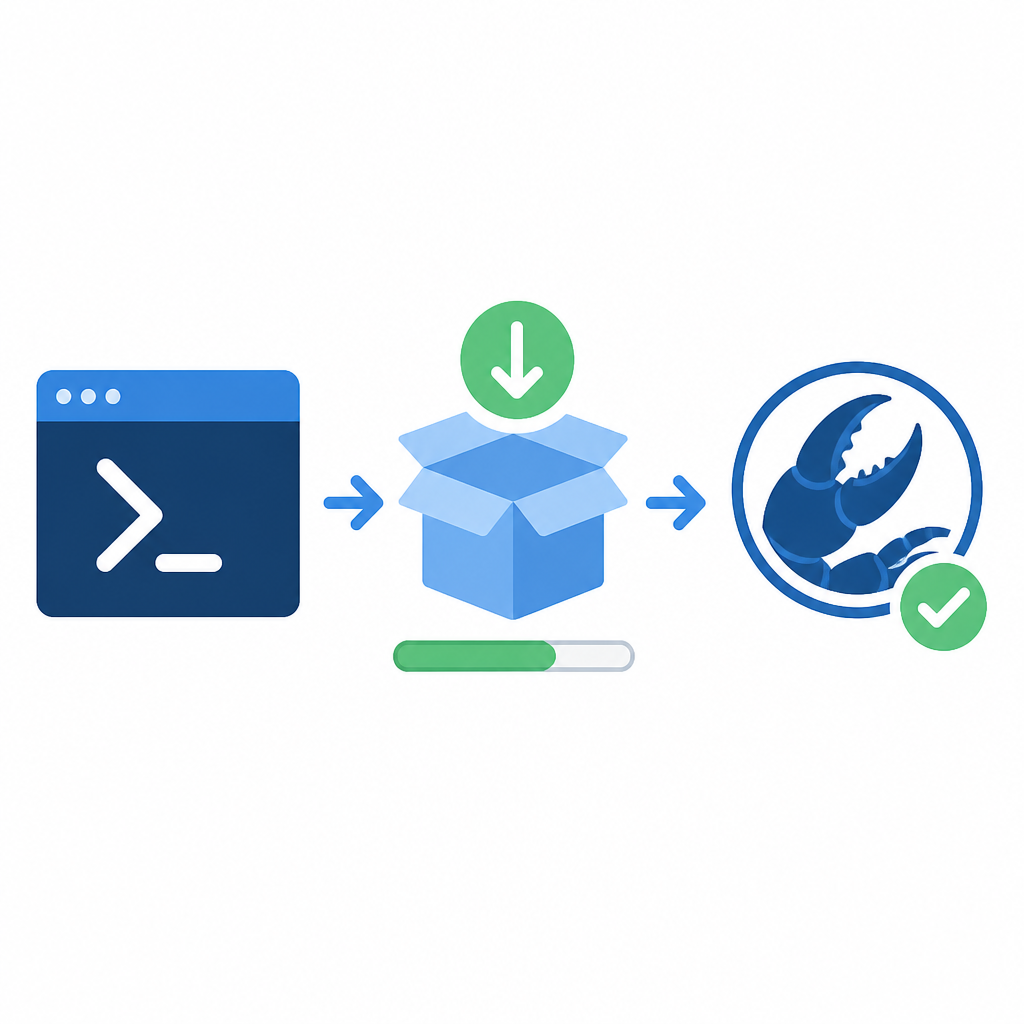
In the wizard, accept the risk prompt, then choose QuickStart when asked for onboarding mode. If you prefer full manual control, you can choose Manual instead, but that adds more prompts and more decisions.
You should see the installer move on to model configuration after you confirm the onboarding choice. If it returns to the terminal without progress, close PowerShell, reopen it, and run the installer again.
Step 3: Create a Kimi API key and connect the model
Your goal is to connect OpenClaw to a model provider so the agent can actually run tasks. OpenClaw uses the Kimi Platform for authentication, so you need a valid API key before the agent can start.
Open the Kimi Platform, go to API Keys, and create a new key. Paste that key into the onboarding prompt, then select moonshot/kimi-k2.5 as the default model if it is offered. Keep the key private because it is shown only once at creation.
You should see the wizard accept the key and move to channel and performance settings. If the key is rejected, check that you copied the full value and that your account has the required access tier.
Step 4: Finish setup and verify the gateway
Your goal is to complete the remaining prompts and confirm that the OpenClaw gateway is running. This final check tells you whether the install is usable or still missing a service step.
Continue through channel selection, performance configuration, and hook setup until the wizard reports completion. Then verify the install from PowerShell or your terminal:
openclaw gateway statusYou should see a running gateway status, which means OpenClaw is ready for agent requests. If the status is stopped or missing, rerun onboarding with the install-daemon option or relaunch the gateway manually.
Step 5: Set up WSL2 for the full Linux path
Your goal is to install OpenClaw inside Ubuntu on WSL2 when you want the full Linux feature set. This path is better if you need systemd, smoother npm builds, or a setup that behaves more like a native server.
wsl --install -d UbuntuAfter Windows restarts, open Ubuntu and create your Linux username and password. Then confirm WSL is present by running wsl --list --verbose and checking that Ubuntu appears in the list.
You should see Ubuntu launch successfully and WSL report the distro as installed. If WSL is missing, make sure virtualization is enabled in BIOS or UEFI and that you ran PowerShell as Administrator.
Step 6: Install Node.js, OpenClaw, and daemon support
Your goal is to prepare the Linux environment, install the required runtime, and add OpenClaw as a service. This gives you a more durable setup that can start automatically when WSL boots.
sudo tee /etc/wsl.conf > /dev/null << 'EOF'
[boot]
systemd=true
[interop]
enabled=true
appendWindowsPath=true
EOF

wsl --shutdown
curl -fsSL https://deb.nodesource.com/setup_22.x | sudo -E bash -
sudo apt-get install -y nodejs
sudo npm install -g openclaw@latest
openclaw onboard --install-daemon
After that, verify Node.js with node --version and verify OpenClaw with openclaw --version. You should see Node 22.x or higher and a valid OpenClaw version string. If systemd is not active, reopen Ubuntu and check that ps -p 1 -o comm= returns systemd.
Step 7: Choose Kimi Claw for zero local setup
Your goal is to skip local installation entirely when you want the fastest path to a working agent. Kimi Claw runs OpenClaw in the browser and removes the need for Node.js, WSL, or manual API key handling.
Open Kimi Claw, create an instance, and confirm deployment. The workspace should open in about two minutes, with the gateway, tools, and storage already prepared for you.
You should see the browser workspace load with a ready-to-use agent. If you do, the setup is complete and you can start automating tasks without touching Windows services or Linux configuration.
| Metric | Before/Baseline | After/Result |
|---|---|---|
| Setup steps | PowerShell or WSL2 with multiple manual checks | Single-command PowerShell install or browser-based Kimi Claw |
| Environment required | Windows plus Node.js and optional WSL2 | Windows only for PowerShell, no local runtime for Kimi Claw |
| Time to first workspace | Longer local setup with runtime and service configuration | About two minutes in Kimi Claw |
| Feature coverage | Local install depends on chosen path | Full agent workspace with cloud persistence in Kimi Claw |
Common mistakes
- Using Node.js below 22.14: upgrade to Node 22.14 or higher before rerunning the installer.
- Skipping PowerShell execution policy changes: set
RemoteSignedfor the current user, then relaunch PowerShell. - Forgetting to enable systemd in WSL2: add
systemd=truein/etc/wsl.conf, then runwsl --shutdownand reopen Ubuntu.
What's next
Once OpenClaw is running, the next step is to connect messaging channels, add skills, and decide whether you want the local gateway or a cloud workspace for daily work. If you are planning production use, read the OpenClaw security and remote-access guidance before exposing any UI or service beyond localhost.
// Related Articles
- [TOOLS]
Kitesurf turns Workers into an agent browser
- [TOOLS]
CUDA warps turn GPU threads into one machine
- [TOOLS]
Harness turns agent coding into a steadier loop
- [TOOLS]
Source 2 swaps BSP for meshes and octrees
- [TOOLS]
Golang basics for beginners in 2026
- [TOOLS]
Run Linux containers on WSL with wslc