Run MiniMax M3 locally in Unsloth Studio
Set up Unsloth Studio to download and run MiniMax M3 on your own machine.

Set up Unsloth Studio to download and run MiniMax M3 on your own machine.
This guide is for developers who want to run MiniMax M3 locally instead of using a hosted API. After following the steps, you will have Unsloth Studio installed, a browser UI running on your machine, and a working MiniMax M3 chat session loaded from a GGUF quant.
You will also know the memory requirements for each quant, how to launch the app on macOS, Windows, Linux, or WSL, and when to switch to the llama.cpp path if you prefer a CLI workflow. The steps below use the latest Unsloth Studio build and the current experimental MiniMax M3 GGUFs.
Before you start
Get the latest AI news in your inbox
Weekly picks of model releases, tools, and deep dives — no spam, unsubscribe anytime.
No spam. Unsubscribe at any time.
- An account or access to the official Unsloth MiniMax M3 docs and the Unsloth GitHub repository.
- Python 3.10+ installed on macOS, Windows, Linux, or WSL.
- Terminal access with curl, PowerShell, or bash.
- At least 133 GB of available memory for the smallest 1-bit quant, and more for larger quants.
- For GPU acceleration, a system with CUDA-capable NVIDIA hardware; for Apple Silicon, macOS with unified memory.
- Enough disk space for the model you plan to download, such as 128 GB for UD-IQ1_M or 208 GB for UD-IQ4_XS.
- A modern browser for opening the local web UI at 127.0.0.1:8888.
Step 1: Install the latest Unsloth Studio build
Goal: install the exact Studio version that supports MiniMax M3, so the model appears in the local UI and can be launched without manual patching.

Use the current release channel mentioned in the docs, then start the installer in your terminal. On macOS, Linux, or WSL, run the shell installer. On Windows, run the PowerShell installer.
curl -fsSL https://unsloth.ai/install.sh | shOr on Windows PowerShell:
irm https://unsloth.ai/install.ps1 | iexYou should see the installation complete without errors, and the Studio command should become available in your shell.
Step 2: Launch the local web server
Goal: start Unsloth Studio on localhost so you can manage models from a browser instead of a terminal-only interface.
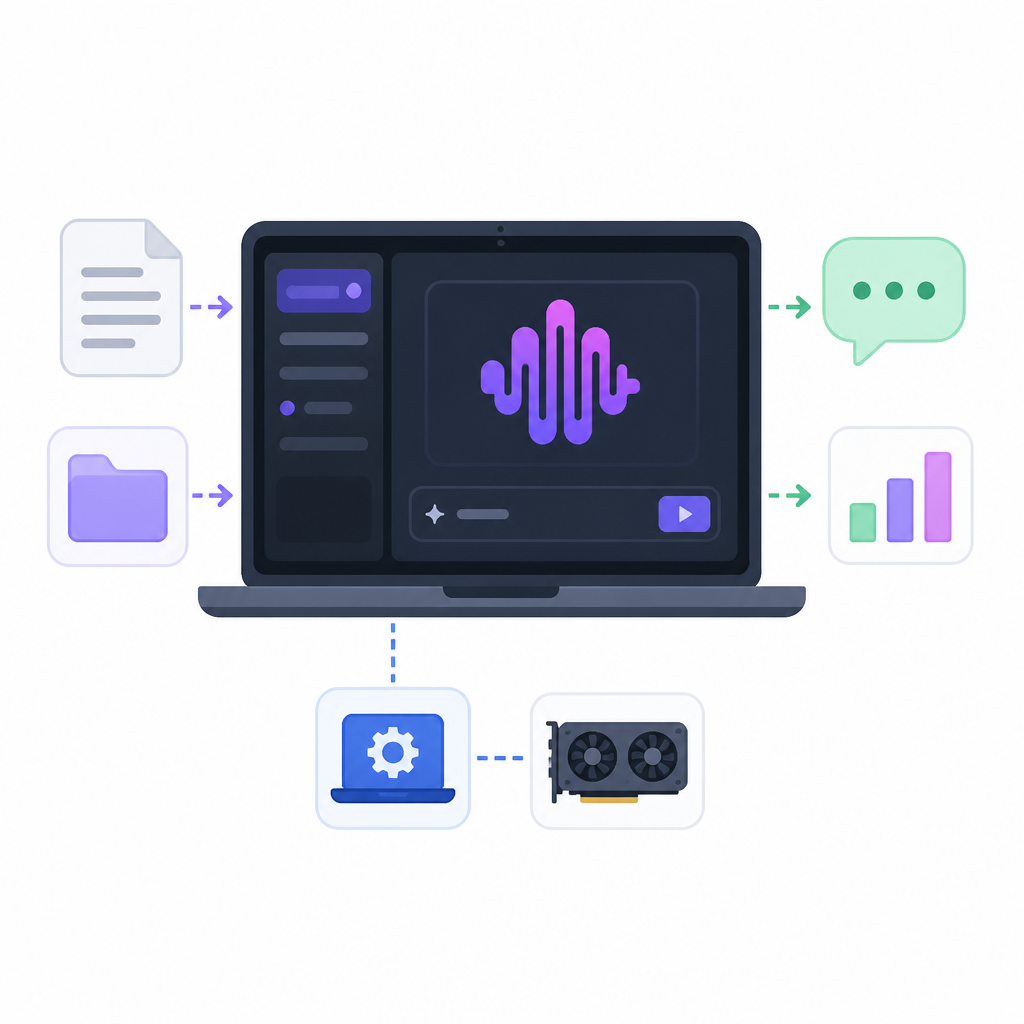
Run the Studio server on port 8888. If your environment needs a different host binding, use the same command with your preferred host and port values.
unsloth studio -H 0.0.0.0 -p 8888Then open http://127.0.0.1:8888 in your browser. On first launch, create a password and sign in again.
You should see the Studio dashboard and a login prompt or main interface after authentication.
Step 3: Download MiniMax M3 from Studio Chat
Goal: fetch the MiniMax M3 GGUF quant you can actually fit on your machine, starting with the smallest option for easiest success.
In the Studio Chat tab, search for MiniMax M3 and choose a quant. The docs recommend starting with UD-IQ1_M for the smallest footprint, then moving up to UD-IQ3_XXS, UD-IQ4_XS, or UD-Q4_K_XL if your memory budget allows it.
MiniMax M3 is an experimental GGUF path, and the current build is text-only. That means you should not expect native multimodal input or MiniMax Sparse Attention in this local path yet.
You should see the model download progress complete and the selected quant appear in your local model list.
Step 4: Run MiniMax M3 with safe inference settings
Goal: start a working chat session with stable defaults that match the model author’s recommended parameters.
MiniMax recommends temperature 1.0, top_p 0.95, and top_k 40. Studio can auto-set these values, but you can edit them manually if you need tighter or looser generation.
For the best chance of a clean first run, keep the context length reasonable for your hardware. The maximum context window is 1,048,576 tokens, but dense-attention fallback can consume a lot of memory at very long contexts.
You should see the model respond in the Studio chat panel with your chosen prompt and settings.
Step 5: Verify memory fit and choose the right quant
Goal: avoid out-of-memory failures by matching the quant size to your available RAM, VRAM, or unified memory.
The docs list the smallest 1-bit quant at 128 GB on disk and recommend at least 133 GB of total memory to account for KV cache and context allocation. Larger quants need more headroom, so treat the file size as a minimum, not a guarantee.
If your system is closer to 256 GB or 512 GB class, try a larger quant such as UD-IQ4_XS or UD-Q4_K_XL for better output quality. If you are on a smaller system, stay with UD-IQ1_M and reduce context length.
You should see the model load successfully without memory errors, and the UI should remain responsive during generation.
| Metric | Before/Baseline | After/Result |
|---|---|---|
| Model weight size | BF16 weights, about 855 GB | 1-bit GGUF, 128 GB |
| Disk reduction | Baseline full precision | About 85% smaller |
| Minimum memory for smallest quant | Not enough for KV cache | At least 133 GB total memory recommended |
| Context window | Standard short-context models | 1,048,576 tokens supported in the model spec |
| SWE-Bench Pro score | Prior local coding models vary | 59% reported for MiniMax M3 |
Step 6: Switch to llama.cpp for CLI control
Goal: run the same model from the command line when you want more control over cache location, threads, or GPU offload.
Clone the specified llama.cpp branch, build the CLI targets, and then either pull the GGUF directly or download it manually with Hugging Face tools. If you do not have a GPU, set CUDA off and use CPU inference. On Apple Silicon, keep Metal enabled by default.
git clone https://github.com/ggml-org/llama.cpp
cd llama.cpp
git fetch origin pull/24523/head:minimax-m3
git checkout minimax-m3
cmake -B build -DGGML_CUDA=ON
cmake --build build --config Release -j --target llama-cli llama-server
For a quick run, the docs show a command that sets LLAMA_CACHE and loads the UD-IQ1_M quant. You can also tune --threads, --ctx-size, and --n-gpu-layers to fit your hardware.
You should see llama-cli build successfully, then print generated text when you run a prompt against the downloaded model.
Common mistakes
- Using an older Studio version. Fix: upgrade to the latest v0.1.463-beta or 2026.6.6 so MiniMax M3 appears in the UI.
- Picking a quant that exceeds your memory. Fix: start with UD-IQ1_M, then move up only after checking total RAM plus VRAM headroom.
- Expecting multimodal features in the GGUF path. Fix: remember the current experimental GGUF is text-only and does not support MiniMax Sparse Attention yet.
What's next
Once MiniMax M3 is running locally, the next useful step is to compare Studio chat against llama.cpp CLI runs, then try a larger quant or a longer context on hardware that can sustain it. If you plan to automate workflows, move on to the Unsloth inference and deployment docs, then test tool calling and prompt templates for your own agent stack.
// Related Articles
- [TOOLS]
Astra Turns a Math Post Into a Model Launch
- [TOOLS]
OpenAI’s API changelog adds spend caps, transcribe, and Fast mode
- [TOOLS]
Windsurf’s IntelliJ plugin is a shortcut, not a strategy
- [TOOLS]
SWE-1.7 free preview lands in Devin Desktop
- [TOOLS]
Vibe Island’s changelog shows the right product bets
- [TOOLS]
OpenAI Newsroom turns announcements into a digest