Supabase’s Docker self-hosting guide gets practical
Supabase’s Docker guide shows how to run the stack locally or on a server, with setup scripts, secrets, and ports spelled out.

Supabase’s Docker guide explains how to run the full stack on your own server.
Supabase says the Docker setup can get you running in less than 15 minutes on supported Linux systems, and the default stack expects at least 4 GB of RAM, 2 CPU cores, and 40 GB of SSD storage. That makes this guide useful for teams that want the control of self-hosting without stitching together every service by hand.
| Item | Value | Why it matters |
|---|---|---|
| Quick-start time | < 15 minutes | Fast path for Linux users |
| Minimum RAM | 4 GB | Enough for small production or dev use |
| Recommended RAM | 8 GB+ | Better fit for heavier workloads |
| Minimum CPU | 2 cores | Baseline for the full stack |
| Minimum disk | 40 GB SSD | Space for services and data |
| Recommended disk | 80 GB+ SSD | More room for growth |
What Supabase is really shipping here
Get the latest AI news in your inbox
Weekly picks of model releases, tools, and deep dives — no spam, unsubscribe anytime.
No spam. Unsubscribe at any time.
The Supabase Docker guide is a practical deployment recipe, not a high-level overview. It bundles the core services, the API gateway, authentication, storage, realtime, and database access into a stack that can run on a VPS or a local machine.
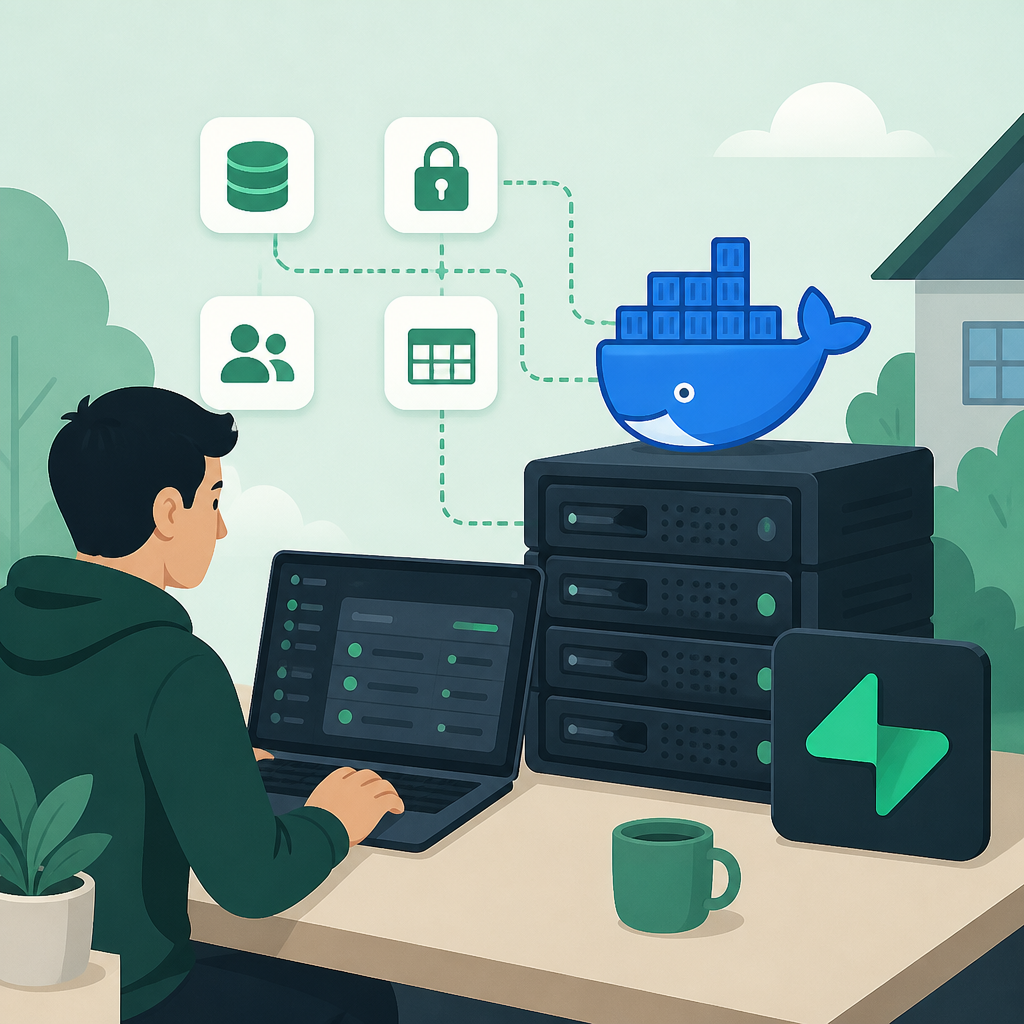
That matters because self-hosting usually fails in the glue code: secrets, ports, reverse proxies, and service health checks. Supabase tries to remove that friction by shipping a ready-made Docker Compose setup inside the main repository and wrapping common actions in scripts like run.sh.
The guide also makes a clear tradeoff. If you want the fastest path, use the Linux quick start. If you want control over every file and every variable, clone the repo and set it up manually. Both routes point to the same stack, but they serve different kinds of operators.
- Quick start: Linux only, with automated installs and generated secrets
- Manual install: works on any OS with Git and Docker
- Default API gateway port: 8000
- Postgres access through Supavisor: 5432 for session mode, 6543 for transaction mode
The setup flow is opinionated for a reason
Supabase’s quick-start script does a lot in one pass. It installs prerequisites, clones the Docker config, creates a project directory, asks for your URLs, generates keys, and pulls images. That reduces the chance that someone starts a stack with placeholder values or half-finished config.
The manual path is more explicit. You clone the Supabase repository, copy the Docker files into your own project folder, and then pull the images yourself. That extra work is useful if you want to inspect the files, run on macOS or Windows, or keep the deployment process under tight change control.
“Docker is the easiest way to get started with self-hosted Supabase.” — Supabase Docs
The docs also call out a detail that many teams miss on first run: the default example passwords and keys are placeholders only. Supabase wants you to generate fresh secrets before starting the stack, and the quick-start script does that for you automatically.
That includes a random dashboard password and the JWT signing key pair used by Auth. In other words, the setup is trying to solve the boring but dangerous parts of self-hosting before they become an incident.
Ports, URLs, and access paths tell you how the stack is wired
Supabase exposes most services through the same API gateway, usually on port 8000. The docs map the public URL, auth callback URL, and site URL into separate environment variables, which is a small detail with big consequences when you move from localhost to a VPS or a reverse proxy.
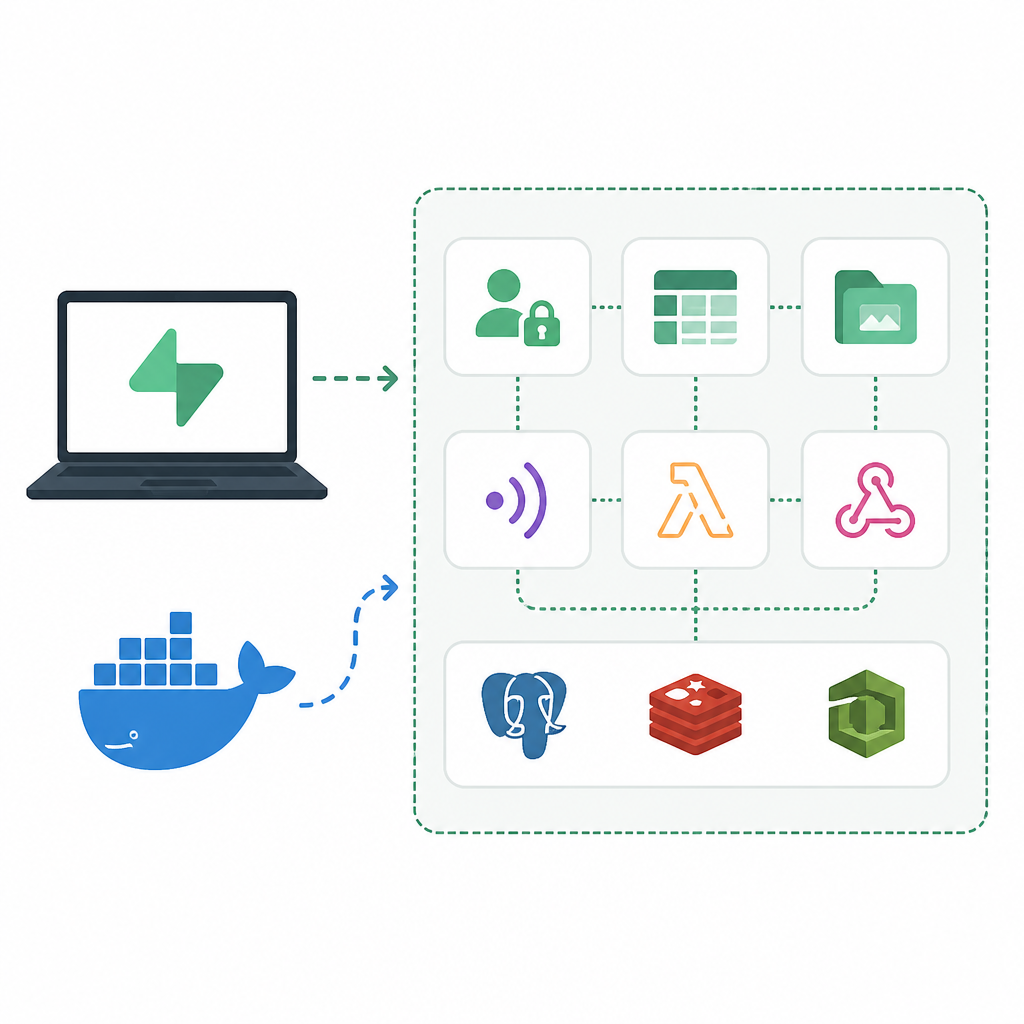
For database access, the self-hosted stack uses Supavisor as the connection pooler. You can connect in session mode on port 5432 or transaction mode on port 6543, and the tenant-specific username format matters when you use psql.
SUPABASE_PUBLIC_URLcontrols the base URL for the dashboard, API, and storageAPI_EXTERNAL_URLfeeds Auth callback URLsSITE_URLsets the default redirect target for AuthDASHBOARD_PASSWORDprotects Studio with HTTP basic authPOSTGRES_SECRETis not exposed, whileSUPABASE_SECRET_KEYmust stay server-side
That structure also explains why reverse proxies matter. If you terminate TLS at the proxy, the public-facing URL changes from plain HTTP on port 8000 to HTTPS on port 443, while the internal service layout stays the same.
There is a small but important warning for Docker users on Windows too: if Kong fails with an entrypoint error, the files may have CRLF line endings instead of LF. Supabase says a fresh clone should already use LF because of .gitattributes, which saves some painful debugging.
Updates are tied to the repo, not Docker Hub hype
This is the part administrators should read twice. Supabase says the versions in each release are tested together, which means the official stack can lag behind the newest images on Docker Hub. If you want to update, the docs tell you to apply the latest changes from the repository and restart the services.
That is a very different model from “pull the newest image and hope.” It trades a little speed for coordination across the whole stack, which matters when Postgres, Auth, Realtime, Storage, and the gateway all have to agree on interfaces and config.
The docs also separate starting, stopping, and recreating services. A plain restart is fine for many containers, but Edge Functions need a force recreation to pick up code changes. That distinction is easy to miss if you treat every container the same.
sh run.sh startis equivalent todocker compose up -d --waitdocker compose psshould show services as healthy after startupsh run.sh logs storagehelps inspect one service at a timesh run.sh recreate functionsis required for function updates
For teams running this in production, that update model is probably the most important operational signal in the guide. It says Supabase wants predictable releases more than image churn, and that should shape how you schedule maintenance windows.
What this means for teams choosing self-hosted Supabase
The guide is less about “can you run Supabase in Docker” and more about “can you run it without guessing.” The answer is yes, if you accept the constraints: Linux is the smoothest path, 8 GB of RAM is a better target than the bare minimum, and updates should come from the repo rather than random image pulls.
For a small team, that is a fair deal. You get a full backend stack with a documented startup path, known ports, explicit secrets, and a clean split between quick start and manual setup. For larger deployments, the real question is whether you want to keep operating within Supabase’s release cadence or build your own forked deployment process.
My read is simple: if you are evaluating self-hosted Supabase for the first time, start with the quick-start script on a disposable Linux VM and verify the health checks, credentials, and proxy setup before moving to production. If that works cleanly, the next decision is whether your team wants to own updates from the repo on a schedule, or keep the managed platform for the parts of the stack you do not want to babysit.
// Related Articles
- [TOOLS]
AWS Continuum turns AI coding into safer fixes
- [TOOLS]
Open-Generative-AI turns GitHub into a studio
- [TOOLS]
Why benchmark scores don’t predict your bill
- [TOOLS]
MCP Servers for Developers: 8 workflow gains in 2026
- [TOOLS]
Doubao turns a game prompt into a mini arcade
- [TOOLS]
Coding Plan turns Alibaba Cloud into IDE billing