Visual Studio turns Copilot into an IDE workflow
I broke down Visual Studio’s AI coding workflow and turned it into a copyable setup for prompting, edits, tests, and commits.

Visual Studio turns Copilot into a full coding workflow for edits, tests, and commits.
I've been using IDE copilots long enough to know when the pitch is doing too much work. A lot of them are fine at finishing a line, maybe okay at explaining a stack trace, and then they fall apart the second I ask for something that touches three files, a test suite, and a commit message. That is where I usually start muttering at my screen. The tool is “helpful,” sure, but I still end up doing the real coordination: open the right file, remember the edge case, run the tests, fix the follow-up error, write the commit, repeat.
Visual Studio’s AI story is trying to move that annoying coordination work into the IDE itself. Not just “here’s a chat panel.” More like: describe the job, let Copilot plan the steps, apply the changes, run checks, and keep iterating when it breaks. That’s the part that caught my attention. I do not need another autocomplete toy. I need something that can keep up when the work gets messy, especially in a codebase that already has opinions, build scripts, and too many moving parts.
What Microsoft is pushing here is not subtle. The Visual Studio IDE page says agent mode is available in GitHub Copilot Free and describes AI assistance that “reasons through problems, coordinates next steps, applies changes, and iterates on errors.” That wording is the whole story. It is not just drafting code. It is trying to take over the boring orchestration around coding, debugging, testing, and version control. Source: visualstudio.microsoft.com/vs/.
Stop treating Copilot like autocomplete with a chat bubble
Get the latest AI news in your inbox
Weekly picks of model releases, tools, and deep dives — no spam, unsubscribe anytime.
No spam. Unsubscribe at any time.
“Experience AI-powered coding assistance that reasons through problems, coordinates next steps, applies changes, and iterates on errors.”
What this actually means is Visual Studio is selling a workflow, not a suggestion box. I’ve seen too many teams use AI tools like a fancier IntelliSense and then wonder why they still feel slow. The point here is to hand the assistant a task that has shape: inspect code, decide what to change, make the edits, and keep going until the error is gone.
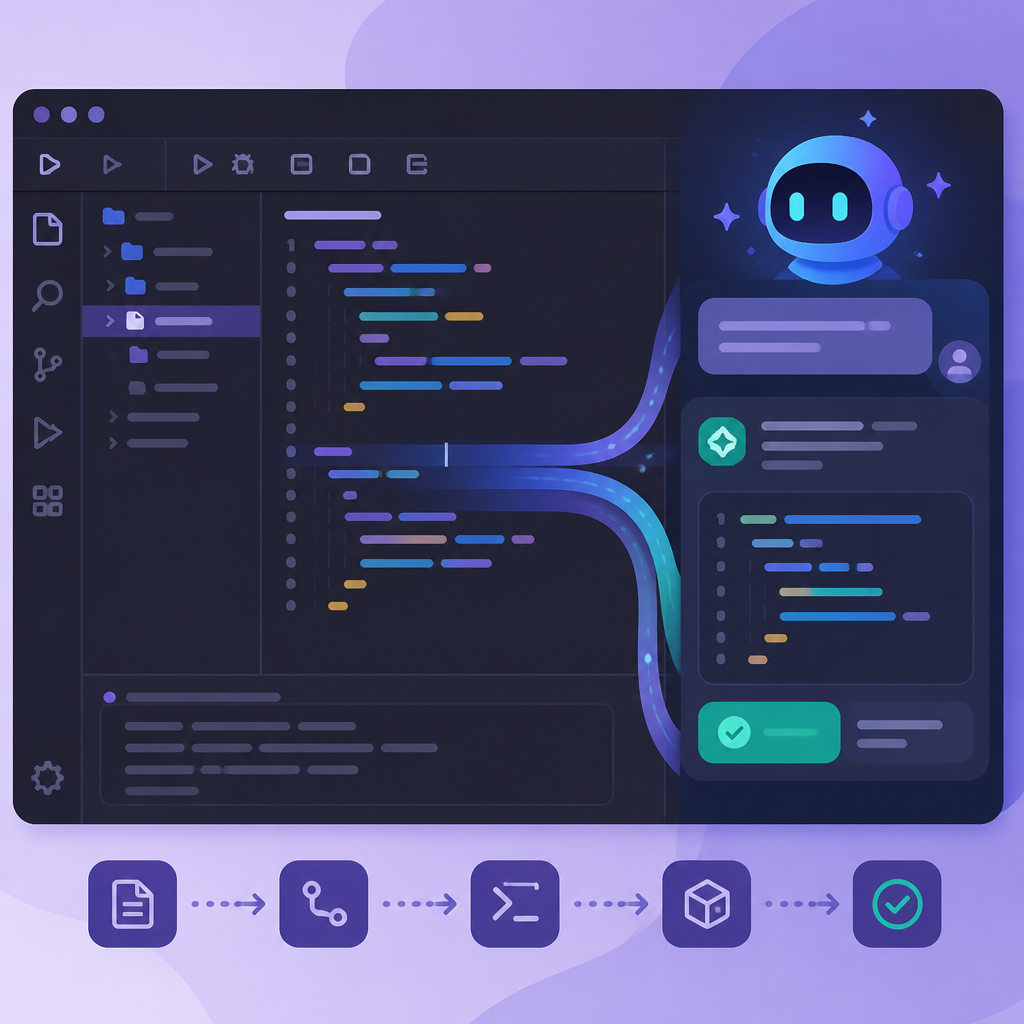
I ran into this exact problem while working on a feature split across API, test, and UI layers. If the assistant only writes snippets, I still have to stitch everything together. That is where time disappears. Visual Studio’s agent mode is trying to stay in the loop long enough to matter, which is a much better use of AI than asking it to guess the next token.
How to apply it: use agent mode when the task has a beginning, middle, and end. Good candidates are refactors, bug fixes, test additions, and dependency updates. Bad candidates are vague “make this better” requests. Give it one concrete outcome and let it work through the steps. If you want the model to behave like a junior pair programmer, you need to act like a decent tech lead and scope the job.
- State the goal in one sentence.
- Point it at the files or feature area that matter.
- Ask for verification, not just code output.
The real trick is multi-step work inside the editor
Visual Studio says agent mode can “plan, build, test, and fix—all from a single prompt.” That line matters because this is where a lot of AI tools get awkward. They can write code, but they cannot stay responsible for the whole sequence. So you end up switching between chat, terminal, editor, and browser tabs like you are juggling knives.
What Microsoft is aiming for here is fewer context switches. If the assistant can run linters, tests, and commands without leaving Visual Studio, then the IDE becomes the control room instead of just the place where code lives. That is a real workflow change, even if the marketing language around it is a bit much.
I like this idea most when I am doing a small but annoying fix. The kind where one change causes two failing tests, which exposes a stale mock, which then reveals a broken assertion. Normally I would spend half the time just reorienting myself. If the assistant can keep the chain in view, I get my brain back for the actual judgment calls.
How to apply it: when you ask for a change, include the validation step up front. Tell Copilot to update the code and then run the relevant tests or checks. If the tool supports commands in the IDE, use them. Don’t wait until the end to ask whether it works. Make verification part of the task, not a separate chore you remember after the fact.
- Use one prompt for the change and the validation.
- Prefer targeted tests over full-suite panic runs.
- Let the assistant iterate on failures, but review the final diff yourself.
Chat is useful when it stays close to the code
Visual Studio’s page says Copilot Chat gives “real-time help for your coding queries” and provides “instant context aware suggestions.” That is the part I care about, because generic chat is cheap and usually noisy. Context is the whole game. If the assistant knows the current file, the solution, and the exception you are staring at, the answers get a lot less hand-wavy.
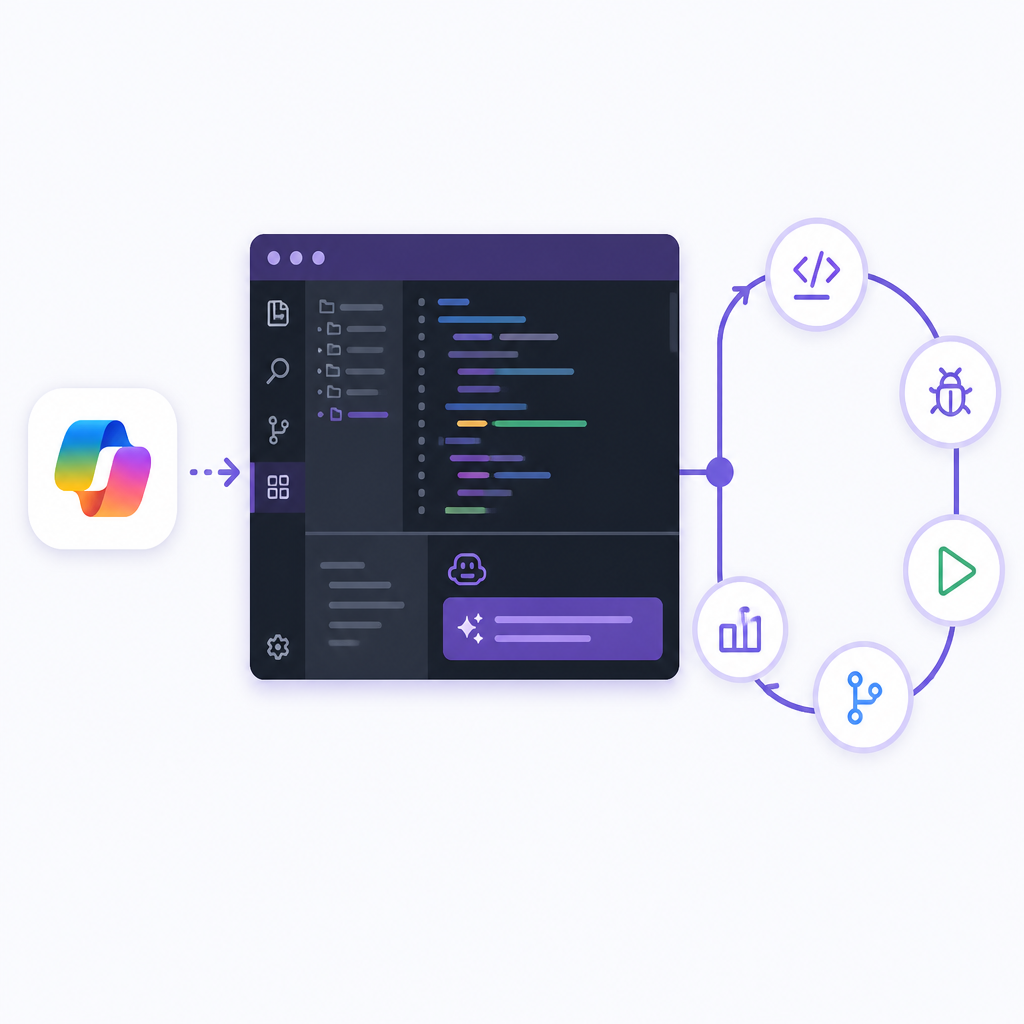
When I use chat well, it is not for brainstorming architecture in the abstract. It is for the ugly middle of work: Why is this null here? What is this test actually asserting? Which path is causing the deadlock? That is where a code-aware assistant earns its keep.
How to apply it: ask narrow questions tied to the code in front of you. Paste the exception, mention the file, and say what you already tried. If you ask “why is my app slow,” you’ll get mush. If you ask “why does this query spike CPU after this recent change,” you at least give the model a fighting chance.
There is a practical upside here that people underplay. A good chat session can save you from the worst kind of debugging, which is the kind where you keep rereading the same file and somehow get less certain every minute. The assistant does not need to be perfect. It just needs to be good enough to point your eyes in the right direction.
Multi-file edits are where the tool either earns trust or loses it
Visual Studio highlights Copilot Edits for “multi-file editing with code review, in-file preview and rollback experience.” That is the feature I would put under the microscope first. Single-file suggestions are easy to trust because the blast radius is small. Multi-file edits are where the assistant can either save an hour or quietly create a future incident.
What this actually means is the IDE is trying to make broader changes feel reviewable. Preview matters. Rollback matters. I do not want a black box touching six files and hoping I notice the fallout later. I want to see what changed, compare it, and back out the bad part without wrecking the rest of the work.
I’ve been burned by AI-generated edits that looked fine in one file and were subtly wrong in another. The fix was never “use AI less.” The fix was “force the tool to show its work.” That is why preview and rollback are not cosmetic features. They are the difference between a helper and a liability.
How to apply it: use multi-file edits for coordinated changes only, like renaming a type, adjusting a shared interface, or updating a test fixture and the code that consumes it. Review each file diff before you accept anything. If the assistant touches something you did not expect, stop and ask why. A good edit session should feel inspectable, not magical.
Testing and debugging are the places I actually want help
Visual Studio says Copilot can help generate unit tests and provide “in-depth analysis and explanations” for exceptions, deadlocks, and other debugging scenarios. That is the practical sweet spot. I do not need AI to pretend it understands my product strategy. I need it to help me stop wasting time on repetitive test scaffolding and obvious failure modes.
There is a reason testing support matters more than flashy code generation. Tests are where the code proves whether the assistant’s idea was any good. If the tool can suggest a test that captures the bug, then I have something real to build on. If it can explain a deadlock pattern in plain language, that can save a long afternoon of staring at thread dumps and regretting my career choices.
How to apply it: ask the assistant to generate tests from the behavior you want, not from the implementation you already have. That keeps the test from becoming a copy of the code. For debugging, feed it the exception, the stack trace, and the expected behavior. Then use the explanation to narrow the search space before you start changing code. It is a lot less glamorous than “AI writes your app,” but it is much closer to how developers actually spend time.
If I had to pick one rule here, it would be this: let the assistant draft the test, but you decide whether the test is meaningful. AI is good at producing structure. It is still your job to know whether the assertion matters.
Version control is boring until AI saves you from it
Visual Studio also points at AI-generated commit messages and help with branch management and merge conflicts. I know, commit messages are not sexy. They are also one of those tiny tasks that eat attention when you are already tired. If the assistant can summarize the diff well enough to give me a decent message, I am not going to complain.
What this actually means is the IDE is trying to reduce the glue work around shipping. Not writing the code, not replacing review, just trimming the little admin tasks that pile up after the real work is done. That is a good place for AI because the stakes are low and the time savings are real.
How to apply it: use AI commit messages as a draft, not a final authority. Check that the message names the behavior change, not just the files touched. For merges, use the assistant to explain conflicts before you resolve them. If it can tell you which side changed the same method and why, you are already ahead of manually eyeballing a diff at 6 p.m.
- Keep commit messages specific to the behavior change.
- Use AI drafts to save time, then edit for accuracy.
- Ask for conflict explanations before you start merging blindly.
Visual Studio is still an IDE first, and that matters
The page does a decent job of reminding you that Visual Studio is not only about Copilot. It still talks about Azure integration, Live Share, profiling, SQL tooling, themes, and extensions. That matters because the AI story only works if the rest of the IDE is already useful. A smart assistant inside a clumsy editor is just a smarter way to be annoyed.
What I take from this is simple: Microsoft is trying to make the entire development loop happen in one place. Code, debug, test, collaborate, deploy, and now let AI carry more of the repetitive reasoning. That is a stronger pitch than “we added chat.” It also means the tool only pays off if you actually use the surrounding features instead of bouncing out to five other apps.
How to apply it: if you are evaluating Visual Studio for AI-assisted work, test the whole loop. Write code, ask for help, run tests, inspect profiling data, and commit the result. The value is not in any one button. It is in whether the IDE keeps you moving without forcing you to rebuild your own workflow around it.
And yes, you should still be skeptical. I am. But this is the kind of skepticism I prefer: not “AI bad,” just “show me the workflow.” Visual Studio is at least aiming at the right problem.
The template you can copy
## Visual Studio Copilot workflow template

Use this when I want Copilot to handle a real coding task inside Visual Studio.

### 1) Describe the job
Write one sentence with a concrete outcome.

Example:
"Update the payment retry flow so failed requests retry twice, add tests, and keep the public API unchanged."

### 2) Give Copilot the scope
Tell it where to look.

Example:
- Files: `src/Payments/*`, `tests/Payments/*`
- Constraints: no breaking API changes
- Validation: run unit tests for the payment module

### 3) Ask for a plan first
Prompt:
"Inspect the current implementation, explain the change plan, then apply the smallest safe edits."

### 4) Let it edit, but review diffs
Accept only after checking:
- changed files match the scope
- no unrelated cleanup snuck in
- tests still describe the intended behavior

### 5) Make verification part of the task
Prompt:
"After editing, run the relevant tests and fix any failures until they pass."

### 6) Use chat for debugging
Prompt:
"Here is the exception and stack trace. Explain the likely cause in this codebase and point to the file or method to inspect first."

### 7) Use Copilot for version control cleanup
Prompt:
"Draft a commit message that describes the behavior change, not just the files changed."

### 8) Final review checklist
- Does the diff match the prompt?
- Do the tests cover the bug or feature?
- Would I be comfortable merging this without rewriting the commit message?

### Copy-ready prompt block
"You are working in Visual Studio on this solution. Inspect the code, propose the smallest safe change, edit the necessary files, run the relevant tests, fix failures, and summarize the final diff and test results. Keep the public API unchanged unless I explicitly say otherwise."
That is the version I would actually use. It is boring on purpose. Boring is good when the tool is allowed to touch code.
Most of the value here comes from forcing AI into a workflow you can inspect. That is the part Microsoft is closest to getting right, and it is the part I would copy into my own team habits whether I used Visual Studio or not.
Source attribution: this breakdown is based on the Visual Studio IDE page at https://visualstudio.microsoft.com/vs/. I pulled the workflow ideas from Microsoft’s own product copy and reorganized them into a developer-facing playbook.
// Related Articles
- [TOOLS]
Cursor’s iPhone app brings coding agents mobile
- [TOOLS]
DeepSeek’s plugin harness turns agents into tools
- [TOOLS]
Claude Code lets sessions message each other
- [TOOLS]
10 AI GitHub repos that actually save time
- [TOOLS]
Anthropic's Fable leak turns CTF chaos into a warning
- [TOOLS]
VDBBench adds cost to vector DB comparisons