VS Code turns a folder into a workspace
I break down VS Code’s workspace model, command palette, terminal, and extensions into a copyable setup.

I break down VS Code’s workspace model, command palette, terminal, and extensions into a copyable setup.
I’ve been using Visual Studio Code for years, and I still think it’s weird how often people treat it like a fancy text editor. That’s not the problem. The problem is that VS Code is usually set up like a junk drawer: a few extensions, a theme someone recommended, maybe some keybindings, and then everybody wonders why it feels busy but not actually helpful.
What finally clicked for me was this: VS Code is less about editing files and more about shaping a workspace. Once I stopped expecting menus to do all the work, the whole thing became calmer. I could open a folder, keep the noise down, jump through commands fast, and let the terminal and extensions fill in the gaps. Before that, I was constantly clicking around like a tourist in my own editor. Annoying. Slow. Totally avoidable.
This write-up is me unpacking the parts that matter, using the original Wikipedia article as the anchor, then turning that into a setup I’d actually hand to a teammate.
Source anchor: the Visual Studio Code Wikipedia page summarizes the editor’s history, workspace model, command palette, terminal, extensibility, remote development, and Insiders build. I’m using that as the source text here, plus Microsoft’s own docs and repo where it helps fill in the practical edges.
VS Code is not a project system, and that matters
Get the latest AI news in your inbox
Weekly picks of model releases, tools, and deep dives — no spam, unsubscribe anytime.
No spam. Unsubscribe at any time.
Instead of a project system, VS Code allows users to open one or more directories, which can then be saved in workspaces for future reuse.
What this actually means is that VS Code wants you to think in folders, not in some heavyweight IDE project file. That sounds small until you’re juggling a monorepo, a backend service, and a docs folder. In older tools, I always felt like I had to “import” reality into the editor. VS Code just says: point me at the directory and let’s go.
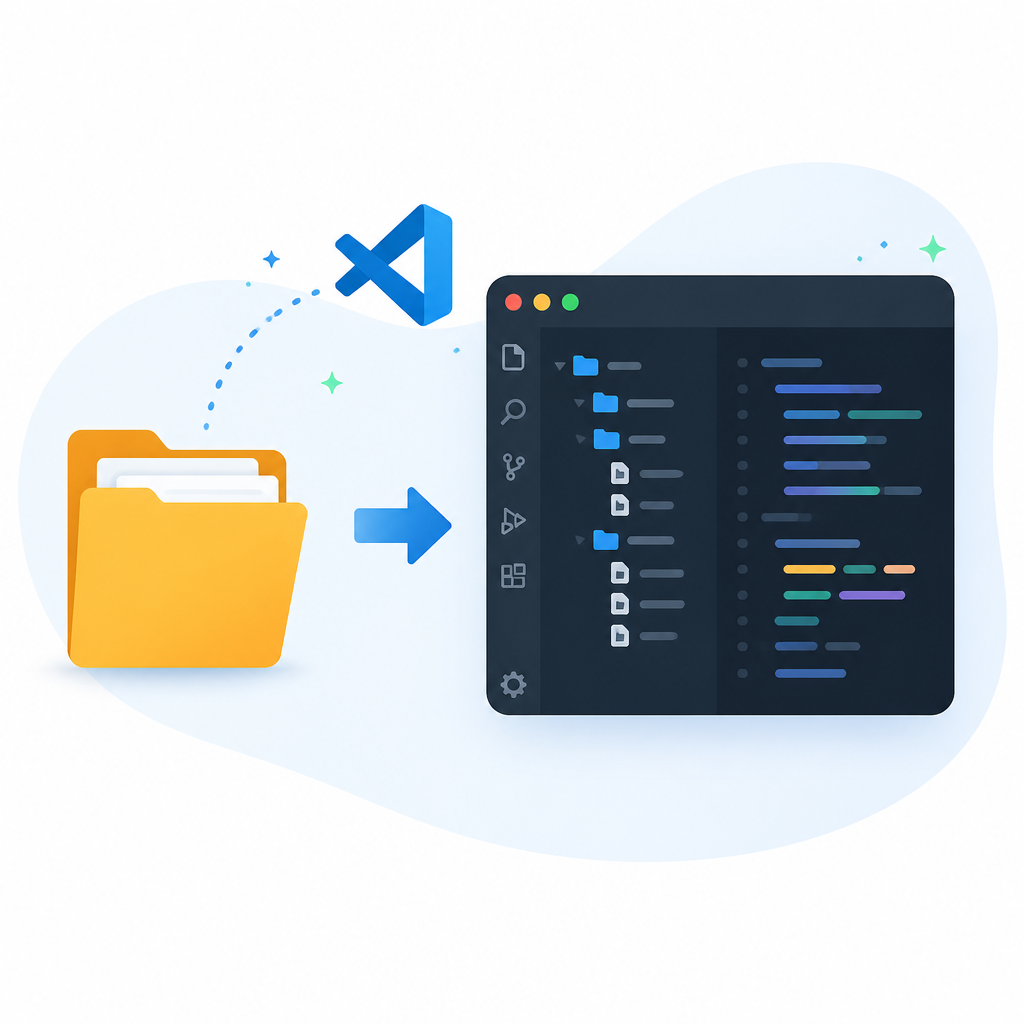
I ran into this when I kept opening single files from random places and then wondering why search, Git, and extensions felt half-broken. Of course they did. The editor had no context. Once I started opening the root folder and saving a workspace when I needed a multi-folder view, everything got less annoying.
There’s a practical reason this matters: workspace context is what makes language features, file exclusion, and source control feel coherent. Without it, you’re just editing text. With it, the editor can infer what belongs to the app and what doesn’t.
How to apply it:
- Open the repo root, not a file inside it.
- Use a saved workspace if you regularly work across multiple folders.
- Exclude generated files, build output, and vendored junk from the tree.
- Keep one workspace per task instead of cramming every repo into one window.
If you want the official framing, Microsoft documents this workspace behavior in the VS Code Workspaces guide. That’s the mental model I use now: folder first, workspace second, project file never unless the tool forces it.
The Command Palette is the real UI
Many Visual Studio Code features are not exposed through menus or the user interface but can be accessed through the Command Palette.
That line is the whole trick. The menus exist, sure, but the Command Palette is where VS Code stops pretending you should hunt through nested UI chrome for everything. The editor is much better when I treat commands as the primary interface and the mouse as the fallback.
What this actually means is that a lot of the editor’s power is hidden until you search for it. Toggle terminal. Change language mode. Format document. Open settings. Switch theme. Run tasks. Most of that is faster through the palette than through menus, especially once you start remembering a few command names.
I’ve watched teams waste time because everyone used the editor differently. One person clicked around settings. Another memorized shortcuts. Another installed six extensions to make up for not knowing the commands already existed. The Command Palette cuts through that mess because it gives you one place to discover and execute nearly everything.
How to apply it:
- Learn the palette shortcut for your OS and use it as your default entry point.
- Search command names instead of browsing menus.
- Pin the commands you use constantly to muscle memory.
- Use it to learn the editor, not just to speed up known actions.
Microsoft’s own docs on the Command Palette back this up, and honestly, this is one of the few places where the UI philosophy is actually better than the marketing fluff around it.
The terminal inside the editor is the whole point
Visual Studio Code provides a fully featured integrated terminal that opens at the root of the current workspace.
This is where VS Code stops being a text editor and becomes a workbench. The integrated terminal means I don’t have to context-switch just to run tests, start a server, inspect logs, or poke at a shell command. I stay in the workspace, where the files and the commands live side by side.
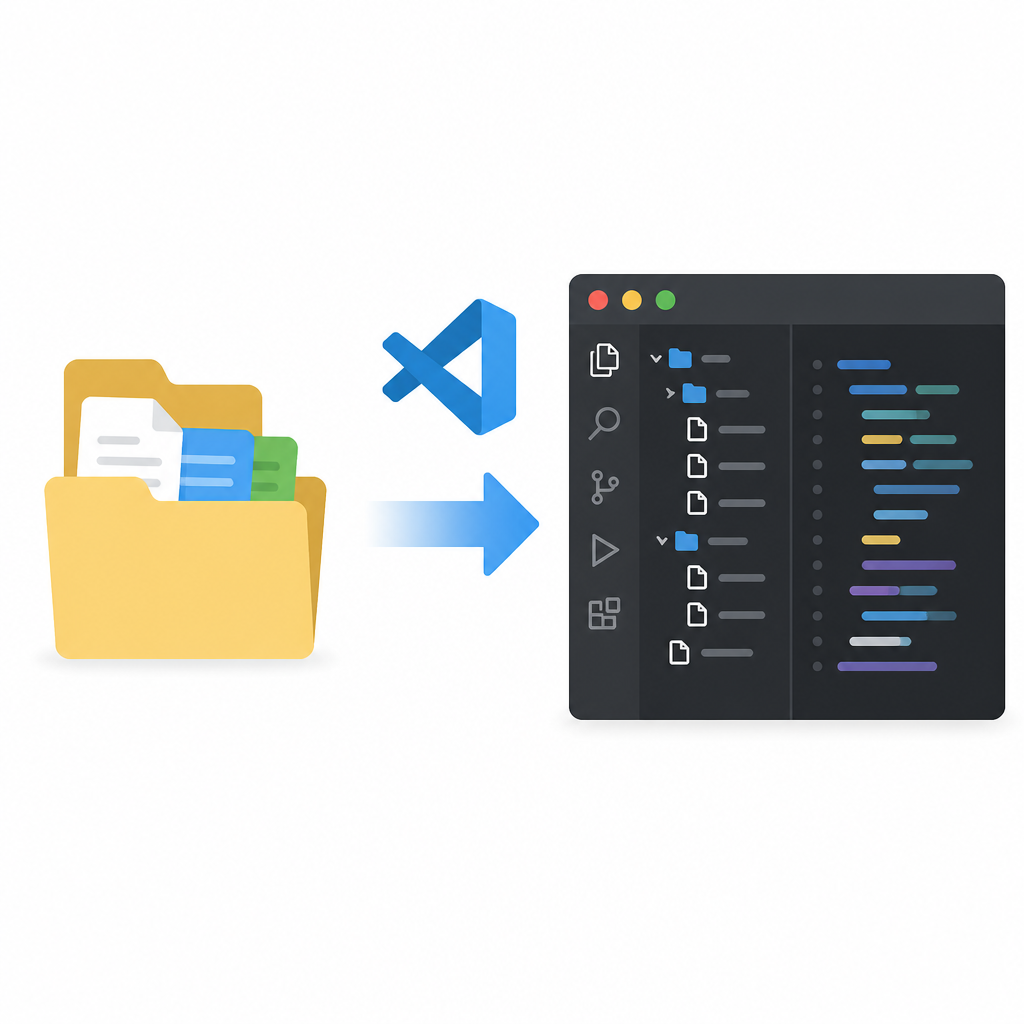
What this actually means is that the editor knows where you are. The terminal opens at the workspace root, so your commands start in the right place. That sounds basic, but it saves me from the dumb little mistakes that happen when a shell opens somewhere unexpected and I spend two minutes figuring out why a script can’t find the right path.
I ran into this constantly when working in containerized apps. If the terminal and the code aren’t aligned, you end up manually cd-ing around and second-guessing every command. VS Code’s terminal, plus shell integration, makes that less painful because file links, working directory awareness, and error markers are built into the experience.
How to apply it:
- Use the integrated terminal as your default shell for project work.
- Open multiple terminals when you need app, test, and watcher processes at once.
- Rename terminals so you stop guessing what is running where.
- Use split panes when you need to compare output without losing context.
If you want the official docs, Microsoft’s Integrated Terminal guide is the cleanest reference. I also keep the shell integration docs handy because that’s where the small quality-of-life details live.
Extensions are not decoration, they are the editor’s missing organs
Users may install extensions from the VS Code Marketplace to add language support, editor themes, debuggers, and additional utilities.
What this actually means is that VS Code ships intentionally incomplete. That is not a bug. It’s the design. Microsoft gives you a strong base editor, then expects extensions to turn it into the thing you need for your stack.
I used to install extensions like I was decorating a room. Bad idea. That’s how you end up with duplicate formatters, conflicting language servers, and a startup time that feels like punishment. The better move is to think in categories: one formatter, one linter path, one debugger path, one theme, and then stop.
There’s also a subtle but important distinction here. Some extensions add convenience. Others add core language intelligence. The article mentions the Language Server Protocol, and that’s where the real power is. Extensions can provide language support, static analysis, and code actions without every tool inventing its own editor integration from scratch.
How to apply it:
- Install only the extensions that directly support your stack.
- Prefer widely used language extensions over random one-off tools.
- Avoid overlapping formatters unless you enjoy weird save-time behavior.
- Audit extensions every few months and delete anything you forgot you installed.
If you want the source of truth, the VS Code Marketplace is where the ecosystem lives, and the microsoft/vscode repository shows how much of the editor is shaped by extension hooks.
Debugging works because it stays attached to the code
VS Code features a built-in debugger designed to enhance the development process.
That sounds obvious until you compare it with editors where debugging feels bolted on. In VS Code, the debugger is part of the same workflow as editing and running. You set breakpoints, step through code, inspect variables, and use the Debug Console without leaving the window. That matters because debugging is already a context-heavy task. I don’t want extra friction on top of it.
What this actually means is that the editor is trying to keep the code, the runtime, and the inspection tools in one place. The Wikipedia article calls out Node.js support, conditional breakpoints, and the Debug Console. That’s the stuff I care about in day-to-day work, because it’s the difference between “I think this function is wrong” and “I can see exactly where the state goes sideways.”
I’ve had plenty of sessions where I thought the bug was in my logic and it turned out to be a bad assumption about input shape. Being able to inspect live values right next to the source saves a lot of guessing. It also makes pair debugging less miserable, because the evidence is visible instead of buried in some separate tool.
How to apply it:
- Set breakpoints early instead of waiting until a bug gets ugly.
- Use conditional breakpoints when a loop or callback is noisy.
- Keep a launch config for the apps you debug often.
- Use the Debug Console to test expressions instead of editing code just to print values.
Microsoft’s debugging docs are the practical companion here. If you’re working with JavaScript or TypeScript, the built-in flow is usually enough before you reach for anything fancier.
Remote development is VS Code admitting the machine is not the point
VS Code supports remote development through extensions such as Remote–SSH, Remote–Containers, and Remote–WSL.
This is one of the smartest parts of the editor, because it accepts a reality a lot of tools still fight: the code does not have to live on the same machine as the UI. I’ve used this for container work, remote servers, and WSL setups, and it removes a ton of setup noise.
What this actually means is that the editor becomes a client, not the place where everything must run. That’s a better model for modern development, especially when your environment is Linux but your laptop is not, or when the app depends on services that are easier to run in a container than on your host.
I ran into this on a project where local dependencies were a mess. The remote setup turned a fragile laptop workflow into something repeatable. Open the container, attach to the server, edit there, run there. Less “works on my machine,” more “the machine is the machine.”
How to apply it:
- Use Remote Development when your app environment is heavier than your laptop setup.
- Prefer containers when you need reproducible dependencies.
- Use WSL if you’re on Windows and want a Linux-like workflow without a VM circus.
- Keep remote configs in the repo so the team can share the same setup.
The browser version, vscode.dev, pushes this further by letting you edit files without installing the desktop app. I don’t use it for everything, but for quick edits and remote repo access, it’s handy.
Insiders is for people who actually want to test the editor
VS Code Insiders is a nightly build version of this code editor.
I like this part because it gives you a clean separation between “my daily editor” and “the thing I’m willing to break on purpose.” That’s healthier than installing experimental stuff into the same environment you rely on for paid work and then acting surprised when it gets weird.
What this actually means is that Microsoft ships a nightly build for people who want early features, bug fixes, and pre-release behavior without contaminating the stable install. The article notes that Insiders can run alongside the standard version independently, which is exactly how I’d want it.
I’ve used preview builds on teams where we needed to verify extension behavior or catch regressions before they landed in stable. The value isn’t novelty. It’s getting a look at what changed before everyone else gets hit by it.
How to apply it:
- Use Insiders only if you can tolerate occasional breakage.
- Keep stable for real work and Insiders for testing.
- Check whether your extensions behave correctly in both channels.
- Use it to validate editor changes before recommending them to a team.
If you want the official channel split, Microsoft documents it in the VS Code FAQ. I’d only add this: don’t make your daily workflow depend on beta behavior unless you enjoy surprise maintenance.
The setup I actually recommend
After all of that, here’s the part I wish someone had handed me earlier: don’t configure VS Code like a trophy shelf. Configure it like a job site. The job is to open the right folder, expose the right commands, run the right terminal, and keep the extension surface small enough that you can still think.
My default setup is simple. One workspace per active task. A short extension list. Command Palette first. Integrated terminal always on. Remote tools when the environment demands it. That gives me 90 percent of the value without turning the editor into a science project.
And yes, the editor is still customizable. That’s the point. But customization only helps when it removes friction. If it adds more moving parts than it saves, I delete it. No guilt.
The template you can copy
# VS Code workspace starter template

## 1) Open the right root
- Open the repository or app root folder.
- If the work spans multiple folders, save a workspace file.
- Exclude build output, caches, and generated files.

## 2) Keep the command palette as your control center
- Use the command palette for: open terminal, change language mode, format document, search settings, and run tasks.
- Learn the shortcut for your OS.
- Prefer commands over menu browsing.

## 3) Use the integrated terminal by default
- Start the terminal at the workspace root.
- Keep one terminal for the app, one for tests, one for logs if needed.
- Rename terminals so you can see what each one does.
- Use split panes when you need parallel output.

## 4) Install only the extensions you need
- One formatter.
- One linting path.
- One debugger path.
- One theme.
- Language support only for the stacks you actually use.

## 5) Turn on debugging early
- Create a launch config for your app.
- Add breakpoints before the bug gets large.
- Use conditional breakpoints for noisy loops.
- Inspect values in the Debug Console instead of adding temporary prints everywhere.

## 6) Use remote development when the environment is messy
- Use Remote-SSH for servers.
- Use Remote-Containers for reproducible app environments.
- Use Remote-WSL if that matches your local setup.
- Keep remote config in the repo so teammates can reuse it.

## 7) Optional: keep Insiders separate
- Use VS Code Stable for daily work.
- Use VS Code Insiders only for testing new editor behavior.
- Do not make unstable builds your only editor.

## Minimal recommended extension checklist
- Language support for your primary stack
- Formatter
- Linter
- Git integration helper if your workflow needs it
- Remote development extension if you work in containers or over SSH

## Personal rule
If an extension does not save time every week, remove it.
If a shortcut is used daily, memorize it.
If a workflow depends on clicking around, move it into the command palette.
That’s the version I’d hand to a teammate who just wants VS Code to stop feeling noisy and start feeling useful. It’s not fancy. It works.
Original source: Visual Studio Code - Wikipedia. This piece is my own practical breakdown of that source, with supporting links to Microsoft docs, the VS Code repo, the marketplace, and related tooling; the structure and advice are derivative, while the examples and workflow framing are mine.
// Related Articles