Windsurf’s Cascade turns IDE edits into agent work
I break down Windsurf’s Devin Desktop rebrand, Cascade modes, and the setup I’d actually copy.

I’ve been using AI editors long enough to know when one is pretending to help. You ask for a refactor, it nods, then sprays half the repo with edits you didn’t ask for. Or it stays in chatty mode forever, giving me a nice little essay instead of moving the code. That’s the part that always annoyed me: the tool looked smart, but the workflow still felt like babysitting.
This breaks down Windsurf’s Devin Desktop and the Cascade workflow I’d actually copy.
Then I hit the updated Windsurf docs on Tech Jacks Solutions and the shape of the product finally made sense. The rebrand to Devin Desktop is mostly cosmetic, but the real story is how the editor, the agent, and the model picker are supposed to work together. I’m not interested in AI editors as a vibe. I want to know when to use chat, when to let the agent edit, how to keep it from wandering into private files, and what the actual setup looks like if I’m bringing an existing VS Code or Cursor environment with me. This article is me unpacking that workflow like I would for a teammate over coffee, not repeating a product page.
Windsurf is not a plugin, and that matters
Get the latest AI news in your inbox
Weekly picks of model releases, tools, and deep dives — no spam, unsubscribe anytime.
No spam. Unsubscribe at any time.
“Windsurf is an AI code editor, a full desktop IDE with autocomplete, syntax highlighting, and debugging, plus Cascade, the agent that can plan and carry out changes across your whole project.”
What this actually means is that I should stop thinking about Windsurf like an add-on. It is the editor. That changes the first decision you make, because there is no “install the extension and keep my old setup exactly as-is” path here. You download the app, sign in, and the whole environment becomes the product.

I’ve seen people bounce off tools like this because they keep waiting for the plugin moment that never comes. They install it inside an existing editor, expect a sidebar, and then get frustrated when the workflow feels opinionated. Windsurf is opinionated on purpose. The editor is built around Cascade, not around a generic text box bolted onto the side of your IDE.
The source article also notes that the rebrand to Devin Desktop arrived as an over-the-air update, with plans, pricing, extensions, settings, and in-progress work carried over automatically. That part is actually useful. If you already had Windsurf installed, this is not a migration project. It is a rename with a new badge on the door.
How to apply it: treat Windsurf like a destination editor. If your team is evaluating it, don’t ask whether it “integrates” with your IDE first. Ask whether you are willing to move your daily editing workflow into a separate desktop app. That question saves a lot of wasted trial time.
- Install the app, don’t hunt for a plugin slot.
- Expect the editor to be the workspace, not an accessory.
- Use the rebrand as a reminder that the product direction is agent-first.
The first launch is where most of the time gets saved
The onboarding flow is the part I’d actually care about if I were new to this. The docs say you can import settings, extensions, and keybindings from VS Code or Cursor, or start fresh. That matters because the fastest way to make a developer ignore a new editor is to make them rebuild muscle memory from scratch.
What this actually means is that Windsurf is trying to reduce the “new tool tax.” If your shortcuts, extensions, and editor preferences come across on day one, the agent features become the new thing you’re evaluating, not the entire environment.
I ran into this exact problem the last time I tried to move someone onto an AI-first editor. The editor itself was fine, but every missing keybinding turned into a complaint. People don’t say “the product has a rough onboarding.” They say “this thing is annoying.” Same problem, different words.
The article lists the supported platforms as Mac, Windows, and Linux. That is boring in the best way. It means you are not picking a special demo build for one machine and a second-class experience for the rest of the team. If your environment is mixed, that lowers the friction immediately.
How to apply it: before you open a real repo, spend five minutes on the import screen. Bring over your extensions and keybindings, then decide whether the defaults need trimming. If you are rolling this out to a team, document which extensions you consider mandatory so people don’t each reinvent their own editor setup.
- Import from VS Code or Cursor if you want the least friction.
- Skip import only if you are intentionally testing the default stack.
- Standardize the extensions you actually need, not the ones you happen to have.
Cascade is the part you should learn first
“You open it with a single shortcut: Cmd+L on Mac, or Ctrl+L on Windows and Linux.”
That’s the entry point, but the useful part is what Cascade is for. The docs describe it as the built-in agent with real-time awareness of the editor and a Fast Context system that pulls in relevant parts of the codebase. In plain language, that means Cascade is not just answering questions about code you pasted into a prompt. It is working with the project around you.
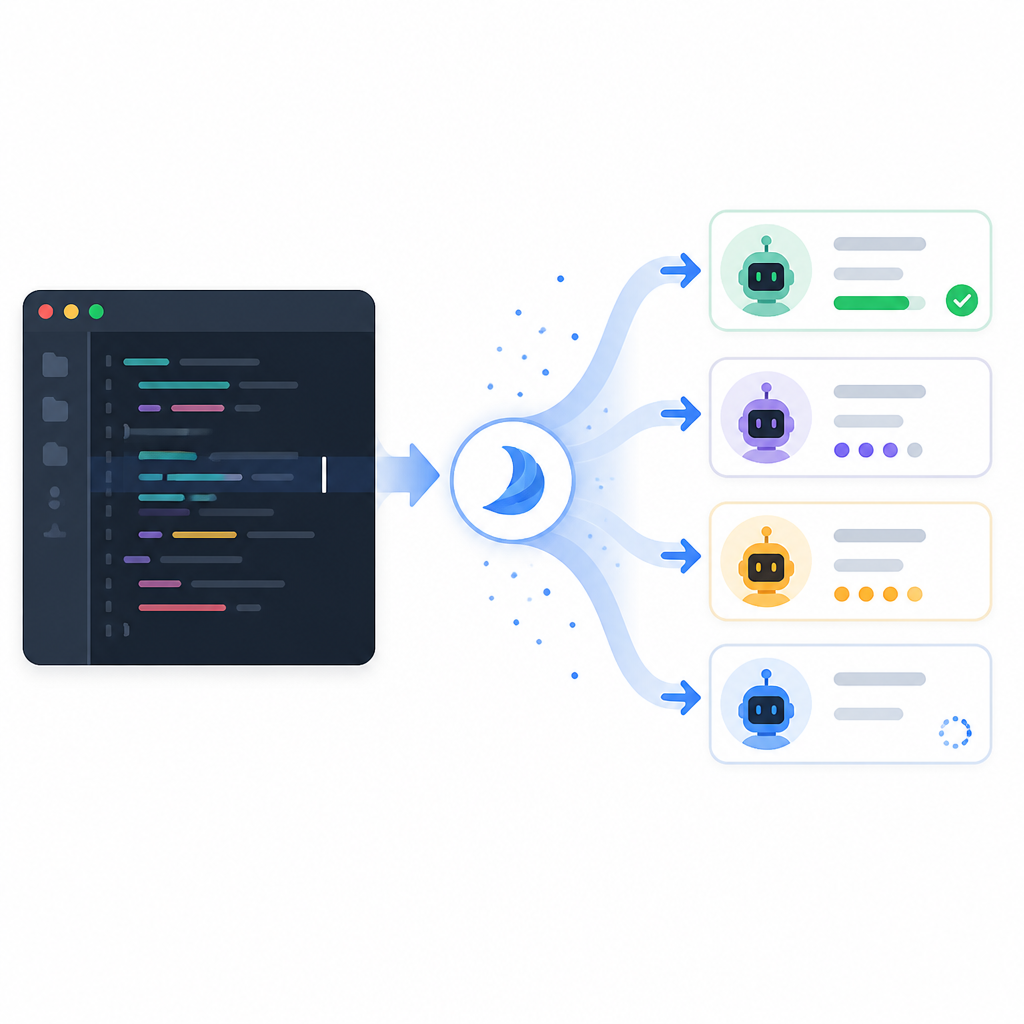
I like that distinction because it explains why some requests feel natural and others feel clumsy. If I’m asking about a single function, inline edits or tab completion are usually enough. If I’m asking for a change that crosses files, touches tests, or requires a plan, I want the agent layer. That’s the point where a normal autocomplete tool starts feeling like a typewriter with opinions.
The article also says Cascade keeps a todo list and breaks larger requests into steps before it edits anything. I’ve learned to trust that pattern more than I trust a tool that starts writing immediately. A planning step is not just nice UI. It is the difference between “I understand the task” and “I am about to improvise in your repo.”
How to apply it: use Cascade when the work spans more than one file or when you want the machine to think through a change before it edits. If the request is “rename this variable,” don’t drag the agent into it. If the request is “update the auth flow and align the tests,” Cascade is the right layer.
One practical habit helps a lot here: ask Cascade to summarize its plan before it edits. If the plan looks off, stop there. That is cheaper than cleaning up a bad diff after the fact.
Code mode and Chat mode are not the same job
This is the part I wish more people understood before they start clicking around. Windsurf splits Cascade into two modes: Code mode and Chat mode. Code mode edits files directly. Chat mode explains, plans, or suggests without changing anything. That sounds simple, but it changes how I use the tool day to day.
What this actually means is that Chat mode is for uncertainty and Code mode is for commitment. If I’m exploring a codebase, asking “how does this auth path work?” or trying to understand a dependency chain, I stay in Chat. If I’ve already decided on the change, I switch to Code and let the agent execute.
I’ve burned time in tools that blur those boundaries. You ask a question, the assistant starts “helping,” and suddenly you have edits you didn’t intend. Or the opposite happens: you want a change, but the tool keeps talking like a consultant who refuses to touch the keyboard. Windsurf at least makes the split explicit.
How to apply it: build a simple rule. Chat mode first when you are unsure. Code mode once you know the outcome you want. If you are reviewing a teammate’s repo or learning a legacy system, spend more time in Chat than you think you need. If you are doing a repeatable change, move quickly into Code.
Here’s the rhythm I’d actually use:
- Ask in Chat: “What files and tests will this touch?”
- Confirm the plan.
- Switch to Code and let Cascade make the edits.
- Review the diff like you would any other agent-generated change.
Tool calling is useful only if you protect the repo
“Before you point it at a private repository, add a .codeiumignore file for anything it should not touch.”
This is the line people skip, and then they act surprised when an agent sees too much. The article is pretty direct here: Cascade can read your whole project and run tools on your behalf. That is exactly why I want a guardrail before I let it loose in a private codebase.
What this actually means is that file-level boundaries matter. If there are configs, secrets, generated assets, or sensitive directories that the agent should not inspect or modify, I should say so explicitly. I would not hand a junior developer full repo access without context and limits, so I’m not going to do that with an agent either.
I appreciate that the source calls out Codeium-style ignore behavior through .codeiumignore. That gives me a familiar mental model: define what is off-limits, then let the tool operate inside the safe zone. It’s a small step, but it changes the trust story a lot.
How to apply it: create an ignore file before you use the agent on anything private or messy. Put secrets, build artifacts, generated folders, and sensitive docs in the ignore list. Then test the agent on a small, low-risk change before you let it near the important stuff.
If you are managing a team, make this part of onboarding. The goal is not to block the agent. The goal is to make its operating area boring and predictable.
Model choice is where the cost and quality trade off
The article says the free plan includes unlimited inline edits and Tab completions plus a light agent quota, while Pro and above unlock heavier agent use, the full model lineup, and free SWE-1.6. That’s the kind of detail I want because it tells me where the product is actually making money: not on basic typing help, but on the agent workload and model access.
What this actually means is that I should stop pretending every task deserves the same model. If I’m doing small editing or autocomplete work, the free tier may be enough. If I’m pushing Cascade through larger tasks all day, I need to think about quota and model access before I build my workflow around it.
I’ve watched teams adopt AI tools and then act shocked when the bill shows up. That is usually because nobody separated “nice-to-have autocomplete” from “agent doing real work.” Windsurf’s pricing structure, at least as described here, makes that split visible.
The article also mentions a 20 tool calls per prompt Cascade limit. That number matters because it tells you the agent is not an infinite black box. If you ask for something sprawling, you may need to break the request into stages instead of dumping the whole problem into one prompt.
How to apply it: reserve the agent for changes where its planning and multi-file editing actually save time. Use inline edits for local changes. If you hit quota or tool-call limits, don’t fight the system. Break the task into smaller steps and make the agent finish one clean slice at a time.
Usage management is the difference between a demo and a workflow
The best part of the source article is that it doesn’t stop at “here’s how to open the tool.” It also covers managing usage and quotas, which is the part most tutorials skip because it is less shiny. But that’s the part that decides whether the editor becomes a habit or a one-week experiment.
What this actually means is that a real workflow needs boundaries. I want to know when I’m on the free plan, when I’m burning agent quota, and when I should switch back to manual editing. Otherwise the tool starts feeling inconsistent, and inconsistent tools get abandoned.
I’ve had better luck with AI editors when I treat them like a power tool with a battery meter. If I know the battery is low, I change how I work. If I ignore it, I end up blaming the tool for my own bad planning.
How to apply it: keep a tiny checklist for each task. Is this a local edit, a cross-file change, or a repo-level refactor? Does it need Chat or Code mode? Am I about to spend agent quota on something I could type faster myself? Those questions sound small, but they stop a lot of waste.
And yes, if you are using the editor with a team, write this down somewhere visible. People will happily burn quota on tasks they should never have sent to the agent in the first place.
The template you can copy
# Windsurf / Devin Desktop setup checklist

## 1) Install
- Download Windsurf / Devin Desktop from https://windsurf.com/
- Install on Mac, Windows, or Linux
- Sign in with a free account to start

## 2) Import your setup
- On first launch, import from VS Code or Cursor
- Bring over:
  - settings
  - extensions
  - keybindings
- If you want a clean test, skip import and start fresh

## 3) Open Cascade
- Mac: Cmd+L
- Windows/Linux: Ctrl+L
- Use Cascade for multi-file or repo-wide changes
- Use inline edits / tab completion for small local edits

## 4) Pick the right mode
### Chat mode
Use for:
- questions
- codebase exploration
- planning before any edits

### Code mode
Use for:
- direct edits
- implementation after the plan is clear
- changes you want the agent to carry out

## 5) Protect the repo
Create a `.codeiumignore` file before using Cascade on private code.
Add:
- secrets
- generated files
- build artifacts
- sensitive docs
- anything the agent should not inspect or touch

## 6) Ask for a plan first
Before edits, ask:
"Summarize the files you expect to change, the tests you expect to run, and the risks."

## 7) Use a simple decision rule
- If it’s one file: edit manually or use inline AI
- If it’s several files: use Cascade
- If you’re unsure: start in Chat mode
- If you’re ready to ship: switch to Code mode

## 8) Watch usage
- Free plan: good for learning and light use
- Pro and above: better if you rely on agent work daily
- Break large tasks into smaller prompts if you hit tool-call limits

## 9) Team rollout note
- Standardize the import source
- Publish required extensions
- Document ignore rules
- Decide when agent edits need human review

## 10) My default prompt
"Inspect the relevant files, propose a plan, then make the smallest safe change. If anything is unclear, ask before editing."
I’m not pretending this template is the whole product. It’s the practical version I’d hand to a teammate so they can get moving without treating the editor like a magic trick. The point is to make the workflow repeatable: install, import, open Cascade, choose the right mode, protect the repo, and keep an eye on usage.
If you want the shortest possible summary, here it is: Windsurf works best when I stop asking it to be a chat box and start using it like an agentic editor with guardrails. That is the difference between a neat demo and something I’d actually keep in my daily stack.
Source attribution: I broke this down from Tech Jacks Solutions’ guide on how to use Windsurf / Devin Desktop. My framing, examples, and template are mine; the product details and quoted points come from the original article and the linked vendor docs at windsurf.com.
// Related Articles
- [IND]
Anthropic expands Claude partnership with Cognizant
- [IND]
Fuerteventura 2026 freestyle crowned two clear winners
- [IND]
Musk’s Grok Imagine bets big on an Odyssey film
- [IND]
Rust 661’s best releases for builders this week
- [IND]
Deepwoken’s Second Layer hides Ethiron below Scyphozia
- [IND]
AMD is right to use Anthropic to break CUDA’s grip