Devin docs show where the AI engineer fits
Devin docs show 5 ways the AI software engineer helps teams ship code, fix bugs, and work faster.

Devin is an AI software engineer that helps teams ship code, fix bugs, and review work.
Devin’s docs make one thing clear: this is not a demo bot, but a tool for real engineering tasks. The docs say Devin can handle work that fits in about three hours, and they show where it fits best across tickets, bugs, migrations, reviews, and support.
| Item | Best for | Access path |
|---|---|---|
| Devin web app | Longer tasks and team workflows | app.devin.ai |
| Devin CLI | Quick fixes and local exploration | Command line install |
| Devin API | Programmatic integration | API access |
1. A software engineer for bounded tasks
Get the latest AI news in your inbox
Weekly picks of model releases, tools, and deep dives — no spam, unsubscribe anytime.
No spam. Unsubscribe at any time.
The core pitch is simple: Devin is an autonomous AI software engineer that can write, run, and test code. The docs frame it as a backlog helper for tasks that are concrete, scoped, and verifiable.
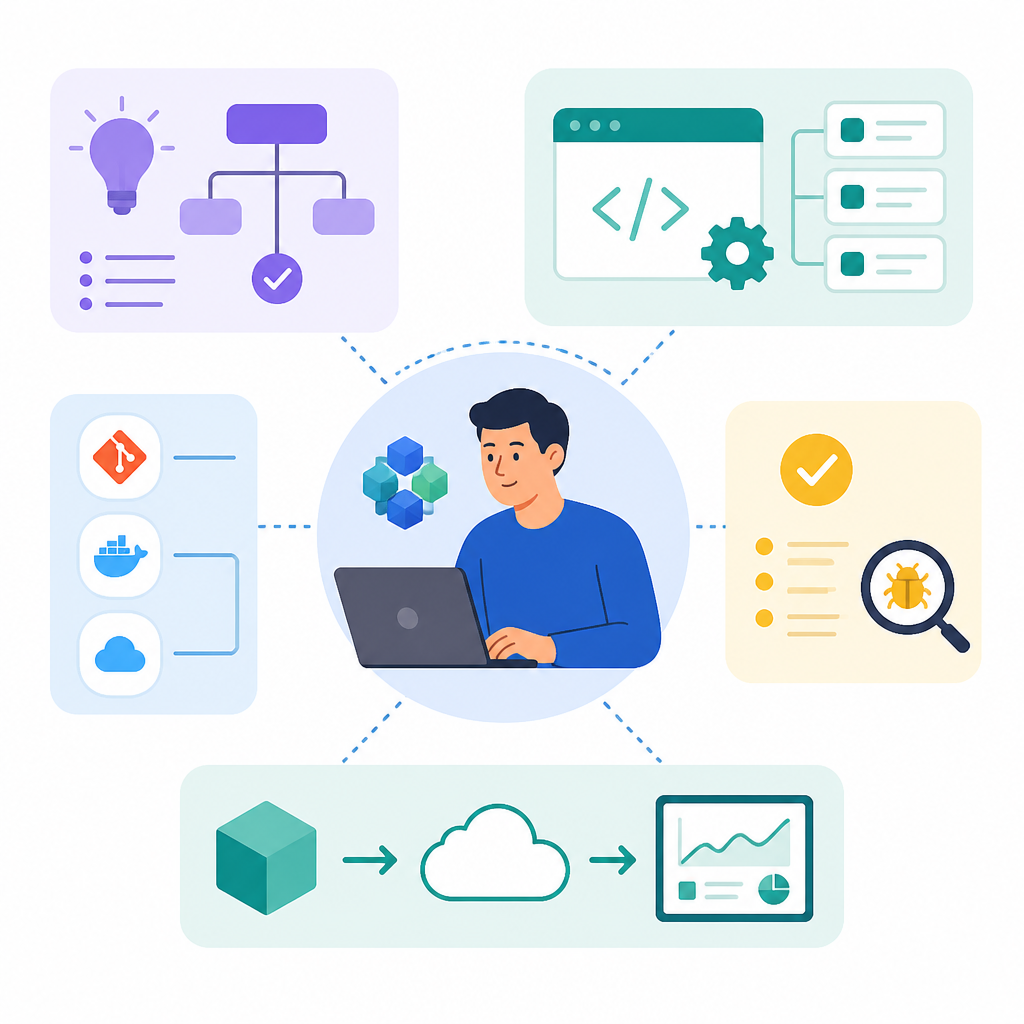
That makes it a fit for work where the finish line is obvious. The docs say that if you can do the task in three hours, Devin can most likely do it. That includes tickets, bug fixes, feature work, and internal tooling.
- Linear or Jira tickets
- New features from scratch
- Bug reproduction and fixes
- Internal tools and demos
2. Parallel ticket work without the queue
One of Devin’s strongest uses is clearing many small tasks before they pile up. The docs call out parallel work as a strength, especially for common engineering chores that slow teams down when they stay in the backlog.
This is where teams can hand off repeatable work instead of keeping it on senior engineers’ plates. The examples in the docs include app testing, documentation updates, PR review, and customer engineering support.
- Writing unit tests for existing code
- Maintaining docs and examples
- Reproducing and fixing bugs
- Reviewing pull requests
3. Migration and modernization jobs
The docs also position Devin as useful for codebase changes that are tedious but well defined. These are the kinds of updates that touch many files, require careful edits, and still follow a repeatable pattern.
Examples include language migrations, framework upgrades, and repository reshaping. The docs mention JavaScript to TypeScript migration, Angular 16 to 18 upgrades, monorepo to submodule conversions, and removing unused feature flags.
Examples from the docs:
- JavaScript to TypeScript
- Angular 16 -> 18
- Monorepo to submodule conversion
- Extract common code into libraries
4. A workspace you can watch and take over
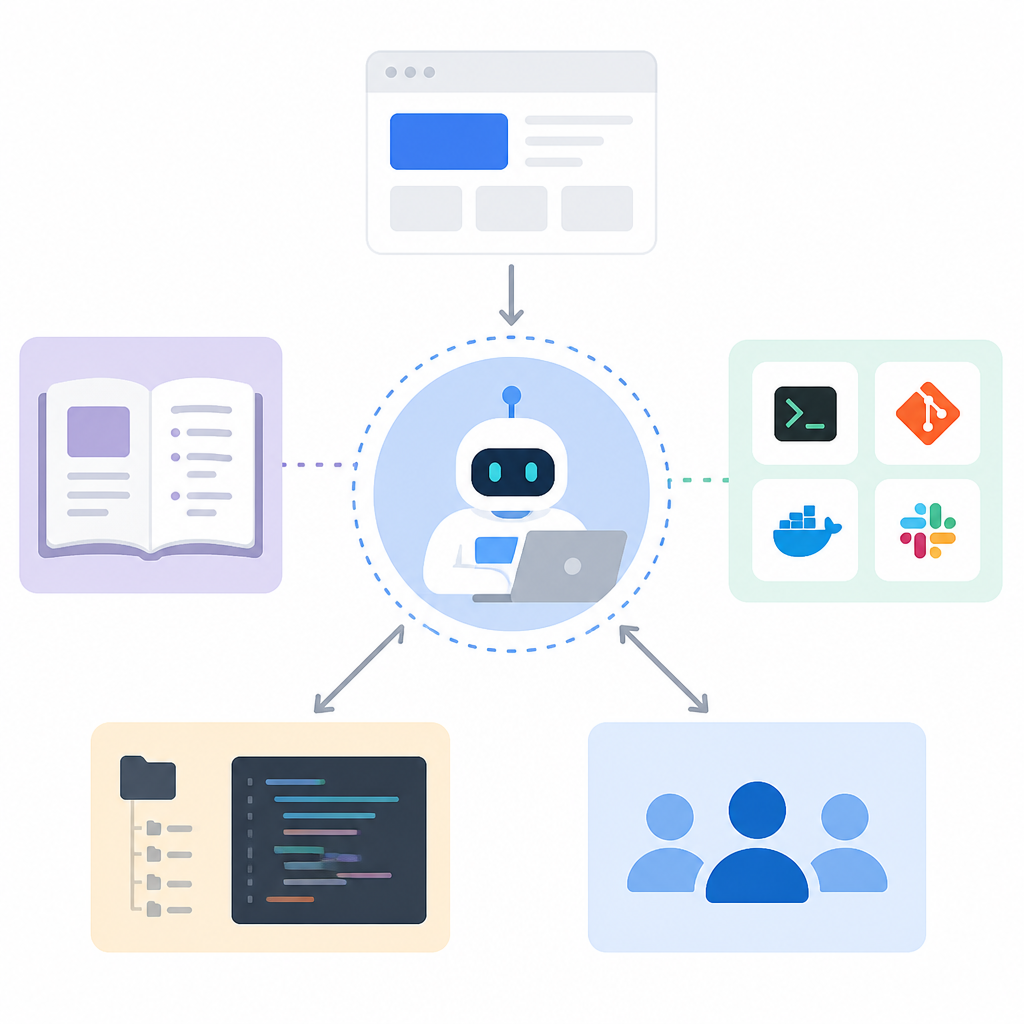
Devin is built around a conversational interface, but the docs also show a hands-on workspace. You can watch its progress, inspect logs, and step in when the task needs a human decision or a direct edit.
The embedded tools are straightforward: Shell for terminal output, IDE for code editing, and Browser for web tasks. The docs also note that Devin is available through the Devin API, which gives teams another way to plug it into their workflow.
- Shell for commands and logs
- IDE for edits and shortcuts
- Browser for docs and web apps
- Interactive Browser for guided navigation
5. Access paths that match your workflow
The docs give three main ways to start: sign up in the web app, install the CLI, or use an existing Cognition relationship to request access. That makes it easier to fit Devin into the place where your team already works.
For quick local work, the CLI is the fastest entry point. For team tasks and longer sessions, the web app is the main home. For automation or product integration, the API is the path to look at first. The docs also mention Individual and Teams plans.
- Web app at app.devin.ai
- CLI install: curl -fsSL https://cli.devin.ai/install.sh | bash
- Administrator or Cognition access for existing customers
How to decide
Pick the web app if you want a shared place for task handoff, live oversight, and longer coding sessions. Pick the CLI if you want quick fixes, code exploration, or interactive work from your terminal.
If your team is evaluating Devin for real use, the docs suggest starting with bounded tasks that are easy to verify, then expanding into migrations, support work, and routine backlog cleanup as confidence grows.
// Related Articles
- [IND]
GLM-5.3’s coding gains came from post-training
- [IND]
Anthropic’s data center push now has big capital backing
- [IND]
DailyArxiv turns arXiv keywords into a daily paper feed
- [IND]
Claude vs ChatGPT (2026): Is Claude Better?
- [IND]
CBDC Governance: Standards and Stakeholder Roles
- [IND]
Invisible AI watermarks are the right move for Claude