ffmpeg-webCLI brings video editing into the browser
ffmpeg-webCLI runs video editing in the browser with ffmpeg.wasm, keeping files local and avoiding server uploads.

ffmpeg-webCLI is a browser video editor that processes files locally with ffmpeg.wasm.
ffmpeg-webCLI does something a lot of web video tools still avoid: it keeps the whole edit on your device. The project’s live app loads a roughly 31 MB ffmpeg.wasm core on first use, then caches it so later sessions start faster.
That matters because the repository is not a toy demo. It ships with 32+ operations, batch processing, offline support, and a stack mode that can combine multiple filters into one encode pass.
| Metric | Value | Why it matters |
|---|---|---|
| ffmpeg-core download | ~31 MB | First-load cost for local processing |
| Supported operations | 32+ | Covers common edits without leaving the browser |
| GitHub stars | 717 | Signals strong developer interest |
| GitHub forks | 56 | Shows early community reuse |
| Commits | 121 | Indicates steady project iteration |
Local processing changes the trust model
Get the latest AI news in your inbox
Weekly picks of model releases, tools, and deep dives — no spam, unsubscribe anytime.
No spam. Unsubscribe at any time.
The most interesting part of ffmpeg-webCLI is not the UI. It is the fact that your clips never need to touch a remote server. For editors, marketers, teachers, and anyone handling personal footage, that removes a familiar tradeoff: convenience in exchange for upload risk.
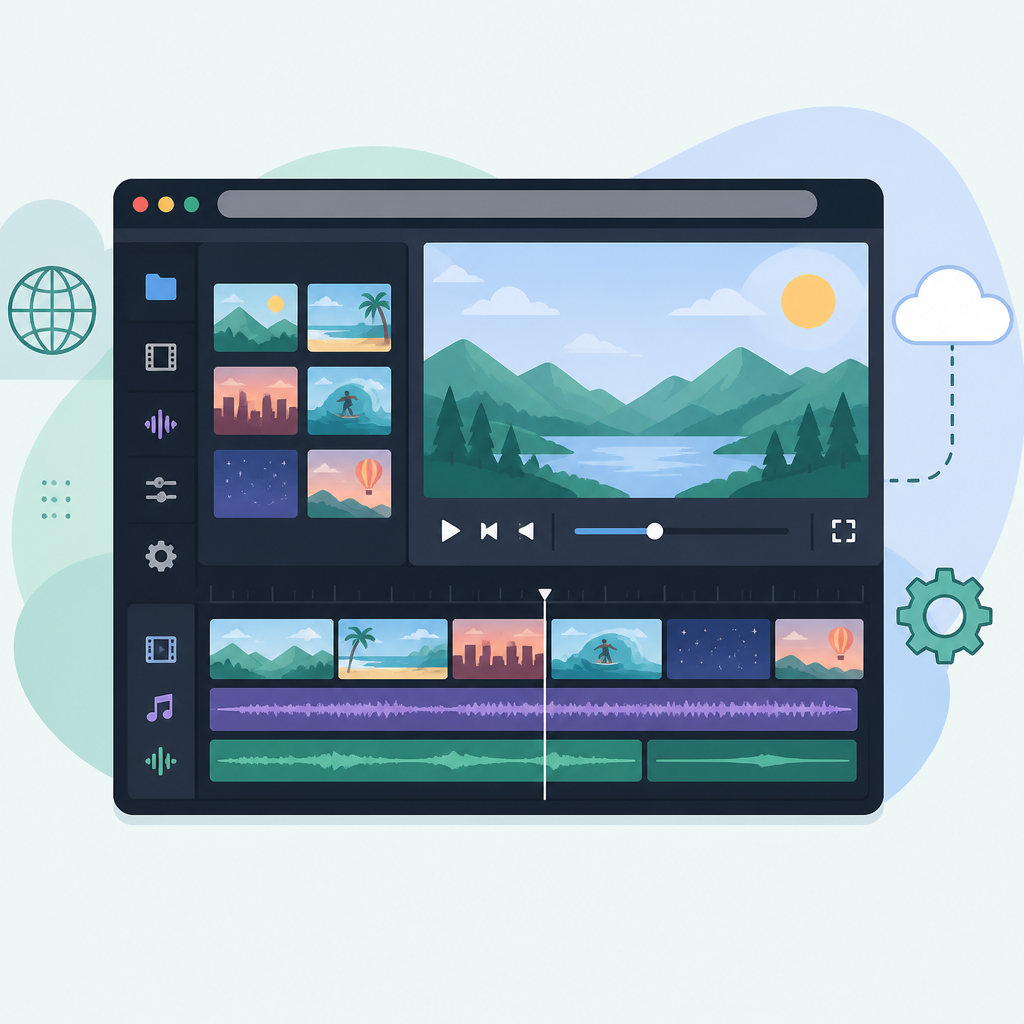
The project README makes the privacy angle plain. No uploads, no server-side rendering, and zero data collection. That puts it in a different class from tools like CloudConvert, Kapwing, and Clideo, where the file has to leave your machine before anything useful happens.
"No uploads, no servers -- all processing happens locally in your browser using WebAssembly."
That sentence is the pitch, but it is also the product design. If a browser can do the work, then the browser becomes the workstation.
There is a catch, of course. Local processing means the user pays the compute bill, so performance depends on the machine in front of you. A modern laptop will handle a lot more than a phone, and the first load is heavier than a cloud app that simply streams a file to a backend.
The feature set is broader than it first looks
At a glance, ffmpeg-webCLI looks like a simple converter. In practice, it covers a long list of day-to-day tasks that usually force people into separate tools. The repository includes GIF creation, format conversion, compression, trimming, filters, auto-captioning, audio extraction, subtitle embedding, picture-in-picture, and raw ffmpeg command access.
That breadth matters because it changes the number of tabs you need open. Instead of bouncing between Ezgif for GIF work, a subtitle site for captions, and a converter for output formats, the app tries to keep the common jobs in one place.
- Video formats: MP4, WebM, MKV, MOV, AVI
- Audio formats: MP3, AAC, WAV, OGG, FLAC
- Image output: GIF, JPG, PNG
- Advanced edits: concatenation, audio mixing, subtitle embedding, picture-in-picture
The supported format list is practical rather than aspirational. MP4 and WebM cover most web delivery, while MKV and MOV help with interchange and editing workflows. On the audio side, the inclusion of FLAC and WAV makes the app useful for people who need either lossless archiving or clean intermediate files.
There is also a nice detail in the compression UI: it exposes CRF values from 18 to 51 and encoding presets from ultrafast to veryslow. That is the kind of control power users expect from ffmpeg itself, but with a friendlier front end.
Stack mode is the smartest part of the app
The strongest workflow idea in the project is stack mode, which lets users chain operations before a single encode. That means crop, grayscale, and MP4 conversion can happen in one pass instead of three, which saves time and avoids quality loss from repeated re-encoding.
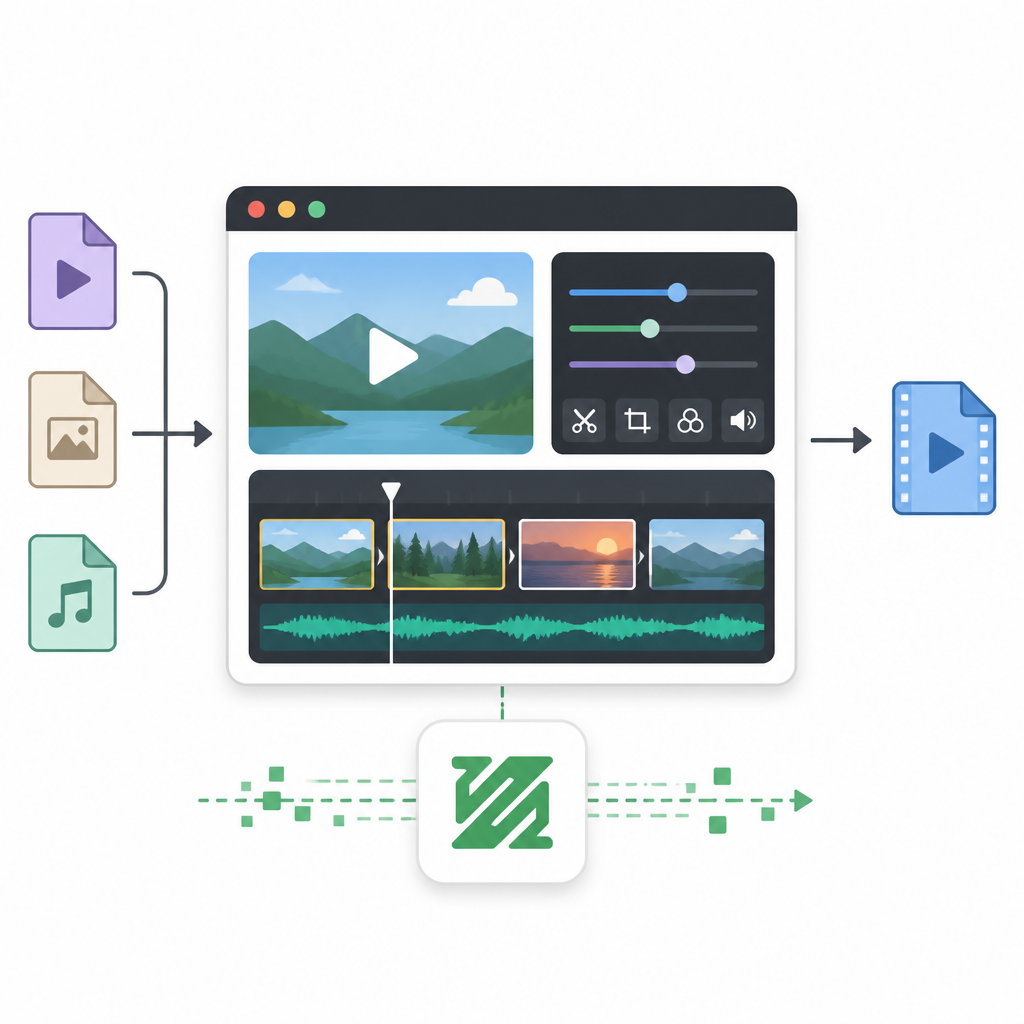
The README spells out the mechanics: active trim is applied first, then the filter chain runs, then ffmpeg writes one output file. In other words, the app is trying to behave like a careful editor, not a pile of one-off buttons.
The project also draws a line between chainable and non-chainable operations. Single-input filters such as crop, resize, rotate, adjust, grayscale, fade, denoise, sharpen, blur, speed, pad, letterbox, and volume can be stacked. Multi-input tasks like concatenate, side by side, picture in picture, mix audio, embed subtitles, and logo overlay stay in single mode.
- Single pass encoding reduces repeated quality loss
- Batch mode can apply one chain to many files
- Per-file previews and ZIP-all make bulk work less annoying
- Web Workers keep processing off the main UI thread
That design is more than convenience. It reflects a real understanding of how ffmpeg users work. Most people do not want six separate exports for one result. They want one composed command, one render, and one file at the end.
It also explains why the app includes live command previews. When the UI shows the actual ffmpeg invocation, users can learn the tool instead of treating it like a black box.
Batch mode makes the browser feel less fragile
Batch processing is where browser-based editors usually fall apart, because memory and progress tracking get messy fast. ffmpeg-webCLI tries to handle that with queued files, per-file status, sequential processing, and graceful fallback if a file is already loaded when batch mode turns on.
That is a sensible set of choices. The app does not pretend every operation is safe for every file. Reverse, for example, is flagged as memory-intensive because it may need full-video buffering and can hit a 2 GB ceiling. Crop, overlay, and other dimension-dependent or multi-input tasks are also restricted in batch mode.
Here is the practical comparison the README invites you to make:
- CloudConvert uploads your file before processing; ffmpeg-webCLI keeps it local
- Kapwing and Clideo are broad web editors; ffmpeg-webCLI is narrower but more private
- Adobe Express gives polished templates; ffmpeg-webCLI gives direct ffmpeg control
- ffmpeg.wasm powers the local compute layer; the app is the workflow wrapper around it
That tradeoff is clear enough to understand in one sentence: cloud editors win on convenience for casual users, while ffmpeg-webCLI wins when privacy and local control matter more than a glossy template library.
The project’s GitHub stats back up that it has found an audience. With 717 stars, 56 forks, and 121 commits, it looks like a maintained open source utility rather than a one-week hackathon idea.
What this says about browser software now
ffmpeg-webCLI shows how far browsers have come as an execution environment. A few years ago, the idea of editing video locally in a tab would have sounded clumsy. Now WebAssembly, Web Workers, and offline-first PWA patterns make it realistic for real workflows.
The bigger lesson is not that every desktop app should move into the browser. It is that some tasks become better when the browser owns the full lifecycle: load once, process locally, store nothing, and reuse the same cached runtime later.
If the project keeps growing, the next useful step is obvious: better presets for common workflows, stronger hardware-aware performance hints, and more guidance for non-technical users who want ffmpeg power without learning ffmpeg syntax. The real question is whether more web apps will copy this local-first model before users start demanding it by default.
// Related Articles
- [TOOLS]
Zilliz Adds Cost Metrics to VDBBench
- [TOOLS]
Zilliz adds cost-aware scoring to VDBBench
- [TOOLS]
Pixel 11 launch highlights and new Gemini features
- [TOOLS]
AWS Continuum turns AI coding into safer fixes
- [TOOLS]
Open-Generative-AI turns GitHub into a studio
- [TOOLS]
Why benchmark scores don’t predict your bill