Gemini Live camera turns seeing into help
Use Gemini Live camera to get step-by-step help from what you can see, not what you can describe.

Tap the Live icon and camera to turn whatever you see into instant Gemini help.
I've been using Gemini for a while, and the text-only flow kept bugging me. I'd hit a snag with a cable, a menu, a weird error light, or some half-broken app screen, and the whole thing turned into a guessing game. I’d have to describe what I was looking at, then re-describe it when the model missed a detail, then explain the context again because “the thing on the left” is not exactly precise engineering language. It worked, technically. It just felt slow and annoyingly indirect.
That’s why the Google blog post on Gemini Live camera caught my eye. It’s not a giant product essay. It’s a simple nudge: use your camera, point it at the thing, and ask for help in real time. Google says you can “tap the Live icon and click the camera” to start Gemini Live, then use what’s in front of you as the starting point. That’s the whole trick, and honestly, that’s the part I wish more AI tools got right from the start.
Stop translating the real world into a paragraph
Get the latest AI news in your inbox
Weekly picks of model releases, tools, and deep dives — no spam, unsubscribe anytime.
No spam. Unsubscribe at any time.
“Simply tap the Live icon and click the camera to start Gemini Live, and point your lens at whatever you need help with.”
What this actually means is that Gemini Live is trying to cut out the dumbest step in the process: you describing an object badly because the model can’t see it yet. I’ve done this dance with support chats, documentation, and AI assistants. You spend two minutes explaining the shape, the label, the screen, the light, the noise, and by then you’ve already lost the thread.
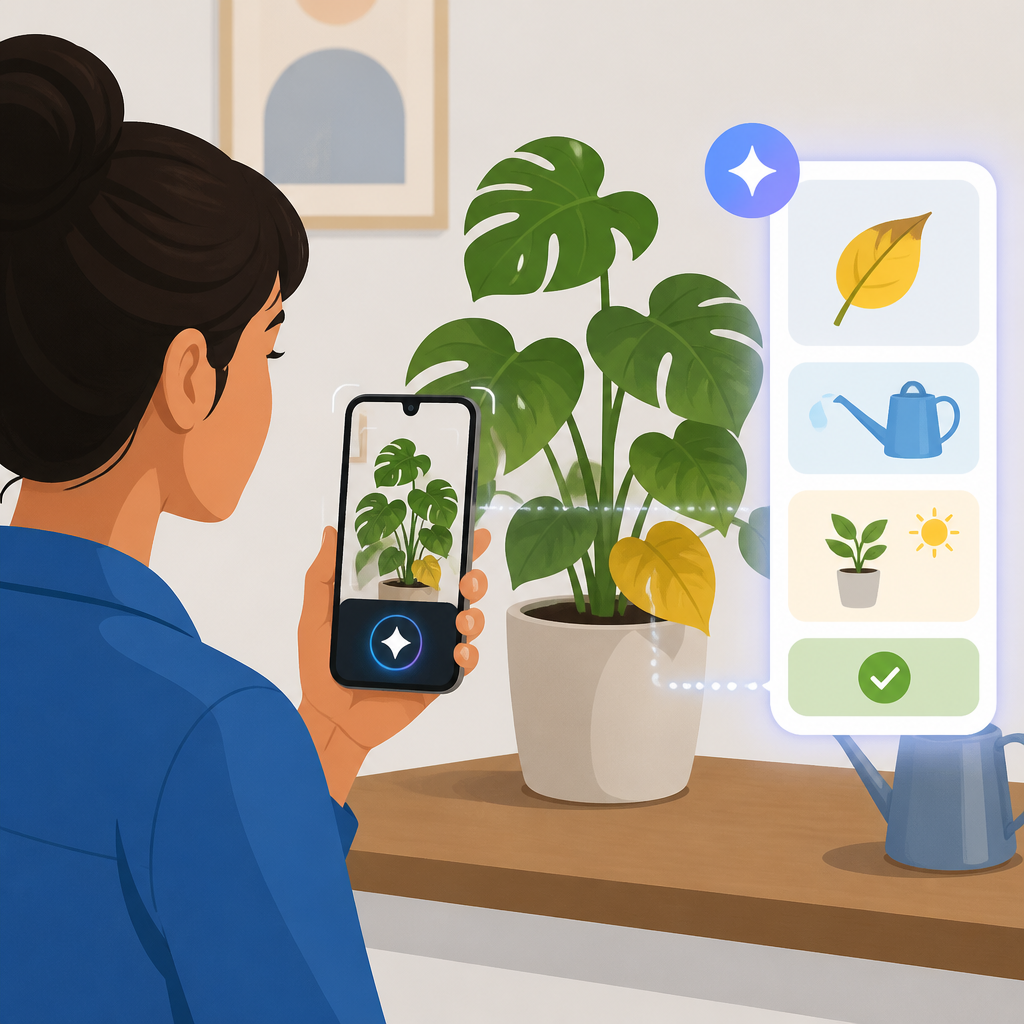
With camera input, the model gets the same context you have. That matters more than people admit. A photo of a blinking router light is better than “the light is blinking kind of fast, maybe blue, maybe white.” A live view of a cluttered drawer is better than “I need organizing ideas for a drawer with random stuff.” The camera turns vague intent into concrete input.
When I first tried workflows like this, I expected novelty. Instead, I got relief. The interaction felt less like prompting a chatbot and more like holding up a thing and saying, “What am I dealing with?” That’s a much better mental model.
How to apply it: use camera-first input whenever the answer depends on shape, layout, labels, color, or physical state. If you can point at it, point at it. Save the long explanation for when the visual context still isn’t enough.
- Broken appliance? Show the panel, the lights, the model number.
- Confusing packaging? Show the front, the ingredients, the instructions.
- Messy workspace? Show the whole area before asking for a plan.
Real-time help beats one-shot image prompts
The blog isn’t just about snapping a picture. It’s about using Gemini Live in motion, which is a different experience from the usual upload-and-wait pattern. A static image prompt is useful, sure, but live camera mode gives you a back-and-forth while you’re still looking at the thing. That changes the quality of the help because you can adjust in place.
I ran into this kind of workflow with hardware troubleshooting. A still image can miss the one detail that matters: the cable that’s slightly loose, the port that’s mislabeled, the button you forgot to press. Live camera lets you move the phone, zoom in, and keep the conversation going while the model reacts to what changes. That’s a big deal when the problem is physical and the details are spread across a few inches of clutter.
Google’s post points out that you can use Gemini to ask for “step-by-step repair instructions” or “tips for organizing messy drawers.” That’s a useful clue about intent. The camera isn’t just for identification. It’s for guided action. You’re not asking, “What is this?” You’re asking, “What should I do next, right now, with this exact thing?”
How to apply it: when a task has multiple steps, keep the camera on and ask one step at a time. Don’t front-load the whole problem. Let the model react to what it sees, then narrow the next question based on the answer.
- Ask for the first safe step, not the full repair plan.
- Ask what detail to inspect next.
- Ask for a simpler version if the instructions are too dense.
Use screen sharing when the problem is software, not hardware
The post also mentions that you can share your screen to get help navigating a confusing app. I think this is the part people overlook, because they hear “camera” and assume the feature is only for physical objects. It isn’t. Screen sharing turns Gemini Live into a guide for digital clutter too.
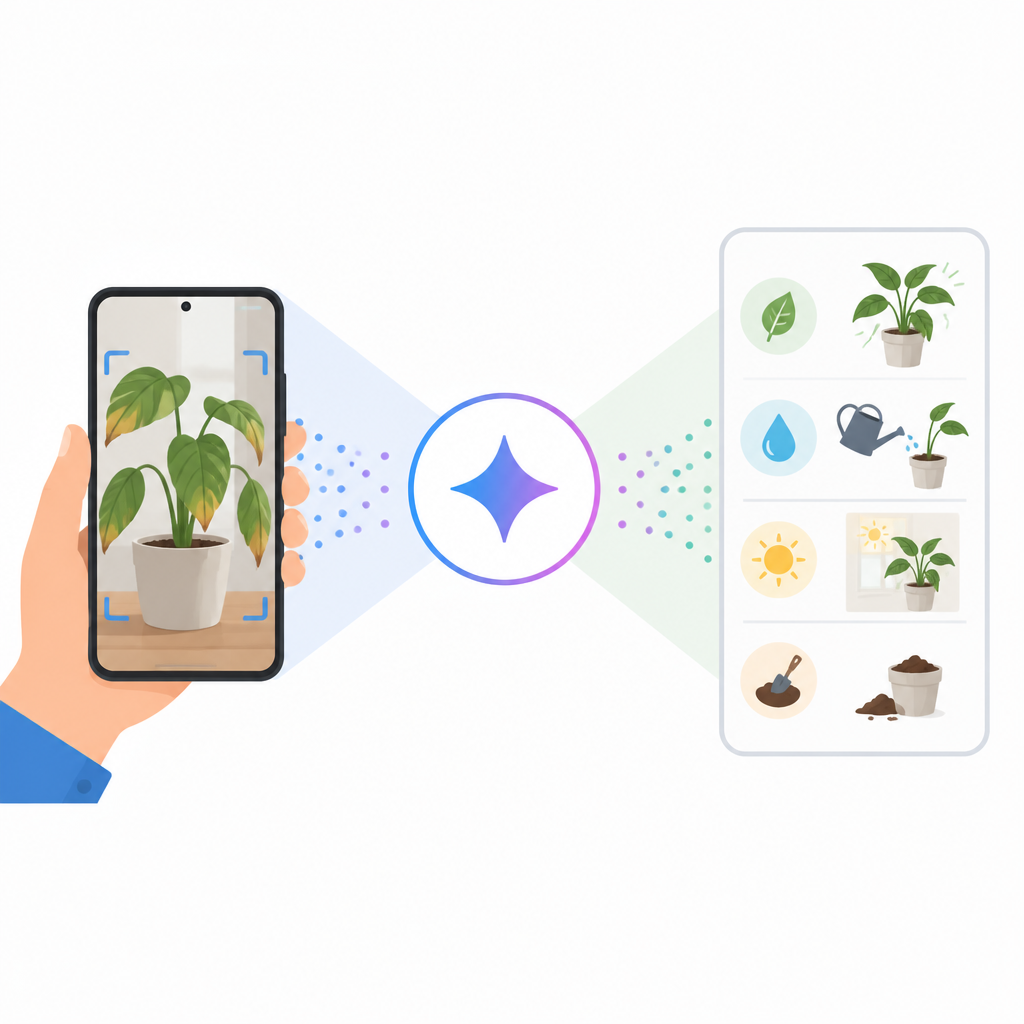
I’ve used enough apps to know the pain here: settings buried under three menus, icons with no labels, onboarding flows that assume you already know the answer. Screen sharing solves a different version of the same problem. Instead of describing where you are in an app, you just show it. That reduces the chance of the model hallucinating a menu path that doesn’t match your screen.
There’s a practical distinction here. Camera mode is for the world. Screen share is for interfaces. If you mix them up, you end up asking the model to infer too much. I prefer to think of it this way: if the problem lives in your room, use the camera. If it lives in your browser or app, use screen share.
How to apply it: when you’re stuck in software, don’t screenshot first and then explain. Share the live screen, then ask the model to walk you through the next click. If the app changes after each action, keep the session open so Gemini can keep up.
Useful cases:
- Settings menus with unclear labels
- Checkout flows with hidden options
- Admin panels and dashboards with too many tabs
Ask for actions, not just identification
One reason camera-based AI can feel disappointing is that people use it like a label maker. They point at something and ask what it is, then stop there. That’s the lowest-value version of the feature. The Google post is more interesting because it frames Gemini Live as help for repair, organization, shopping, and creative brainstorming. That’s action-oriented.
What this actually means is that the camera should feed a task, not just a name. If Gemini can see a drawer full of cables, the useful output is not “those are cables.” The useful output is a sorting plan. If it can see a product shelf, the useful output is not “that’s a lamp.” The useful output is comparison advice based on what matters to you: size, style, price, space, or compatibility.
I’ve found this shift matters because it keeps the session from dying after the first answer. Identification is a dead end. Action creates follow-up questions. Once the model gives you a plan, you can ask it to simplify, prioritize, or adapt the plan to your constraints.
How to apply it: phrase your prompt around the next move. Try “What should I do with this?” instead of “What is this?” or “Which one should I choose?” instead of “What are these?”
Good patterns:
- “Show me the safest way to fix this.”
- “Help me organize this into three groups.”
- “Which option fits my space better?”
Keep the prompt short because the image already did the work
One of the nicest side effects of visual input is that you can stop over-explaining. That sounds small, but it changes how you use the tool. When the model already sees the object, your prompt can be short and specific. “Why is this light blinking?” “How do I clean this up?” “Which of these looks better for a small room?”
I’ve been guilty of overprompting every AI tool I touch. I explain the context, the constraints, the history, the thing I tried last week, the thing I’m afraid of now. Most of the time, that’s just me compensating for a lack of shared context. Camera mode gives you that context back. Use it.
That doesn’t mean prompts don’t matter. They do. It just means the prompt should focus on intent, not scene-setting. The image provides the scene. You provide the goal.
How to apply it: strip your first question down to the action you want. Then follow up only if the answer is too broad. If you’re showing a physical object, don’t write a paragraph unless the safety or stakes demand it.
A simple prompt formula:
- What am I looking at?
- What should I do with it?
- What’s the next safe step?
Where this actually fits in a dev workflow
Even though this is a consumer-facing Gemini feature, I can see the developer use cases immediately. The camera helps anywhere there’s a messy boundary between the physical and the digital. Lab setups, networking gear, whiteboards, hardware prototypes, packaging, shipping labels, even a coworker’s desk full of mystery adapters. That stuff is annoying to describe and easy to inspect visually.
I’d also use it for support triage. If I’m helping someone remotely, I don’t want a five-message description of a blinking indicator or a connector orientation. I want them to show me. That’s faster, and it reduces the chances that we spend ten minutes arguing about the wrong port.
There’s a broader workflow lesson here too. The best AI tools don’t make you adapt your thoughts to the interface. They adapt the interface to the thing you’re already doing. Gemini Live camera is useful because it lowers the translation cost. Less typing. Less guessing. Less “wait, no, the other side.”
How to apply it in practice:
- Use camera mode for physical debugging during calls.
- Use screen share for app or dashboard walkthroughs.
- Use short prompts and let the visual context carry the load.
The template you can copy
# Gemini Live camera prompt template

Use this when you want real-time help from something you can see.

## Camera mode
1. Open the Gemini app.
2. Tap the Live icon.
3. Click the camera.
4. Point your lens at the thing you need help with.

## Prompt templates
- “What am I looking at, and what should I do next?”
- “Walk me through the safest fix step by step.”
- “Help me organize this into three clear groups.”
- “Which option fits my space, and why?”
- “What’s the next thing I should inspect?”

## Screen share template
- “I’m stuck in this app. Tell me the next click.”
- “Help me find the setting I need on this screen.”
- “Show me the shortest path to finish this task.”

## Better prompt rules
- Show the object instead of describing it.
- Ask for actions, not just labels.
- Keep the first prompt short.
- Follow up only when the answer needs more context.

## Copy-ready example
I’m showing you this [object/screen].
Help me with [goal].
Give me the next step first, then the rest only if needed.
The original idea comes from Google’s post, “How to use your Gemini Live camera for real-time help”, which is the source for the camera-and-screen-sharing workflow I broke down here. I’ve added the framing, examples, and template based on my own experience using AI tools, but the core feature description is Google’s.
For related docs, I’d also keep an eye on the main Gemini product page, the Gemini Help Center, and Google’s broader developer documentation if you’re trying to connect this kind of multimodal input to your own workflows.
// Related Articles
- [TOOLS]
JianGuoYun Wins Because File Sharing Should Be Sync, Not Shipping
- [TOOLS]
How AI Rewrites PostgreSQL in Rust
- [TOOLS]
AI Agent tooling that turns docs into workflows
- [TOOLS]
Docker Desktop on Windows in one clean install flow
- [TOOLS]
Grok 4.5 hits Cursor with $2/$6 pricing
- [TOOLS]
AGT turns agent calls into governed actions