Docker Desktop on Windows in one clean install flow
I break down Docker’s Windows install flow into a clean checklist, with the WSL bits, restart step, and a copyable setup template.

Docker Desktop on Windows now follows a WSL-first install flow.
I've been installing Docker Desktop on Windows long enough to know when the docs are lying to me by omission. The old pattern was always the same: download the installer, click through, then spend the next hour figuring out why containers were slow, why file sharing felt weird, or why the whole thing quietly depended on Windows features I hadn't actually enabled. That is the part that used to irritate me most. Not the install itself, but the fact that the install page looked simple while the real setup hid in three other pages, two Windows dialogs, and one reboot I was supposed to remember to do.
What I wanted was a straight answer. What do I install, what do I need before I start, and what is the minimum sequence that gets me to a working Docker Desktop without me playing system administrator in my own dev machine? The current Docker Docs Windows install page finally points in that direction, but it still assumes you know the difference between Docker Desktop, WSL, and Windows features. I don't want assumptions. I want the checklist I can run without thinking.
The good news is that once I stripped away the doc-site clutter, the flow got a lot clearer. Docker Desktop on Windows is basically: make sure Windows is ready for WSL 2, install Docker Desktop, let it finish, restart if asked, then verify the backend is actually the one you think it is. That's it. The rest is cleanup and preference. The annoying part is that the docs bury the practical order under a lot of navigation and helper text, so I'm going to pull the useful bits apart and turn them into something you can actually use.
Docker Desktop is not the whole story, WSL is
Get the latest AI news in your inbox
Weekly picks of model releases, tools, and deep dives — no spam, unsubscribe anytime.
No spam. Unsubscribe at any time.
Run either the install or update command. You may be prompted to restart your machine. For more information, refer to Install WSL. Go to the official WSL GitHub Releases page.
What this actually means is that Docker Desktop on Windows is no longer a self-contained app install. It sits on top of WSL 2 for the Linux container runtime path, and if WSL is missing or stale, Docker Desktop can install fine and still behave badly afterward. The docs point you to Install WSL and the official WSL GitHub Releases page because the underlying subsystem matters as much as Docker itself.
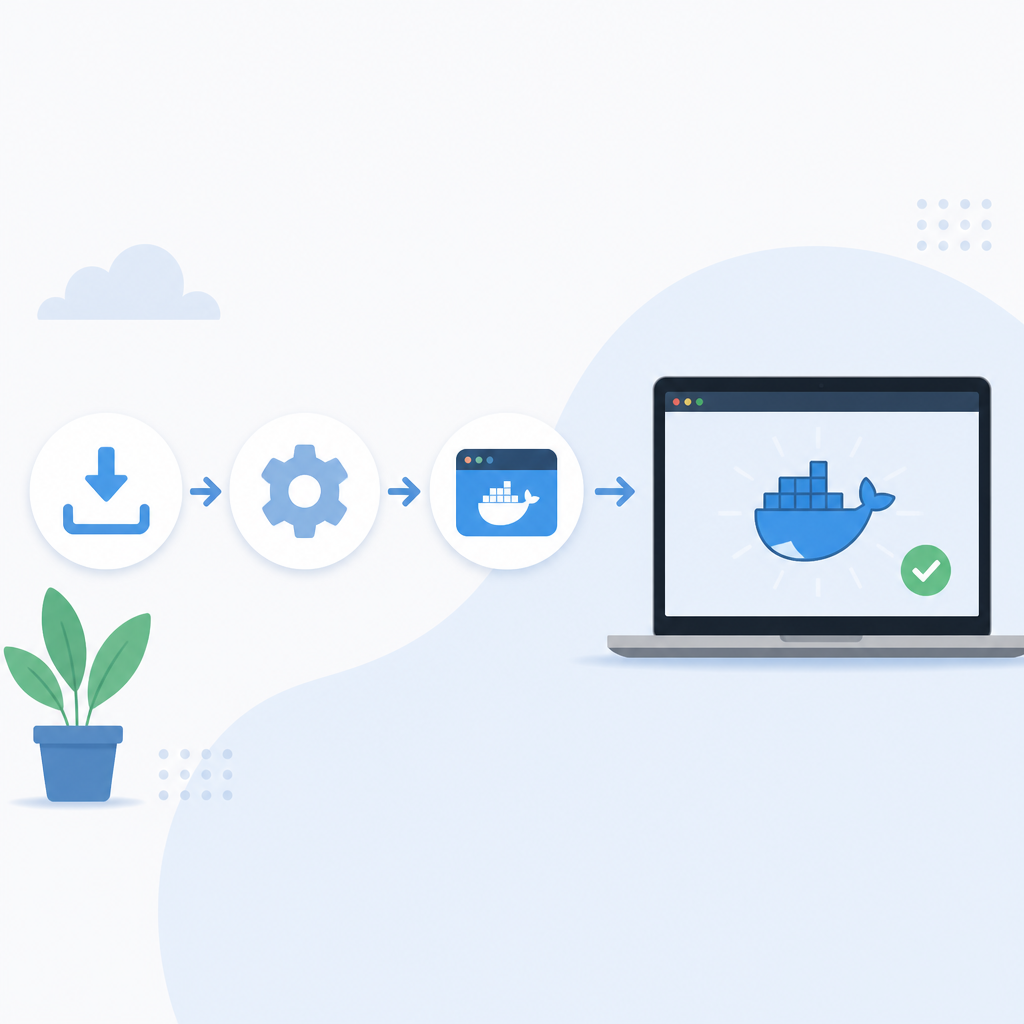
I ran into this exact mess on a new Windows machine where Docker Desktop launched, but the engine felt half-awake. The UI was up, the tray icon looked happy, and yet every real container action was delayed or failed in ways that smelled like an incomplete subsystem install. That is the kind of issue that wastes a morning because the app installer never screams loudly enough. It just sits there waiting for Windows plumbing to catch up.
How to apply it: before you install Docker Desktop, check whether WSL is already installed and current. If you're not sure, treat that as a no. Install or update WSL first, then reboot if Windows asks. If you're building a standard dev image for a team, make this a preflight step instead of hoping the Docker installer will save you from a broken base OS state.
- Verify WSL is installed and WSL 2 is available.
- Update WSL before Docker Desktop if the machine has been neglected.
- Restart after WSL changes, even if you think you can skip it.
The installer is easy; the machine state is the real dependency
Docker’s install page looks simple because the installer itself is simple. The hidden dependency is Windows state: virtualization support, WSL integration, and whatever corporate policy your laptop inherited from IT. That's why the page keeps nudging you toward WSL setup instead of pretending Docker Desktop can fix the machine for you.
I've seen developers blame Docker for what was really a Windows feature toggle problem. Hyper-V off. Virtualization off in BIOS. WSL kernel outdated. The app was not the issue. The host was. That's annoying, but it's also useful, because once you stop treating Docker Desktop like a standalone app, the troubleshooting path gets shorter.
How to apply it: before or after install, confirm the host can actually run Linux containers. Use the Docker Desktop guidance for Windows setup, and if you're rolling this out to a team, document the prerequisite list right next to the installer link. Don't bury it in a wiki nobody reads.
- Check Windows version compatibility before you start.
- Confirm virtualization is enabled in firmware and Windows features are available.
- Keep the WSL kernel updated on machines that get reused a lot.
Restart prompts are not optional decoration
The docs say you may be prompted to restart your machine. I read that as: expect a restart, budget for it, and don't try to be clever. On Windows, feature installs that touch WSL or virtualization often need a full reboot to settle. If you skip that, you end up debugging a half-applied state and pretending it is an application bug.
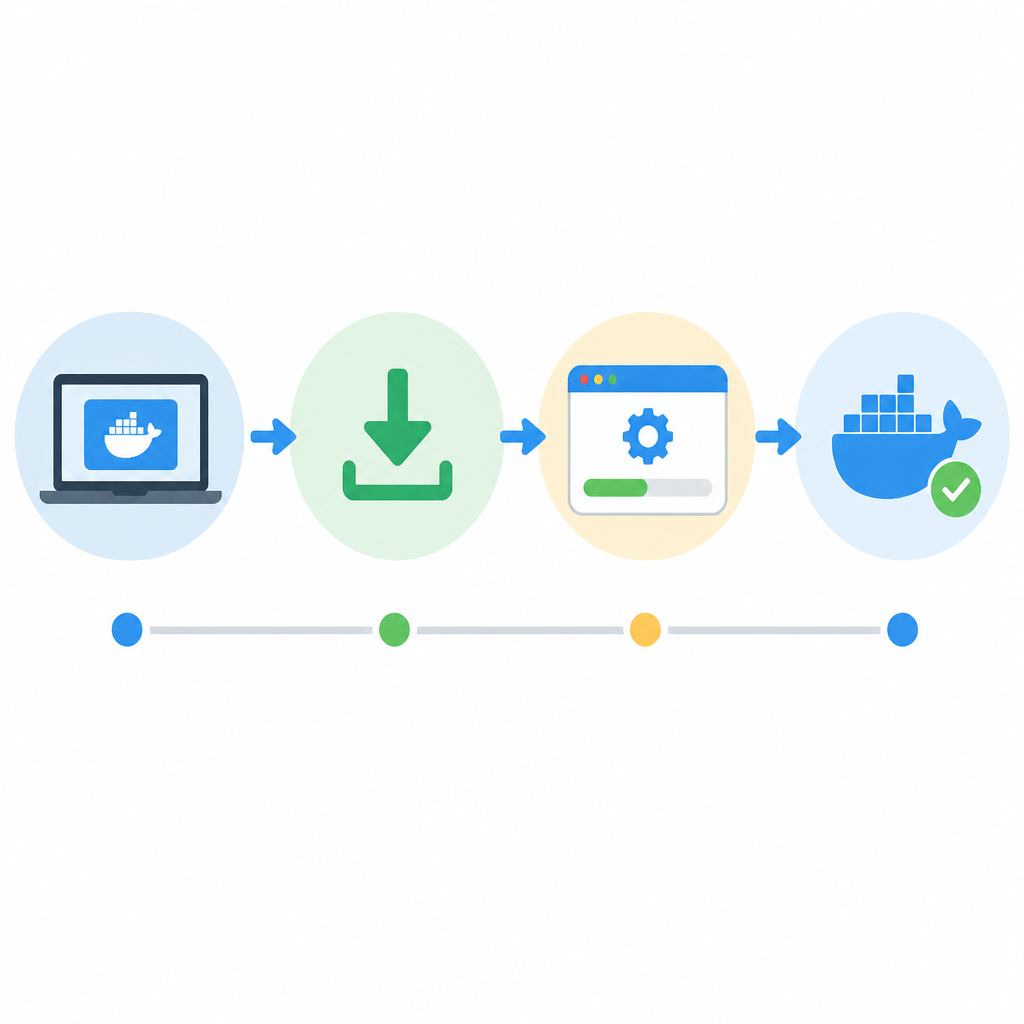
I used to ignore restart prompts because I wanted to keep moving. Bad habit. On Windows, that habit punishes you later with weird failures that disappear after the reboot you should have done in the first place. Docker Desktop is no exception. When the docs mention a restart, I take that as part of the install, not an optional cleanup step.
How to apply it: if you are onboarding a machine, install WSL, install Docker Desktop, then restart before you test anything serious. If you are writing internal docs, say this plainly. People will skip a restart if you phrase it like a suggestion.
After the reboot, open Docker Desktop and check whether it reports a healthy engine. Then run a tiny test container so you validate the backend, not just the UI. A tray icon is not proof of anything.
Use the Docker Desktop docs, but read them like a sysadmin
The official page is useful, but it's written like a product page wearing documentation clothes. You get the install path, the WSL pointer, and a lot of surrounding navigation. What you do not get is a blunt, minimal sequence. So I read it the way I read any vendor doc: look for the dependency chain, ignore the decorative language, and extract the actual order of operations.
That means the important part is not just "install Docker Desktop." It's "install or update WSL, restart if needed, then install Docker Desktop, then verify the runtime." That sequence is what keeps you from landing in a weird state where Docker is present but not actually useful.
How to apply it: treat the docs as source material, not as a workflow. Build your own checklist from them. If you manage multiple Windows dev machines, put the WSL step in your baseline setup script or onboarding guide so nobody has to rediscover it.
- Read the install page for dependency clues, not just button clicks.
- Translate vendor docs into a local checklist.
- Keep the verification step separate from installation.
Verification beats optimism every time
Once Docker Desktop is installed, I never trust the green checkmark alone. I want a real command that proves the engine can pull and run a container. Otherwise I'm just admiring the UI. Verification is where bad installs stop being theoretical.
That matters on Windows because the failure modes are often partial. Docker Desktop can open, WSL can exist, and yet container execution can still be broken by the host configuration. So the right move is to verify immediately, while the install context is still fresh and you remember what changed.
How to apply it: after installation and reboot, run a basic container test from PowerShell or your terminal of choice. If the test fails, do not start debugging your app stack. Fix the platform first.
If you are documenting this for a team, include the exact verification command in the same doc as the install steps. The fewer places people have to look, the less likely they are to skip the check and blame Docker later.
What I would tell a teammate before they start
If I were handing this to another developer, I would keep the advice brutally short: update WSL first, install Docker Desktop second, restart when asked, then verify with a real container. Everything else is noise until that sequence works.
That sounds obvious, but obvious is exactly what gets lost in vendor docs. The page is technically correct, but it does not read like someone who has had to rescue a broken Windows dev machine at 9 a.m. on a Monday. I have, and the difference between theory and reality is usually one missing reboot and one missing WSL update.
How to apply it: keep your install process boring. Boring is good. Boring means repeatable. Repeatable means you can hand it to a new hire without being on Slack the whole time.
The template you can copy
# Docker Desktop on Windows install checklist

## Before you install
- Confirm Windows supports WSL 2
- Install or update WSL first
- Reboot if Windows asks

## Install Docker Desktop
- Download Docker Desktop for Windows from the official docs
- Run the installer
- Accept the prompts that match your environment
- Let the install finish completely

## After install
- Restart the machine if prompted
- Open Docker Desktop and wait for the engine to become healthy
- Verify the backend with a real container run

## Quick verification
powershell
wsl --status
docker version
docker run --rm hello-world


## If something feels off
- Re-check WSL installation and version
- Confirm virtualization is enabled
- Restart again after any host-level change
- Re-test before touching your app stack

## Team onboarding note
If you are writing internal docs, put the WSL step before the Docker Desktop step.
Do not present Docker Desktop as a standalone install on Windows.
The original source for this breakdown is the Docker Docs page for Install Docker Desktop on Windows. My template is a derivative workflow built from that page plus the linked WSL guidance, not an official Docker checklist.
For the WSL dependency, I also referenced Microsoft’s WSL install guide and the WSL GitHub Releases page. If you want the cleanest path, start there, then come back to Docker Desktop.
// Related Articles
- [TOOLS]
Grok 4.5 hits Cursor with $2/$6 pricing
- [TOOLS]
AGT turns agent calls into governed actions
- [TOOLS]
OpenClaw v2026.7.1 turns control UI into a workspace
- [TOOLS]
OpenAI’s screenless speaker turns ChatGPT into a companion
- [TOOLS]
SCALE turns CUDA code into portable GPU builds
- [TOOLS]
2027 AI/ML internship jobs are being tracked daily