Kimi-K2.5 Local Setup with Ollama and Docker
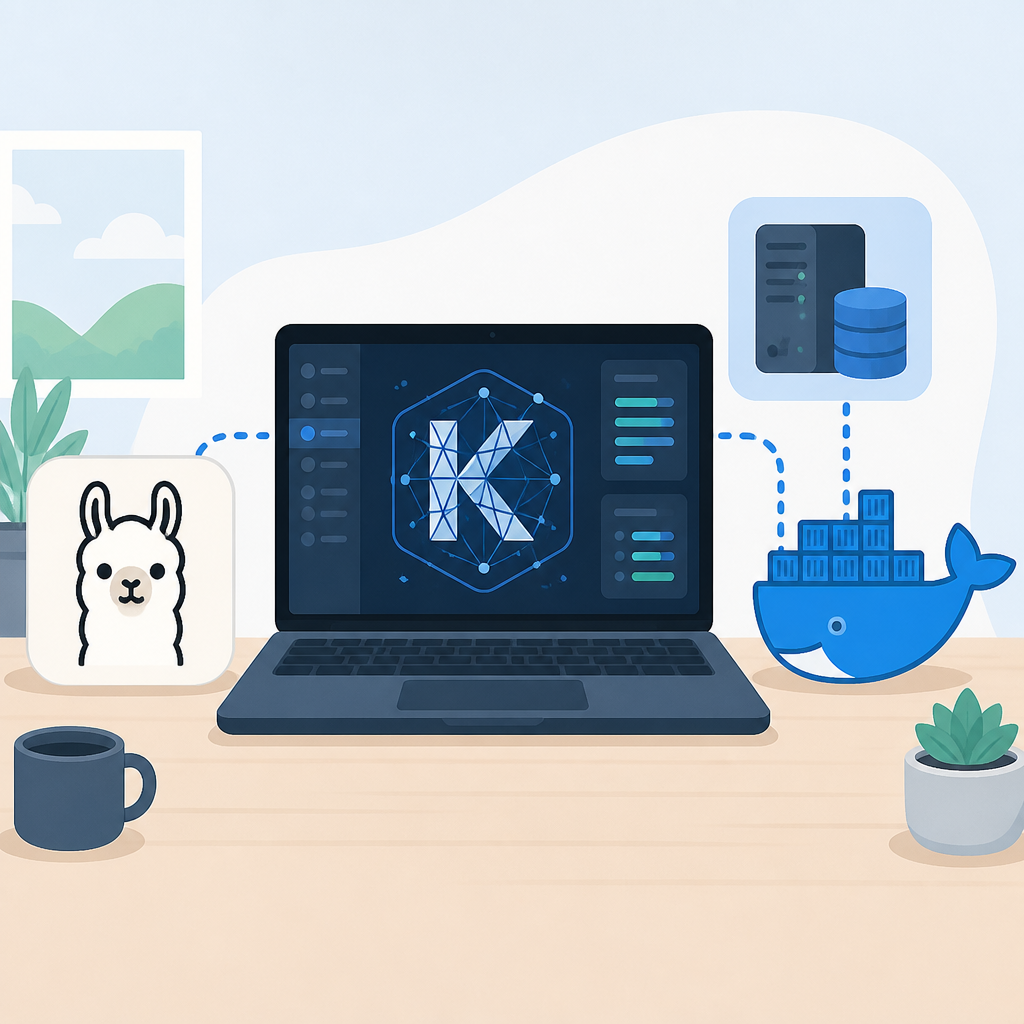
Set up Kimi-K2.5 locally with Docker and Ollama for offline model runs.

Set up Kimi-K2.5 locally with Docker and Ollama for offline model runs.
This guide is for developers who want a fast local Kimi-K2.5 build without cloud setup. After following the steps, you will have a Docker-based Ollama stack running the model, plus a simple way to verify the service is live and ready for prompts.
Before you start
Get the latest AI news in your inbox
Weekly picks of model releases, tools, and deep dives — no spam, unsubscribe anytime.
No spam. Unsubscribe at any time.
- Docker Desktop 4.30+ or Docker Engine 24+ with Docker Compose v2
- Ollama installed locally, or an Ollama container image you can pull
- Node.js 20+ only if you plan to test the API from a script
- At least 16 GB RAM for stable local loading, with more recommended for larger quantized builds
- 50 GB free disk space for model files, cache, and future updates
- A GitHub account if you want to clone and version your compose files
- Access to the Ollama docs and image repo: Ollama GitHub and Ollama docs
Step 1: Create the project folder
Your first goal is to create a clean workspace for the Kimi-K2.5 Docker build so the compose file, model assets, and logs stay organized.
mkdir kimi-k2-5-local
cd kimi-k2-5-local
mkdir models data logs
Verification: you should see the new folders when you run ls or dir, and the terminal should remain inside the project directory.
Step 2: Add the Docker Compose file
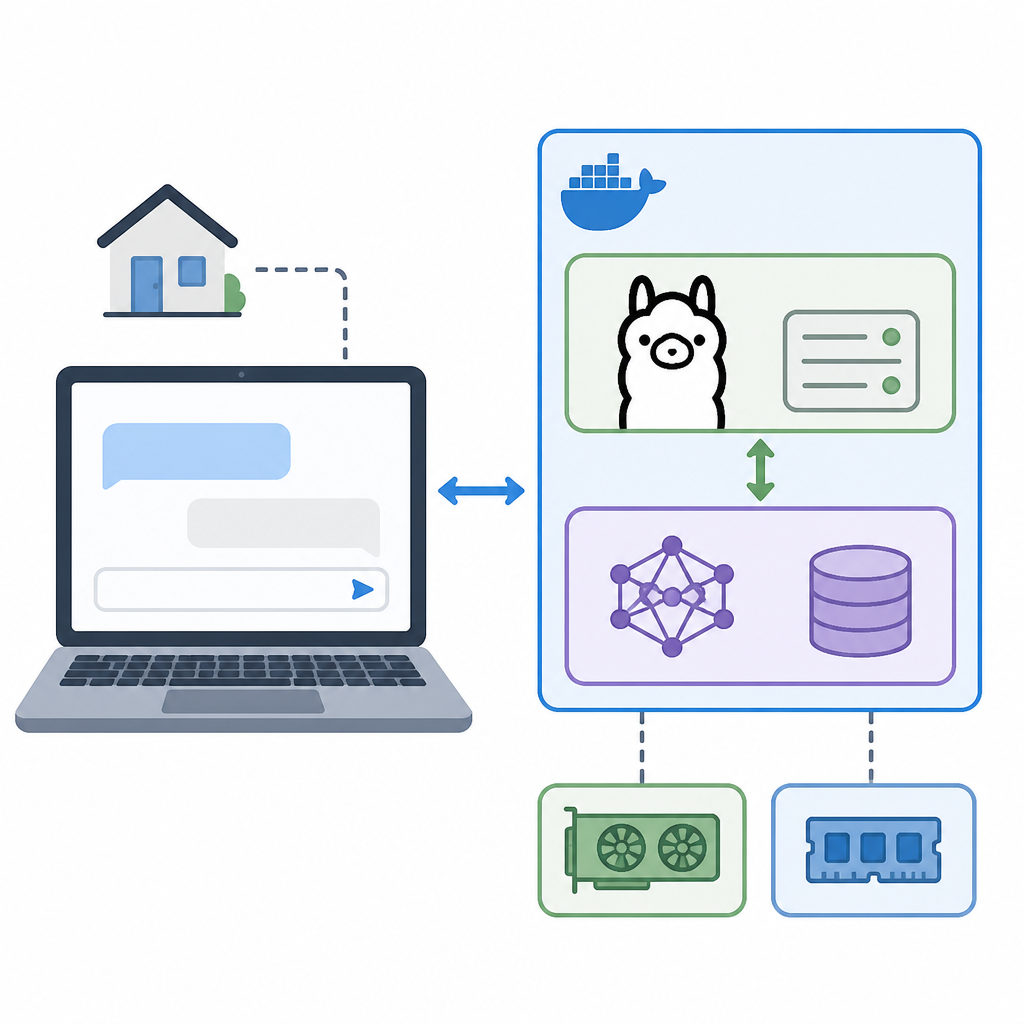
Next, define a repeatable container setup that starts Ollama and exposes the local API on your machine.
services:
  ollama:
    image: ollama/ollama:latest
    container_name: kimi-k2-5-ollama
    ports:
      - "11434:11434"
    volumes:
      - ./models:/root/.ollama
    restart: unless-stopped
Verification: you should have a docker-compose.yml file in the project root, and the service name should be easy to identify in Docker.
Step 3: Start the Ollama container
Now launch the container so the local Ollama runtime is available before you pull or run the model.
docker compose up -dVerification: you should see the container start without errors, and docker ps should list kimi-k2-5-ollama as running.
Step 4: Pull the Kimi-K2.5 model
With the runtime active, fetch the model tag you intend to use so the local machine has the model weights ready for inference.
docker exec -it kimi-k2-5-ollama ollama pull kimi-k2.5Verification: you should see a completed download with no failed layer messages, and the model should appear in the Ollama model list.
Step 5: Run a local prompt test
Finish by sending a simple prompt to confirm the model answers correctly through the local Ollama endpoint.
docker exec -it kimi-k2-5-ollama ollama run kimi-k2.5 "Write one sentence about local AI development."Verification: you should see a text response in the terminal, which confirms the model is serving requests from your own machine.
| Metric | Before/Baseline | After/Result |
|---|---|---|
| Setup path | Manual local install steps | Docker Compose launch |
| RAM guidance | No explicit target | 16 GB minimum for stable 8B loading |
| Storage planning | Ad hoc disk usage | 50 GB free space recommended |
Common mistakes
- Using too little memory: if the container exits or swaps heavily, add RAM or use a smaller quantized model tag.
- Forgetting port 11434: if the API is unreachable, confirm the port mapping is exposed in the compose file and not blocked by another service.
- Pulling the wrong model name: if Ollama says the model is missing, recheck the tag spelling and pull the exact name shown in the repo or docs.
What’s next
After the local build works, add a client app, benchmark prompt latency, or place the stack behind a reverse proxy so you can share the model safely on a LAN.
// Related Articles
- [AGENT]
Agent Plugins 1.0.0 turns skills into folders
- [AGENT]
FaithEyes lets you train tool-faithful vision agents
- [AGENT]
Connect Qwen 3.8 Max to CLI Agents
- [AGENT]
Fine-tune a small LLM for legal labeling
- [AGENT]
SALA Boosts Long Context on Edge AI
- [AGENT]
Anthropic’s breach proves AI agents need hard security limits