OpenClaw with Ollama turns Telegram into a bot
I break down OpenClaw’s Ollama setup and show the exact config I’d copy for a private Telegram research bot.

OpenClaw turns Ollama from a terminal toy into a Telegram bot you can actually use.
I’ve been using local models long enough to know the pattern. I spin up Ollama, get a nice answer or two, feel smug about keeping everything on my own machine, and then the whole thing dies the second I close the terminal. That’s the part that kept annoying me. The model was fine. The workflow was not. I didn’t want another tab I had to babysit. I wanted something that stayed up, answered from my phone, and could keep working while I was doing something else.
That’s why the KDnuggets walkthrough on OpenClaw with Ollama caught my eye. It’s not trying to sell me on a shiny new assistant. It shows how to wire a local Ollama model into a messaging channel and keep it running as a background agent. The article is by Shittu Olumide, published July 9, 2026, and it focuses on the full path: install, context length, Telegram setup, web search, and headless Docker deployment. The original post doesn’t give social stats, so I’m not inventing any. I’m just taking the setup apart and turning it into something I’d actually copy.
Stop treating Ollama like a disposable terminal session
Get the latest AI news in your inbox
Weekly picks of model releases, tools, and deep dives — no spam, unsubscribe anytime.
No spam. Unsubscribe at any time.
“That is the gap OpenClaw fills. It is a personal AI assistant that runs on your hardware and stays running, bridging your local Ollama models to the messaging apps you already use.”
What this actually means is simple: OpenClaw is not another chat UI. It’s a daemon plus a message bridge. Your model can sit in Ollama, but the thing that makes it useful is the always-on gateway that keeps the connection alive and routes messages in and out of your chat app.
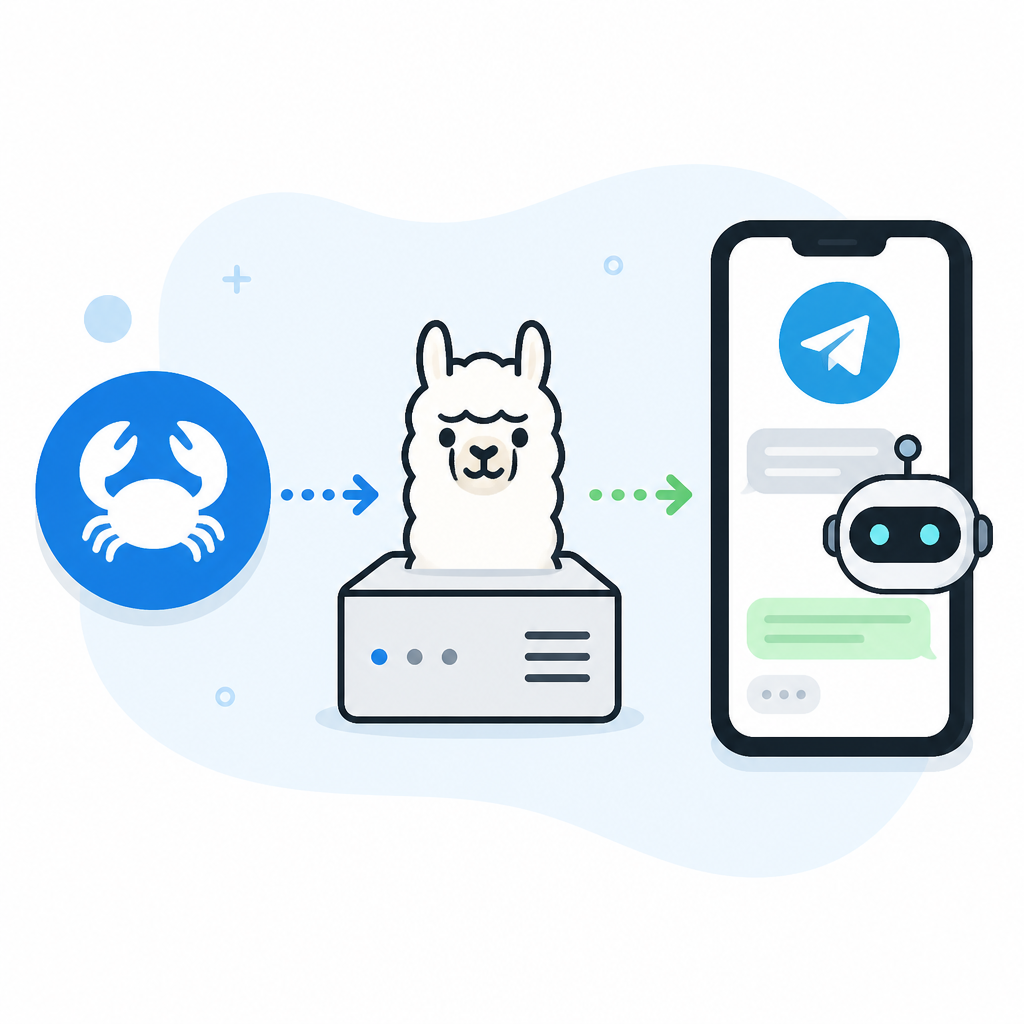
I ran into this exact annoyance with terminal-only setups. I’d ask a model to summarize a page, then I’d switch windows, and the whole experience fell apart. The chat history was trapped in a shell. OpenClaw fixes that by moving the conversation to Telegram, WhatsApp, Slack, Discord, or iMessage. That sounds minor until you use it for real. Then it’s the difference between “I tried it once” and “I actually use this every day.”
How to apply it: think of OpenClaw as infrastructure, not an app. You are not launching a one-off command. You are starting a service that needs a channel, a model, and enough context to do multi-step work. If you keep that mental model straight, the rest of the setup stops feeling random.
The gateway is the part you should care about
“Everything flows through a single daemon called the Gateway. It stays running in the background, holds your messaging connections open, and coordinates the AI agent.”
That’s the core architecture. The Gateway is the middle layer. It listens to the channel, talks to Ollama, and sends the result back. If you’re used to scripts, this is the part where you stop thinking in commands and start thinking in services.
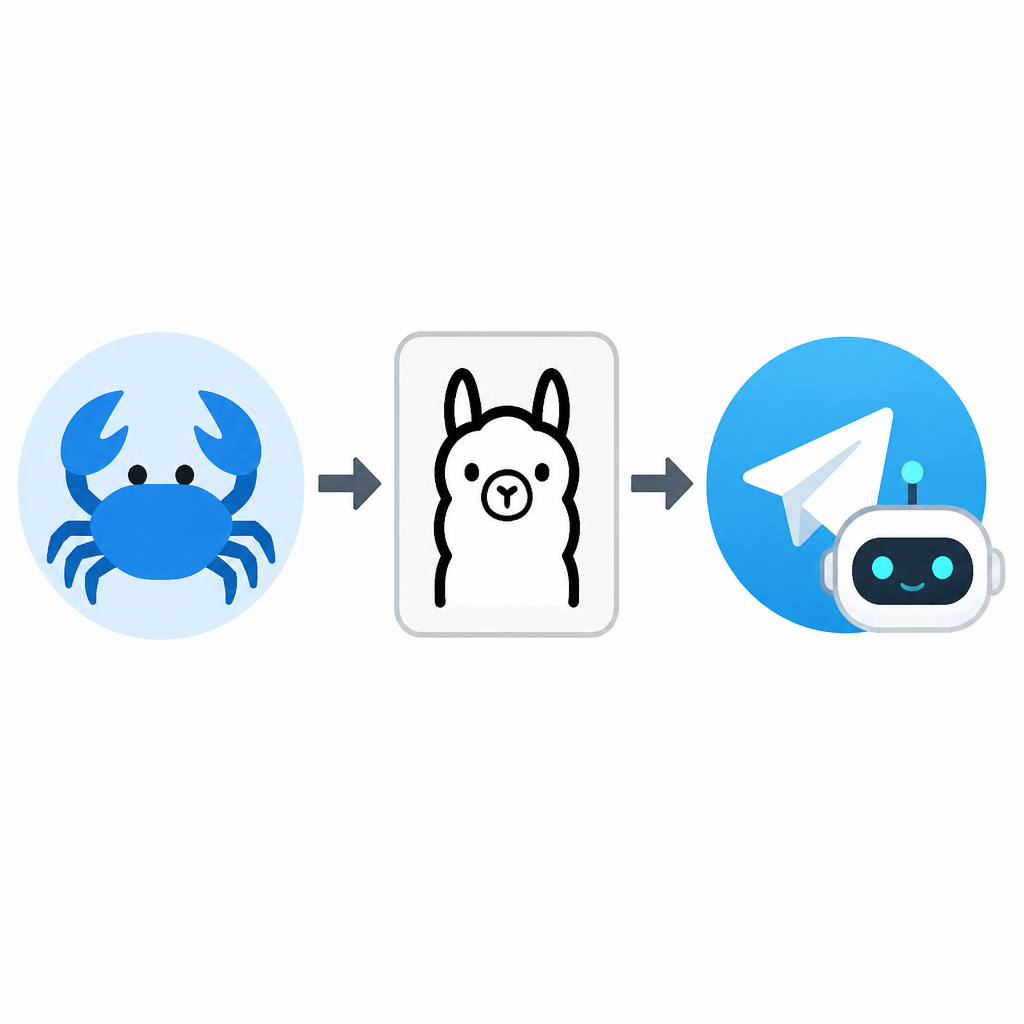
What I like here is that the design explains the product. The messaging app is just the front door. Ollama is the model engine. The Gateway is the glue that makes the whole thing persistent. Without it, you’re back to typing into a terminal and hoping you don’t lose state. With it, you can send a message from your phone and let the agent finish the job while you move on.
I’ve seen people overcomplicate this and start debugging the wrong layer. They blame the model when the actual issue is the gateway not staying up, or the channel not being connected, or the context window being too small. OpenClaw’s split makes those problems easier to isolate. If the bot doesn’t answer, I check the gateway. If responses are short or forgetful, I check context. If messages never arrive, I check the channel token.
- Messaging layer: Telegram, WhatsApp, Slack, Discord, iMessage.
- Gateway: persistent daemon that keeps the agent alive.
- Model layer: Ollama local model or Ollama cloud model.
How to apply it: when something breaks, don’t debug from the top. Verify the Gateway is running first, then the model, then the channel. That order saves time.
Use the right model before you touch the UI
“Ollama defaults to context lengths based on available VRAM: under 24 GB gets 4k context, 24–48 GB gets 32k, and 48 GB or more gets 256k.”
This is the part most tutorials hand-wave, and it’s exactly where local agent setups get flaky. A chat model can look smart at 4k context and still be terrible at agent work. Once you start doing web search, page reading, extraction, and summarization in one loop, context gets eaten fast.
The article’s recommendation is blunt, and I agree with it: for agent workloads, 64k is the floor, not the goal. If you can’t fit that locally, use a cloud model. That’s not “giving up.” That’s picking the right tool for the job. I’d rather have a model with enough memory than a local model that keeps forgetting the thread halfway through a task.
For local models, the article points to models like qwen3-coder and gemma4. For cloud usage, it mentions models such as kimi-k2.5:cloud, qwen3.5:cloud, minimax-m2.7:cloud, and glm-5.1:cloud. If you want a private setup with no cloud dependency, local is great, but only if your hardware can actually hold the context.
- 64k context is the practical minimum for agent tasks.
- Cloud models automatically get full context and web search support.
- Local models need explicit context configuration, or they’ll fall back to tiny defaults.
How to apply it: decide the model before you install anything else. If your machine cannot keep 64k context in GPU memory, don’t pretend it can. Switch to a cloud model or reduce expectations. The agent needs memory more than it needs local purity.
Set context length like you mean it
# Option 1: Environment variable (set it before starting Ollama)
OLLAMA_CONTEXT_LENGTH=64000 ollama serve

# For longer tasks on machines with enough VRAM, use more
OLLAMA_CONTEXT_LENGTH=131072 ollama serve

# Option 2: Through the Ollama app
# Open Ollama settings → Context Length → move the slider to 64000 or higher
What this actually means is that you do not get agent behavior for free just because the model name looks fancy. If the context is wrong, the whole thing collapses into short, forgetful replies. That’s especially true once tools start firing and the model needs to remember what it already read.
I’ve made this mistake myself. I’d set up a model, see it answer a couple of prompts, and assume the environment was fine. Then I’d ask it to do a longer task and the output would drift, repeat, or lose earlier instructions. The culprit was often context length, not intelligence. OpenClaw makes that explicit, which is honestly refreshing.
The article also gives a quick verification step with Ollama: run ollama ps and check that the processor says 100% GPU and the context shows 65536 or higher. If you see CPU offloading or 4096, stop and fix that before you keep going.
How to apply it: set the environment variable before starting Ollama, not after. Then verify with ollama ps. If you’re on the desktop app, move the context slider and check that it stuck. This is one of those setup details that feels boring until it ruins the whole demo.
Telegram is the least annoying channel to start with
“The setup steps differ per platform. Telegram is the cleanest starting point for developers. It requires no phone number linking and uses a proper bot token rather than emulating a personal account.”
I agree with that call. Telegram is the least painful place to test this because the bot model is straightforward. You create a bot with BotFather, paste the token into OpenClaw, and start chatting. No weird account mirroring. No pretending your personal account is a bot. Just a token and a channel.
The article’s flow is clean: create the bot, copy the token, open openclaw configure --section channels, select Telegram, paste the token, then finish the configuration. That “Finished” step matters more than it should. If you exit early, you lose the config. I appreciate that the article calls this out because I’ve definitely clicked away from enough setup wizards to know how easy it is to miss the save step.
For WhatsApp, the article notes that OpenClaw uses the Baileys protocol and links your real account by QR code. That’s useful, but it’s a different trust model. Slack and Discord require app setup and channel IDs. Telegram is just the fastest way to prove the whole pipeline works.
How to apply it: use Telegram for your first pass, even if you eventually want Slack or WhatsApp. Prove the model, gateway, and channel chain first. Then move to the platform you actually care about.
Web search is what turns this from chatbot into assistant
“Cloud models have full context length automatically and include web search support without any additional configuration.”
This is the point where OpenClaw stops being a local wrapper and starts acting like a research assistant. Once web search is in the loop, the bot can answer with current information instead of pretending it knows everything from training data. That matters a lot more than people admit.
I’ve used plenty of local assistants that were fine for drafting and terrible for anything time-sensitive. The second you ask about a current library version, a release note, or a live page, they either hallucinate or hedge. OpenClaw’s built-in search changes that, especially if you’re using a cloud model where the feature is already wired up.
The article suggests verifying web search by asking the bot a question that clearly needs live data. That’s the right instinct. Don’t trust a checkbox. Ask something that forces the search path to run. If the bot can cite or summarize current results, you know the integration is working.
- Use web search for current docs, release notes, and live research.
- Use local-only mode when privacy matters more than freshness.
- Test with a question that cannot be answered from stale training data.
How to apply it: decide whether your bot is a private assistant or a research assistant. If it’s the latter, enable search early and verify it with a real query. If it’s the former, keep search off and accept the limits.
Docker is the boring deployment that saves you later
“This article covers the full path from zero to a running private research assistant on Telegram… and deploying it headlessly in Docker.”
This is the piece I’d care about after the first successful run. A local assistant that only works in an open terminal is cute. A headless container that comes back after reboot is useful. That’s the difference between a demo and something I’d leave running.
The article doesn’t turn this into a giant orchestration story, and I’m glad. The point is not to build a platform around the bot. The point is to keep the gateway alive without needing you to babysit it. Docker is the practical answer when you want persistence, predictable startup, and a cleaner way to move the setup between machines.
If you’re already thinking about remote access, scheduled tasks, or a home server, Docker is where this starts to feel normal. If you’re not there yet, skip it until the basic Telegram flow works. I’d rather have a working local setup than a half-broken container stack.
How to apply it: get the bot working interactively first, then containerize the gateway once you know the config is correct. That order keeps you from debugging Docker when the real issue is still a bad token or a weak context setting.
The template you can copy
# OpenClaw + Ollama setup checklist

## 1) Start Ollama with enough context
# Use this in the same shell before launching Ollama.
export OLLAMA_CONTEXT_LENGTH=64000
ollama serve

# If your GPU can handle it, increase it.
# export OLLAMA_CONTEXT_LENGTH=131072
# ollama serve

## 2) Verify the model is actually using the GPU
ollama ps

# Look for:
# - PROCESSOR: 100% GPU
# - CONTEXT: 65536 or higher

## 3) Launch OpenClaw
ollama launch openclaw

# Or jump straight to a cloud model:
# ollama launch openclaw --model kimi-k2.5:cloud

## 4) Reconfigure without starting the TUI
ollama launch openclaw --config

## 5) Connect Telegram
# In Telegram:
# 1. Open @BotFather
# 2. Send /newbot
# 3. Copy the token
# 4. In OpenClaw configurator, choose Channels → Telegram
# 5. Paste the token
# 6. Select Finished
# 7. Open the bot in Telegram and send /start

## 6) Turn on web search when needed
# Best with cloud models.
# Ask a question that requires live information and confirm the bot searches the web.

## 7) Run headlessly in Docker later
# Only after the interactive setup is stable.
# Keep the gateway alive, not your terminal window.

## Practical defaults I’d start with
# - Channel: Telegram
# - Model: kimi-k2.5:cloud for easiest setup
# - Context: 64000 minimum for local models
# - Deployment: interactive first, Docker second
This is not original to me. The workflow comes from Shittu Olumide’s KDnuggets article on running OpenClaw with Ollama, and the product docs at OpenClaw and Ollama. I’ve rewritten it into a developer-first checklist so you can copy the setup without rereading the whole post.
If you want the source material, start with the original article, then cross-check the current OpenClaw and Ollama docs because product names and commands can change. My breakdown is derivative; the template is my practical distillation of that setup path.
// Related Articles
- [TOOLS]
Aliyun Bailian Token Plan turns credits into agents
- [TOOLS]
One API gateway turns six AI APIs into one
- [TOOLS]
OpenAI FDEs turn broken agents into shipped systems
- [TOOLS]
Anthropic’s daily brief turns news into a workflow
- [TOOLS]
Claude Reflect turns usage into retention
- [TOOLS]
Midjourney turns prompt ideas into art