Rust launch options that improve FPS and PvP
4 Rust launch options can raise FPS, reduce stutter, and make PvP feel snappier before you load into a server.

Rust launch options can improve FPS and reduce stutter before you join a server.
Rust launch options are startup parameters that can change how the game initializes, and the right set can help performance before you even load into a server. In this guide, you get four practical options, plus where each one fits best for FPS, visuals, and PvP.
| Item | What it does | Best use |
|---|---|---|
| -high | Gives Rust higher CPU priority | FPS-focused setups |
| -malloc | Changes memory allocation behavior | Systems that stutter on load |
| -nolog | Reduces log output | Cleaner startup on older PCs |
| -force-feature-level-11-0 | Forces a DirectX 11 feature level | Compatibility on weaker GPUs |
1. -high
Get the latest AI news in your inbox
Weekly picks of model releases, tools, and deep dives — no spam, unsubscribe anytime.
No spam. Unsubscribe at any time.
-high tells Windows to give Rust a higher process priority at startup. That can help the game get more CPU attention during busy scenes, which is useful if your system is already close to its limits.
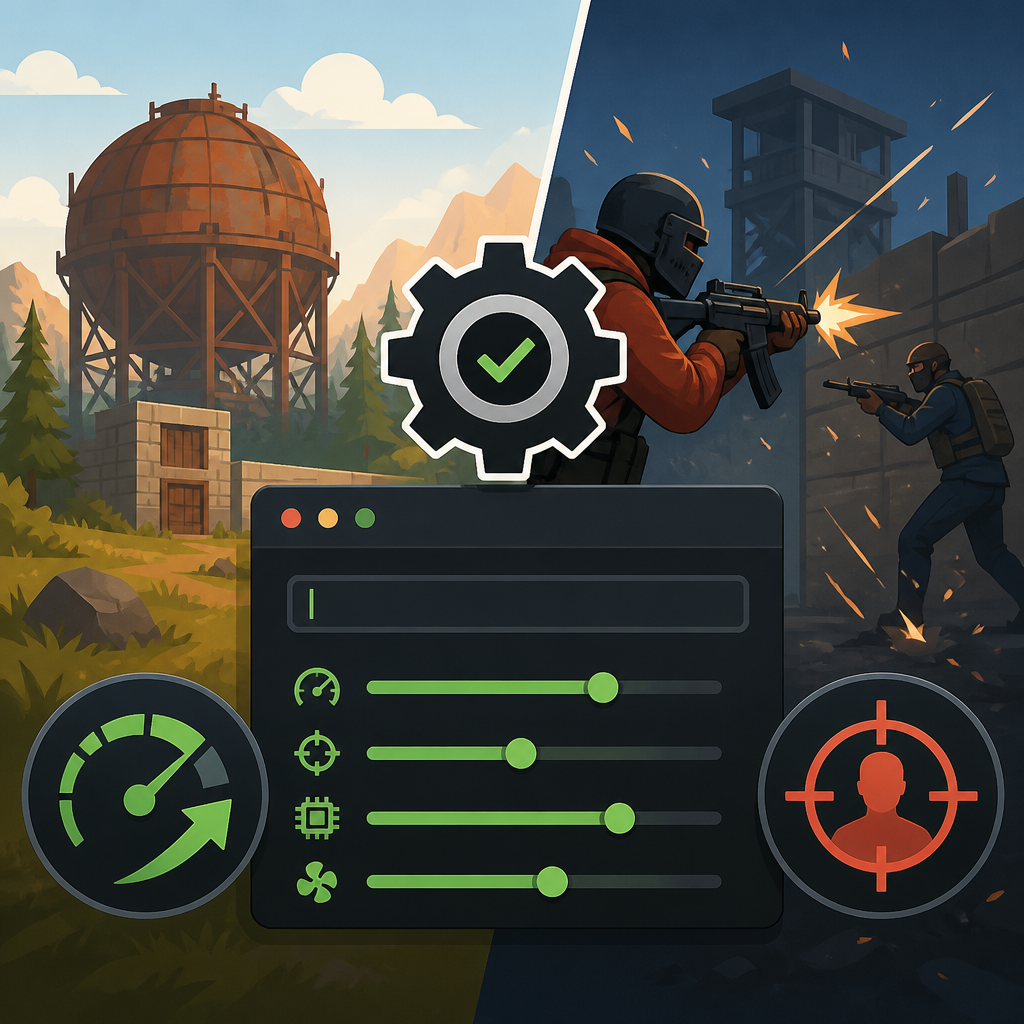
It is not magic, and it will not fix a weak GPU, but it can make frame pacing feel a bit more consistent in fights and large builds. If you want a simple first test, this is usually the easiest option to try.
- Good for mid-range and older CPUs
- Useful when background apps compete for resources
- Best tested with the same server and same graphics settings
2. -malloc
-malloc changes the memory allocation method Rust uses when it starts. Players often try it when the game feels sticky on load, has uneven frame delivery, or shows short freezes while moving through busy areas.
Results vary by system, so this is a test-and-observe option rather than a guaranteed fix. If you try it, compare one session with the option on and one session without it, then keep whichever feels smoother in real play.
- Worth testing if loading feels slow or uneven
- Can help some systems with stutter
- Should be checked against your normal PvP route, not just the main menu
3. -nolog
-nolog reduces log output during startup. It does not change graphics quality, but trimming extra background work can sometimes make launch behavior cleaner on systems that already struggle.
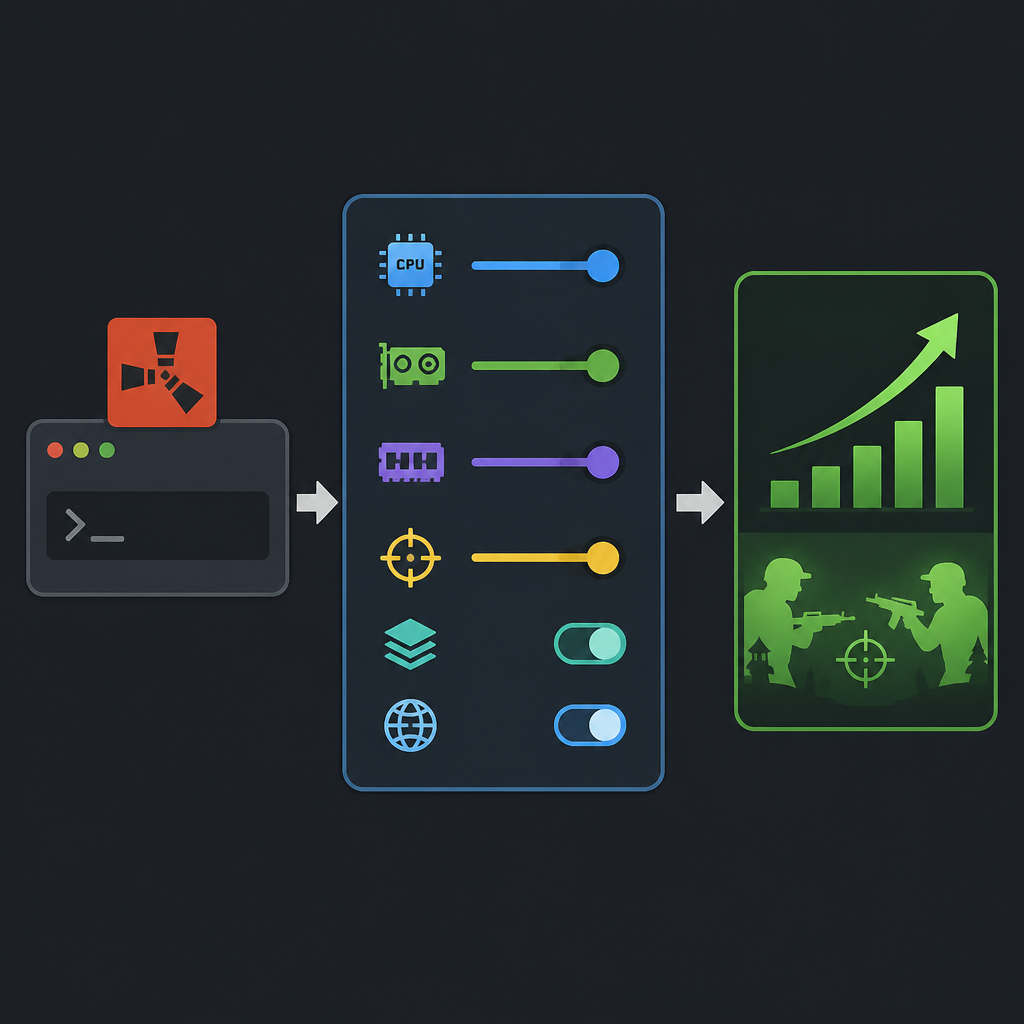
This is a small adjustment, so think of it as a tidy-up option rather than a major FPS fix. It makes the most sense if you want a lighter startup path and you are stacking several low-risk launch settings together.
Steam → Rust → Properties → Launch Options
-high -nolog
4. -force-feature-level-11-0
-force-feature-level-11-0 asks Rust to run with a DirectX 11 feature level. That can matter if your GPU or driver setup has trouble with newer paths, or if you need a compatibility fallback for an older machine.
For most modern systems, this is not the first setting to reach for. Use it when you are troubleshooting odd behavior, especially if the game starts but performance or rendering looks worse than expected.
- Best for compatibility troubleshooting
- More relevant on older GPUs
- Useful when you suspect a rendering path issue
How to decide
If you want the simplest FPS tweak, start with -high. If your problem is stutter or uneven loading, test -malloc next. If you are cleaning up startup behavior on an older PC, add -nolog.
Use -force-feature-level-11-0 only when compatibility is the main concern. The best setup is the one that improves your actual fights and movement, not just your menu performance, so keep changes small and test one option at a time.
// Related Articles
- [IND]
DailyArxiv turns arXiv keywords into a daily paper feed
- [IND]
Claude vs ChatGPT (2026): Is Claude Better?
- [IND]
CBDC Governance: Standards and Stakeholder Roles
- [IND]
Invisible AI watermarks are the right move for Claude
- [IND]
pgvector is enough for small datasets, not your default
- [IND]
OpenAI’s Astra pause shows safety now shapes model releases