Cursor on Mac can get stuck on old versions
3 fixes explain why Cursor on Mac may stay on 3.2.11 and how to get the latest build installed.
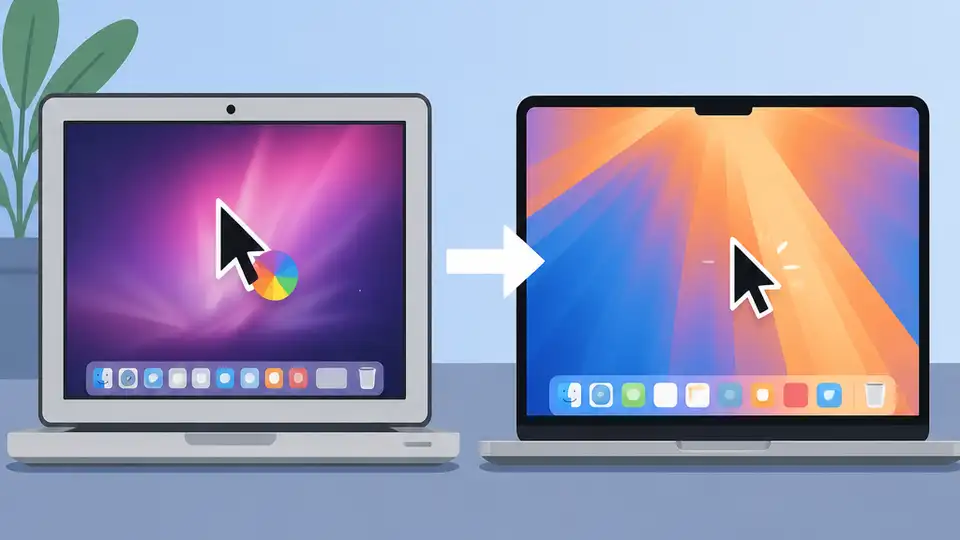
Cursor on Mac can get stuck on an older version, but manual download and a version reset usually fix it.
If Cursor on your MacBook will not update, this guide gives you the fastest paths to the latest build, plus the one forum-tested explanation for why the auto-updater can stall. In the forum thread, the app was stuck on version 3.2.11 until a manual install got it moving again.
| Item | What it does | When to try it |
|---|---|---|
| Manual download | Installs the newest release directly | When auto-update fails |
| Check for updates | Looks for an in-app update prompt | When the app still opens normally |
| Version reset | Moves you off a stuck older build | When repeated update checks do nothing |
| Fresh reinstall | Replaces a broken local install | When the app keeps failing after download |
1. Manual download from the official site
Get the latest AI news in your inbox
Weekly picks of model releases, tools, and deep dives — no spam, unsubscribe anytime.
No spam. Unsubscribe at any time.
The quickest fix is to skip the updater and install the latest build directly from Cursor. In the forum reply, that was the first recommendation, and it solved the immediate problem for the MacBook user.
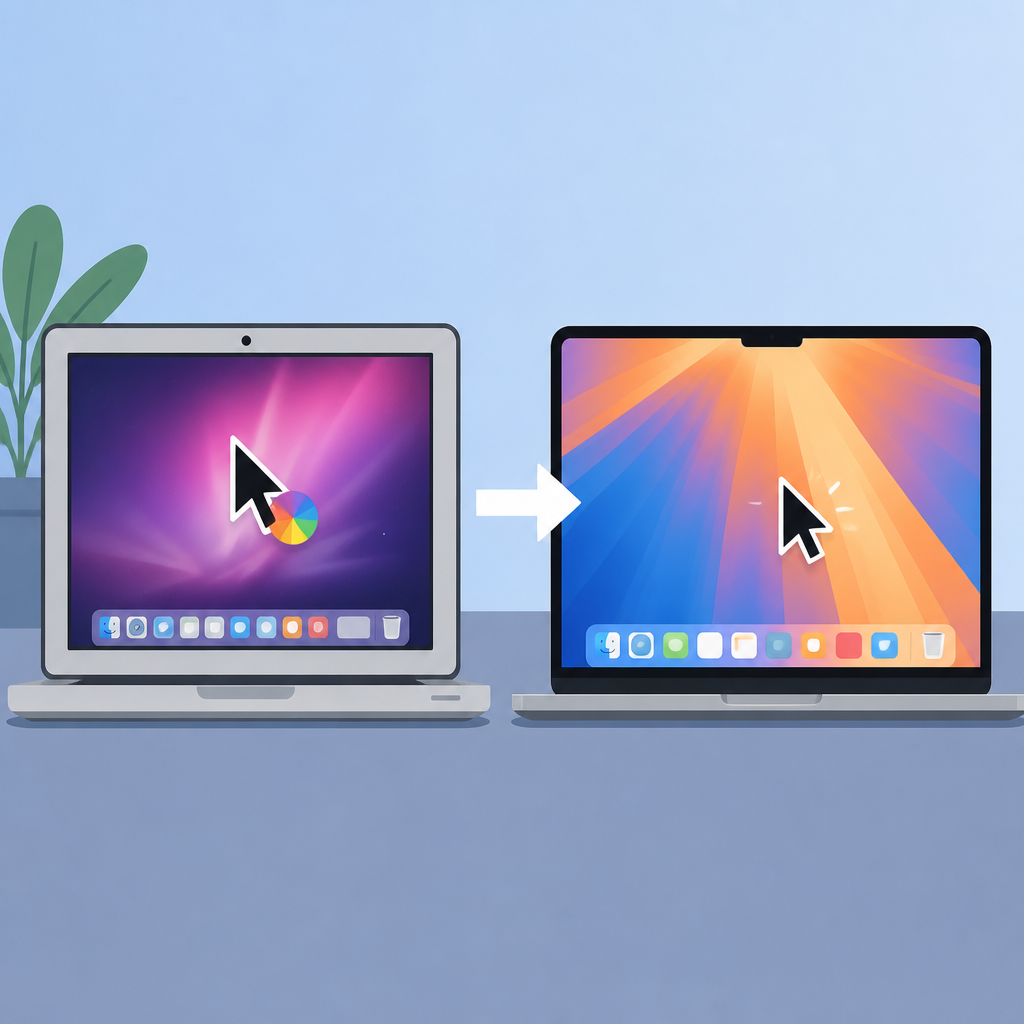
This is the best first move when the app is open but the update flow never appears. It also helps you confirm whether the issue is with the updater itself or with the local install on your machine.
- Go to the download page
- Get the latest macOS installer
- Close Cursor before installing
- Open Cursor again after the install finishes
2. Check for updates inside the app
If Cursor still launches, use the built-in update check before doing anything more invasive. The original poster expected the app to detect the new version automatically, which is the normal behavior many Mac users look for.
When that menu does nothing, it usually means the updater is not seeing a valid path forward. At that point, the app may be holding onto an older release and never reaching the prompt you expect.
- Open the app menu
- Look for an update command
- Wait for a prompt or installer
- If nothing appears, move to a manual install
3. Move off a stuck older version
Cursor staff noted that older versions can get stuck. That matters because the problem may not be your MacBook at all; it may be the specific build you are running, especially if you are on an older release like 3.2.11.

Once the app is updated to a newer version, the same updater path may behave normally again. In the thread, the maintainer asked the user to report back if the issue returned after moving to v3.7, which suggests the fix can be version-specific.
Example pattern:
1. Notice updates fail
2. Install the newest release manually
3. Relaunch and test the update menu again
4. Reinstall the app if the updater keeps failing
If a direct download still does not solve the issue, a clean reinstall is the next practical step. This can clear a damaged app bundle, a bad local cache, or an incomplete previous update that keeps Cursor from replacing itself correctly.
Reinstalling is more work than a manual download, but it is worth it when the app repeatedly ignores update checks or seems to loop on the same version after every restart.
- Quit Cursor completely
- Remove the current app copy
- Install the newest macOS build
- Launch and confirm the version number
5. Confirm the new version after updating
After any fix, verify the version number so you know the update actually landed. That matters on Mac because a successful download does not always mean the old app was fully replaced.
In this thread, the target was to move from 3.2.11 to a newer release. Checking the version after install is the simplest way to make sure you are no longer stuck on the old build.
- Open Cursor’s About screen
- Compare the version number with the release you installed
- Restart once if the number looks unchanged
- Report back if the same build keeps returning
How to decide
If you want the fastest fix, start with the official download from Cursor. If Cursor opens but the update menu never responds, the app is likely stuck on an older build and needs a manual replacement.
If the problem comes back after you update, a clean reinstall is the next step. For users who just want to get back to work, the best order is simple: manual download first, reinstall second, version check last.
// Related Articles
- [IND]
Rust 661’s best releases for builders this week
- [IND]
Deepwoken’s Second Layer hides Ethiron below Scyphozia
- [IND]
AMD is right to use Anthropic to break CUDA’s grip
- [IND]
AI Weekly: 2026-07-20 ~ 2026-07-27
- [IND]
WAIC 2026 turns AI hype into real work
- [IND]
KPMG’s OpenAI deal turns SaaS into agents