Foundry MCP turns remote tools into one agent endpoint
How I wire Foundry agents to remote MCP servers, approvals, auth, and Toolboxes, plus a copy-paste Python template.

This shows how I connect Foundry agents to remote MCP servers and approve tool calls.
I've been using agent tool wiring long enough to know when something feels off. The model is fine, the prompts are fine, the SDK is fine, and then the whole thing turns into a pile of one-off integrations that nobody wants to maintain. One agent needs GitHub. Another needs search. A third needs a private internal service. Before long I'm copy-pasting auth code, scattering tool configs across repos, and praying I don't break approvals in production. That's the part that always annoys me: the model isn't the hard bit, the tool boundary is.
Microsoft's Foundry docs on Connect to MCP Server Endpoints for agents finally gave me a cleaner mental model. Instead of treating every external capability like a special case, I can point an agent at an MCP server and let the server expose tools in a standard way. That matters because once the contract is MCP, the same endpoint can feed Foundry Agent Service, Microsoft Agent Framework, LangGraph, and other MCP-capable clients. No magic. Just fewer bespoke adapters and less nonsense to babysit.
Stop wiring tools like they’re one-off side quests
Get the latest AI news in your inbox
Weekly picks of model releases, tools, and deep dives — no spam, unsubscribe anytime.
No spam. Unsubscribe at any time.
Connect your Foundry agents to Model Context Protocol (MCP) servers by using the MCP tool.
What this actually means is: the agent doesn't need to know the implementation details of every external system. It just needs a server URL, a label, and a tool contract it can speak. MCP is the layer that turns a remote service into something the agent can call without you inventing a custom integration every time.
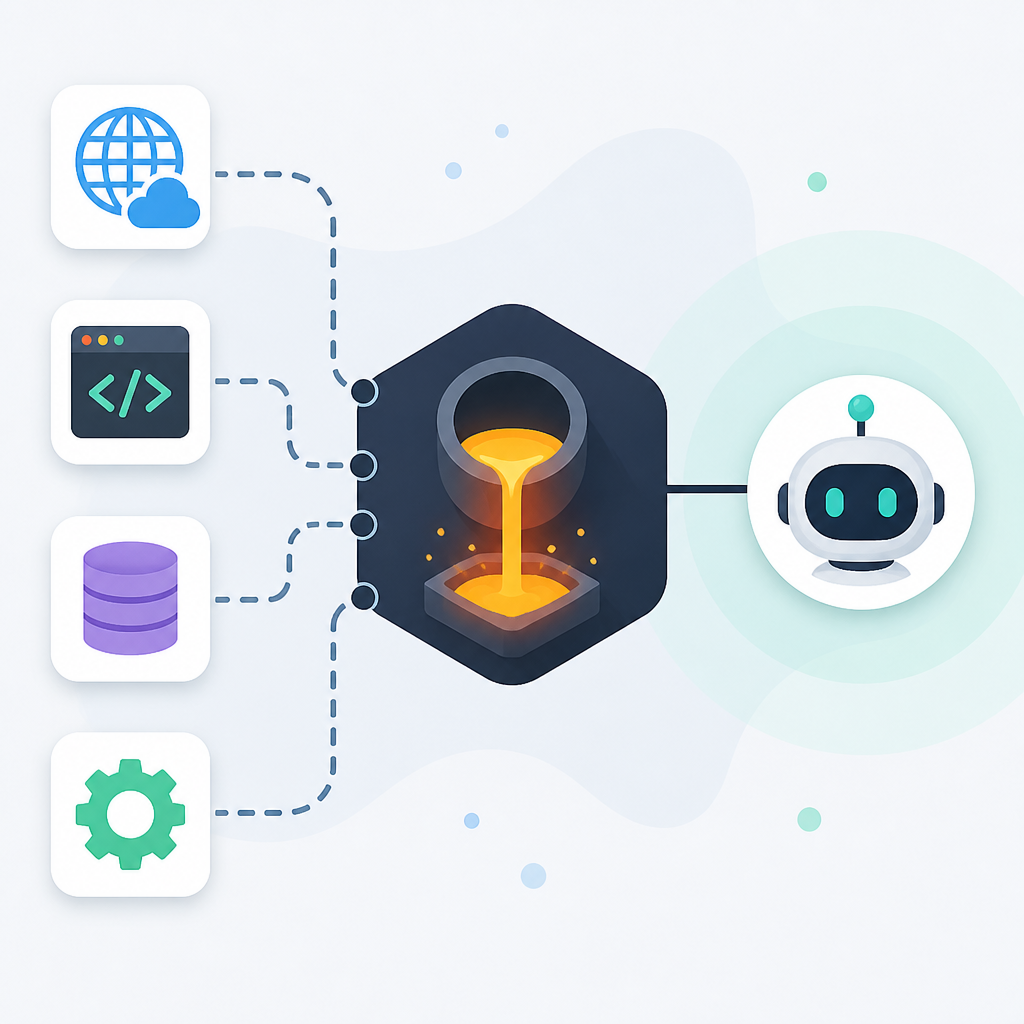
I ran into this pattern when I had one agent calling GitHub, another hitting internal data, and a third needing a search tool. Every integration started simple and then grew tiny differences in auth, retries, and approval handling. MCP is the first thing I've seen that reduces that drift instead of making me duct-tape it together again.
How to apply it: treat MCP as the boundary between your agent and the outside world. If a service can be exposed as an MCP server, prefer that over writing a custom function wrapper unless you truly need something bespoke. In Foundry, that means configuring the mcp tool with a server endpoint rather than hard-coding behavior into your agent logic.
Public endpoints are easy, private ones are where the real work starts
The docs split MCP servers into public and private endpoints, and that's the part I care about because it tells me where the pain will show up. Public endpoints are straightforward: if the server is reachable on the internet, Foundry Agent Service can connect to it. Private endpoints are the real enterprise case, and Microsoft is explicit that they require Standard Agent Setup, private networking, and a dedicated MCP subnet.
That means the private version is not just a checkbox. You need infrastructure that supports internal-only ingress, and Microsoft points you at Azure Container Apps with a network setup delegated to Microsoft.App/environments. They also call out a template, 19-private-network-agents-tools-setup, which is useful because it saves you from inventing the subnet layout from scratch.
I like that they separate public and private this clearly. Too many docs pretend network isolation is a footnote when it's actually the first thing your security team will ask about. If the server is internal, don't try to sneak around it with a proxy and hope nobody notices. Microsoft says to rely on servers hosted by the trusted provider themselves rather than proxies, and that matches my experience: proxies become a permanent tax on debugging.
- Use public MCP endpoints when the server is intentionally internet-accessible.
- Use private MCP only with Standard Agent Setup and the right network plumbing.
- Plan the subnet and ingress before you touch agent code.
How to apply it: decide up front whether the server is public or private, then design the agent deployment around that choice. If you're in a locked-down environment, start with the network template Microsoft gives you instead of trying to retrofit private connectivity later.
Toolboxes are the part I wish more teams would standardize on
Microsoft Foundry Toolboxes are the thing in this article that made me stop and nod. A Toolbox bundles multiple tools, including MCP servers, OpenAPI tools, search, file tools, and even agent-to-agent connections, into one MCP-compatible endpoint. So instead of configuring every tool on every agent, I can point the agent at the Toolbox endpoint and move on with my day.
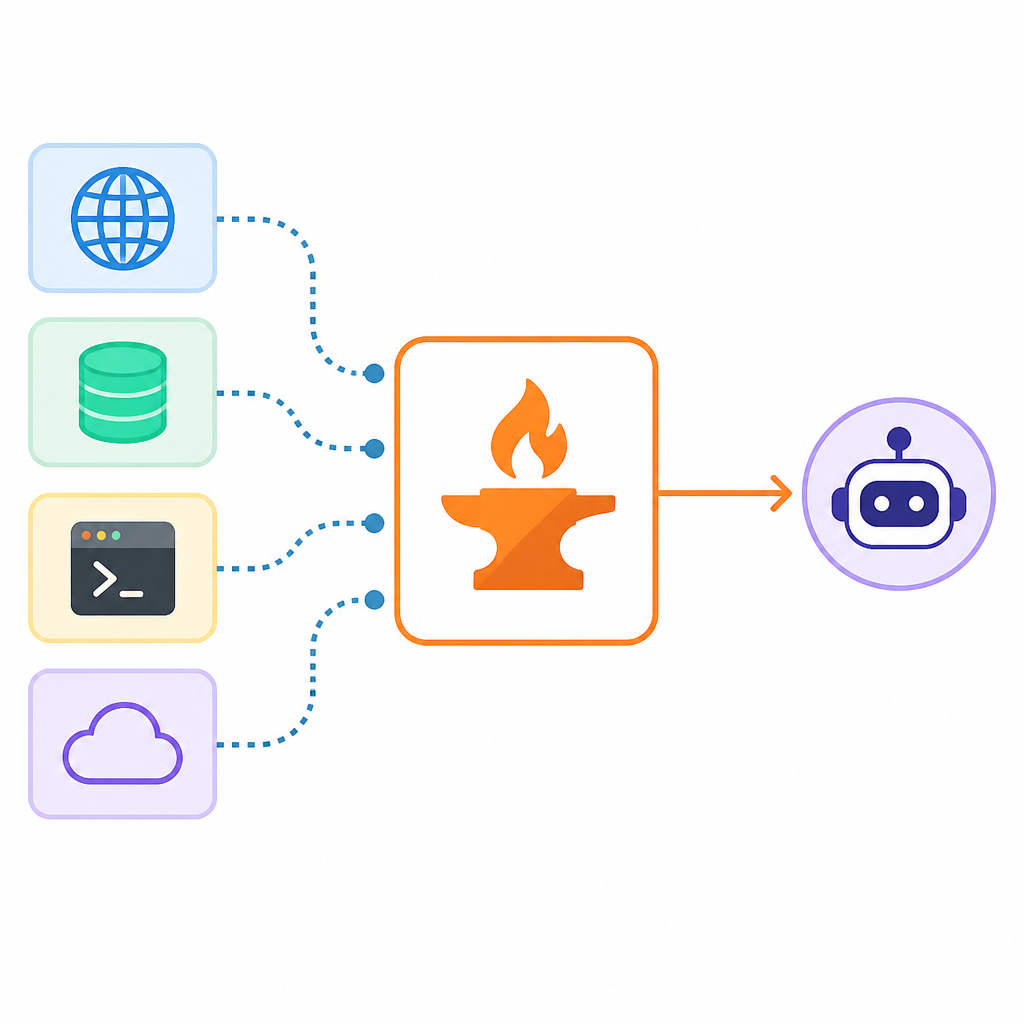
Foundry Toolboxes let you bundle multiple tools into a single MCP-compatible endpoint.
What this actually means is that the Toolbox becomes the place where tool sprawl gets contained. The agent sees one MCP endpoint. The organization manages the mix of tools behind it. If I need to swap a search backend or add a new internal tool, I do it in the Toolbox instead of touching every agent definition. That's a much better failure mode than having ten agents each drift to a slightly different tool set.
I ran into this exact mess on a project where every team wanted the same five tools but configured them differently. One team pinned one endpoint, another team used a different auth method, and nobody could tell which agent was allowed to do what. A Toolbox would have saved us a week of cleanup.
How to apply it: if your org has more than a couple of agents, centralize shared tools behind a Toolbox. Use the Toolbox as the stable MCP endpoint and keep the agent config thin. Microsoft says any runtime that can consume an MCP server can also consume a Toolbox, which makes it easier to reuse across Foundry Agent Service, Microsoft Agent Framework, and other MCP-aware clients.
Auth belongs in a connection store, not in your prompt code
The docs are blunt about authentication: many MCP servers require it, and Foundry Agent Service should use a project connection to store auth details like API keys or bearer tokens. That is exactly the right place for it. I do not want credentials sitting in my agent code, and I definitely do not want to debug a prompt file to figure out why a token expired.
Use a project connection to store authentication details instead of hard-coding credentials in your app.
What this actually means is that auth becomes part of Foundry's managed configuration rather than a string you paste into Python and forget about. Microsoft also calls out supported auth styles like key-based auth, Microsoft Entra identities, and OAuth identity passthrough, which is helpful because different servers want different trust models.
There's a nice detail here: when you use a Foundry Toolbox MCP endpoint, the Toolbox manages credential injection, token refresh, and policy enforcement at runtime. That removes a lot of annoying glue code from the agent side. The agent authenticates to the Toolbox itself using Microsoft Entra credentials such as DefaultAzureCredential, and the individual tool credentials stay inside the Toolbox.
- Store API keys and bearer tokens in a project connection, not in source code.
- Use Microsoft Entra where the service supports it.
- Prefer Toolbox-managed credential handling when multiple tools share the same boundary.
How to apply it: separate agent identity from tool identity. The agent should prove who it is to Foundry. The tool connection should carry the credentials needed to talk to the external service. If you blur those together, you end up with auth logic leaking into every agent implementation.
Approval is not a checkbox, it's the safety rail
Microsoft's advice on approvals is the part I wish more teams took seriously. They recommend an allow list with allowed_tools, and they specifically call out requiring approval for high-risk operations, especially tools that write data or change resources. That is the difference between an agent that can help and an agent that can quietly wreck your day.
Require approval for high-risk operations, especially tools that write data or change resources.
What this actually means is that tool calls should not be treated as invisible background work. I want to see the tool name, the arguments, and the reason before I approve anything that mutates state. Microsoft even says to review the requested tool name and arguments before you approve, and to log approvals and tool calls for auditing and troubleshooting.
I like that the sample code shows the approval loop explicitly. The agent emits an approval request, the app inspects it, and only then does the response continue. That's sane. It's also the part people skip when they rush to demo mode, which is how demos become incidents later.
How to apply it: make approval policy a first-class part of your agent design. Use allowed_tools to constrain the tool surface, then require approval for anything that can write, delete, or trigger external side effects. If the tool can change production data, I want a human in the loop until I have a very good reason not to.
The Python sample is more useful than it looks
The Python example in the docs is doing a lot of practical work. It creates an AIProjectClient, builds an MCPTool with a server label and URL, sets require_approval="always", and attaches a project connection ID. Then it creates a prompt agent, opens a conversation, sends a request, handles approval requests, and cleans up the agent version afterward.
tool = MCPTool(
    server_label="api-specs",
    server_url="https://api.githubcopilot.com/mcp",
    require_approval="always",
    project_connection_id=MCP_CONNECTION_NAME,
)
What this actually means is that the sample is showing the full lifecycle, not just the happy-path connection. I appreciate that, because the annoying part of MCP is rarely the first call. The annoying part is the approval turn, the state handoff, and the cleanup. The sample covers all three.
I ran into the same pattern when testing a GitHub-backed agent. The first response looked great. The second response was where I needed to confirm exactly which tool was being called and why. Having the approval request show up as structured data instead of some vague text blob is the difference between “okay, I can ship this” and “absolutely not.”
How to apply it: start from the sample, then shrink it to your real use case. Keep the approval loop even if you think your tool is read-only. Read-only tends to become write-capable the moment someone asks for “just one more action.”
The hard part is not the server, it's the boundaries
Microsoft's notes on non-Microsoft services are refreshingly blunt. If you connect to a third-party MCP server, you are subject to that provider's terms, data handling, and charges. Microsoft also says it doesn't test or verify those servers and has no responsibility for your use of them. That's not glamorous, but it's honest.
What this actually means is that I need to treat each remote MCP server like a dependency with its own risk profile. I should know who hosts it, what data crosses the boundary, how logs are retained, and whether the server is trusted directly or just fronted by some proxy I don't control. The docs also remind you that custom headers can be passed to remote MCP servers, which is handy but also a place where secrets can leak if you're careless.
How to apply it: build a checklist for every MCP server you add. Ask who owns it, what auth it needs, what data it can see, where logs go, and whether it needs approval for writes. If you can't answer those questions, you're not ready to connect it to an agent.
The template you can copy
# Foundry MCP setup template

## 1) Decide the endpoint type
- Public MCP server: use a publicly reachable URL.
- Private MCP server: use Standard Agent Setup, private networking, and a dedicated MCP subnet.

## 2) Create or reuse a Foundry project connection
Store credentials here instead of hard-coding them.
- API key
- Bearer token
- Microsoft Entra / OAuth flow if supported

## 3) Define the MCP tool
Use a stable label, the server URL, and an approval policy.

Python example:

from azure.identity import DefaultAzureCredential
from azure.ai.projects import AIProjectClient
from azure.ai.projects.models import PromptAgentDefinition, MCPTool

PROJECT_ENDPOINT = "https://your-resource.ai.azure.com/api/projects/your-project"
MCP_CONNECTION_NAME = "your-mcp-connection"

project = AIProjectClient(
    endpoint=PROJECT_ENDPOINT,
    credential=DefaultAzureCredential(),
)

mcp_tool = MCPTool(
    server_label="your-server-label",
    server_url="https://your-mcp-server.example.com/mcp",
    require_approval="always",
    project_connection_id=MCP_CONNECTION_NAME,
)

agent = project.agents.create_version(
    agent_name="MyAgent",
    definition=PromptAgentDefinition(
        model="gpt-5-mini",
        instructions="Use MCP tools as needed.",
        tools=[mcp_tool],
    ),
)

## 4) Enforce tool approval policy
- Use allowed_tools to restrict the surface area.
- Require approval for writes, deletes, and external side effects.
- Show tool name and arguments before approval.
- Log approvals and tool calls.

## 5) Handle approval responses in your app
When the agent requests approval:
- inspect the tool name
- inspect the arguments
- decide approve or deny
- send the approval response back

## 6) Prefer Toolboxes when many agents share tools
Use a Foundry Toolbox when you want one managed MCP endpoint for multiple tools.
- centralize auth
- centralize policy
- reduce per-agent config drift

## 7) Keep a server review checklist
Before adding an MCP server, confirm:
- owner
- auth method
- data exposure
- logging and retention
- network exposure
- approval policy
- whether it is a trusted host or a proxy

## 8) Minimal approval loop sketch

for item in response.output:
    if item.type == "mcp_approval_request" and item.id:
        print("Server:", item.server_label)
        print("Tool:", getattr(item, 'name', ''))
        print("Arguments:", getattr(item, 'arguments', None))
        should_approve = input("Approve? (y/N): ").strip().lower() == "y"
        # send McpApprovalResponse back to continue

## 9) My default rule
If the tool can change state, I do not auto-approve it.
If the tool is shared across teams, I put it behind a Toolbox.
If the server is third-party, I review the contract before I connect it.
That's the version I would actually hand to a teammate. It keeps the agent code thin, keeps auth out of source, and forces the approval decision into the app layer where it belongs.
One last thing: the original Microsoft page is the source for the MCP connection flow, approval behavior, private/public endpoint guidance, and Toolbox notes. Everything else here is my own decomposition and the way I would use those pieces in a real project.
Source: Microsoft Learn: Connect to MCP Server Endpoints for agents. The code template above is derived from Microsoft's sample patterns, but the organization, cautions, and implementation advice are mine.
// Related Articles
- [TOOLS]
Spark 4.2 turns AI search into SQL
- [TOOLS]
OpenAI's HF breach story turns into a security template
- [TOOLS]
SAP Design System adds AI and cross-platform UI kits
- [TOOLS]
ChatGPT Health turns general chat into a health layer
- [TOOLS]
Microsoft adds AMD chips to Azure AI and HPC
- [TOOLS]
Kimi K3 vs GLM-5.2: a one-endpoint test