How to build AkiraOS WASM apps for Zephyr
Build and deploy sandboxed WebAssembly apps on AkiraOS running Zephyr RTOS.
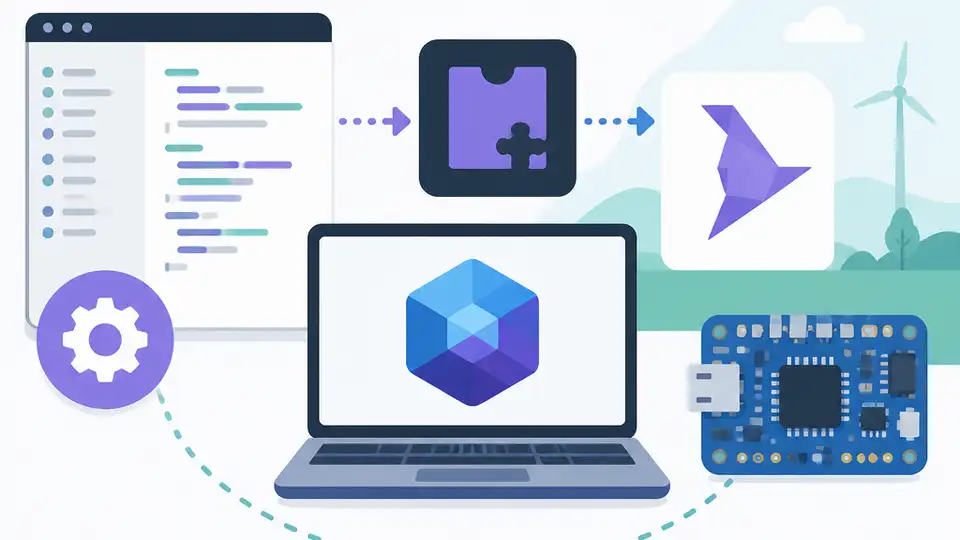
Build and deploy sandboxed WebAssembly apps on AkiraOS running Zephyr RTOS.
This guide is for embedded developers who want to try AkiraOS on supported boards and ship WebAssembly apps without reflashing firmware every time. By the end, you will have a local build setup, a sample WASM app, and a path to deploy it to an AkiraOS target over the network or USB.
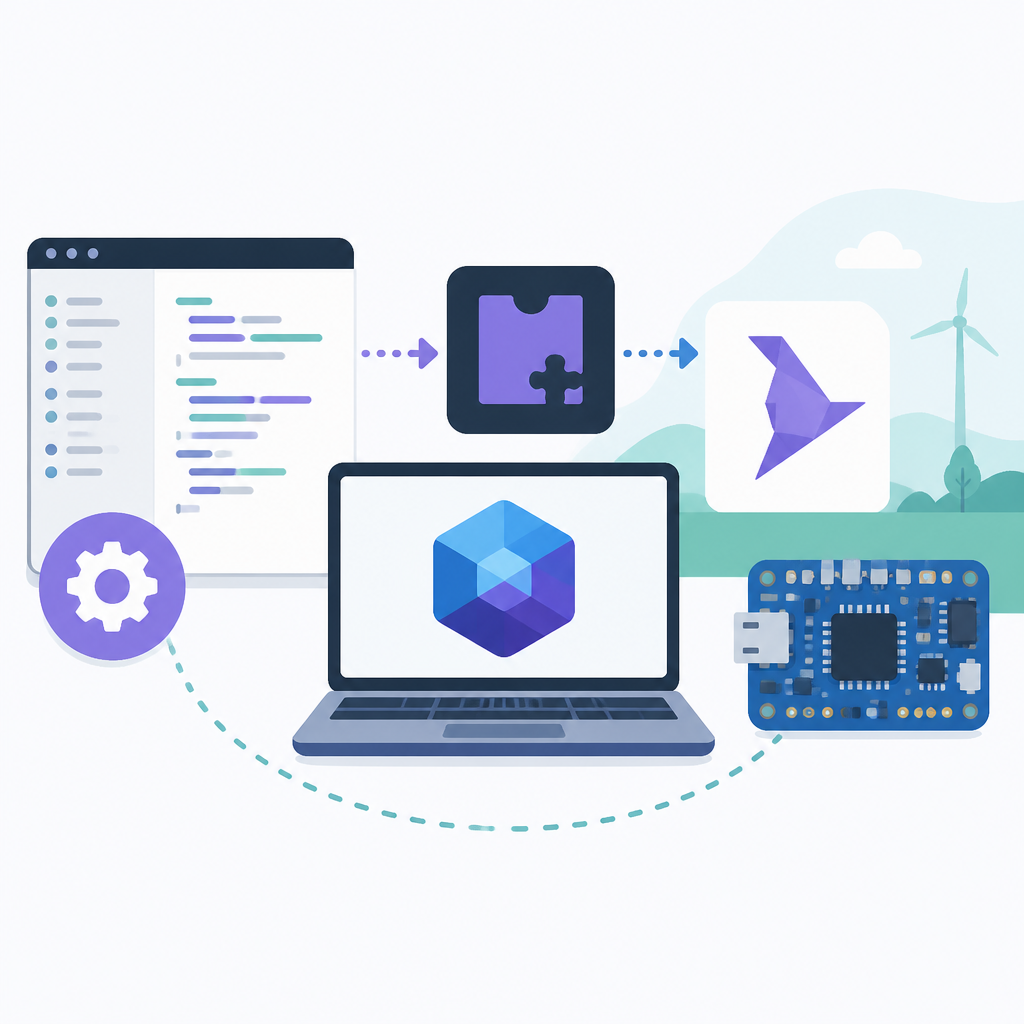
AkiraOS is an open-source embedded platform that separates the OS from applications, so the base firmware stays stable while apps are updated independently. It uses Zephyr RTOS underneath and a WebAssembly runtime on top, which makes it a good fit for teams that want safer app isolation on microcontrollers.
Before you start
Get the latest AI news in your inbox
Weekly picks of model releases, tools, and deep dives — no spam, unsubscribe anytime.
No spam. Unsubscribe at any time.
- Git 2.40+
- Python 3.11+
- CMake 3.20+
- Ninja 1.11+
- Zephyr SDK 0.16+ or the SDK version listed in the AkiraOS docs
- Node.js 20+ if the app UI or tooling uses web assets
- An AkiraOS-supported board such as ESP32-S3, ESP32-C6, ESP32-H2, nRF54L15, or an STM32 target
- One USB cable and, for OTA testing, a Wi-Fi network with access to the board
- A GitHub account for cloning the source and opening issues if you hit a platform bug
First, open the project docs and source on their first mention: the AkiraOS documentation and the GitHub repository linked from the project page. You will use those as the source of truth for board support, SDK versions, and flashing steps.
Step 1: Clone the AkiraOS source tree
Your first outcome is a local checkout that contains the firmware, runtime, and app-management pieces you need to build the platform.
Clone the main repository and inspect the top-level layout so you can find the Zephyr app, runtime, and board-specific files.
git clone https://github.com/akiraos/akiraos.git
cd akiraos
ls
You should see directories or files that map to the OS, runtime, documentation, and examples. If the repository name or layout differs, the docs will point to the current canonical source.
Step 2: Install the Zephyr build toolchain
Your second outcome is a working cross-compilation environment that can build AkiraOS for MCU targets and for native simulation.
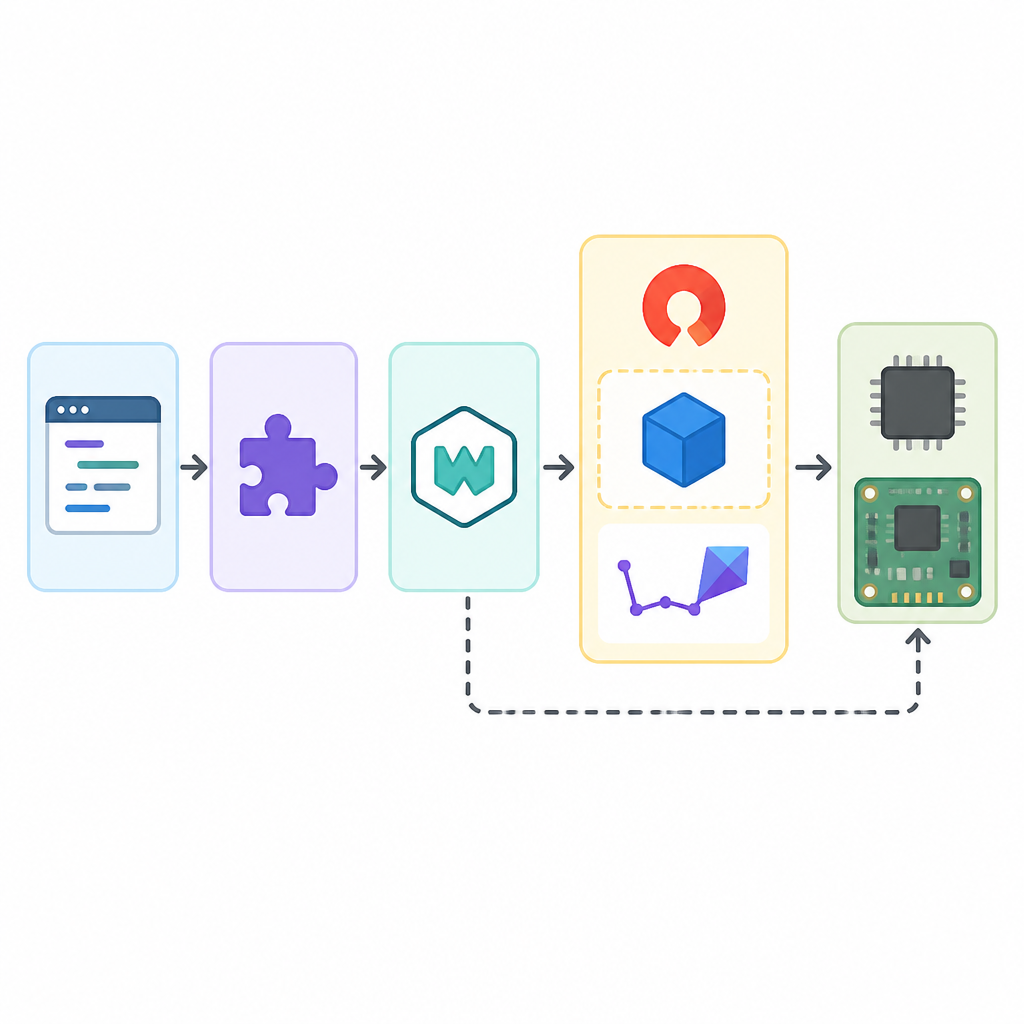
Install the Zephyr SDK, Python dependencies, and the build tools required by the project. Then verify that your shell can find the compiler and the Zephyr command-line tools.
python3 -m venv .venv
. .venv/bin/activate
pip install -U pip west
west --version
cmake --version
ninja --version
You should see version output for each tool, with no “command not found” errors. If the project uses a pinned requirements file, install that file instead of generic packages.
Step 3: Build the native simulator image
Your third outcome is a fast desktop build that lets you iterate on app behavior without flashing real hardware.
Use the native simulation target first, because AkiraOS supports x86-64 iteration for quick testing. This is the safest way to confirm that the build system, runtime, and app packaging all work before you move to a board.
west build -b native_sim path/to/akiraos/app
west build -t run
You should see the simulator start and print boot logs for Zephyr and AkiraOS. If the build succeeds but the app does not launch, check the docs for the expected sample name or board-specific overlay.
Step 4: Compile a WASM app package
Your fourth outcome is a sandboxed .wasm binary that AkiraOS can install as an app instead of a full firmware image.
Create or build a sample app with the AkiraOS SDK. The goal is to produce a portable WebAssembly module that requests only the APIs it needs, which is the core security model of the platform.
cd path/to/akiraos-sdk
mkdir -p build
cmake -S samples/hello -B build -G Ninja
cmake --build build
You should see a .wasm output or an app bundle in the build directory. If the SDK uses a different sample path, pick any “hello”, “shell”, or “widgets” example from the docs and confirm the output artifact matches the expected extension.
Step 5: Flash a supported MCU board
Your fifth outcome is a running AkiraOS image on real hardware so you can test storage, BLE, networking, and app isolation.
Pick a supported board such as an ESP32-S3-DevKitM-1, an nRF54L15 platform, or one of the listed STM32 kits. Flash the image using the project’s board target, then open the serial console to confirm the boot sequence.
west flash
west debug
You should see Zephyr boot messages followed by AkiraOS startup logs and a shell or management prompt. If the board does not flash, verify the board name in the docs and confirm the USB driver and permissions on your host.
Step 6: Install and update the app over the air
Your final outcome is an app update workflow that proves AkiraOS can deploy a new WASM binary without reflashing the base firmware.
Use the web interface, mobile app, or shell to upload the .wasm package, then trigger an install and run cycle. After that, push a second version of the same app to confirm that the platform updates the app independently from the OS.
curl -F file=@build/hello.wasm http://device.local/api/apps
curl -X POST http://device.local/api/apps/hello/run
You should see the app appear in the manager UI, then start and report status on the device. If the update fails, check Wi-Fi connectivity, the app manifest, and whether the target has enough storage for the 50 KB to 200 KB app footprint described by the project.
| Metric | Before/Baseline | After/Result |
|---|---|---|
| App deployment | Full firmware flash for every change | OTA app update without reflashing the OS |
| App isolation | Shared firmware space | Sandboxed WASM app with explicit hardware access |
| Runtime performance | Interpreter mode | WAMR AOT mode with 10 to 50x higher performance |
Common mistakes
- Using the wrong board target. Fix: confirm whether your device is Tier 1 or Tier 2 in the docs, then rebuild with the exact board name.
- Skipping the SDK version lock. Fix: install the Zephyr SDK version recommended by AkiraOS, not a newer untested release.
- Uploading a raw binary instead of a WASM package. Fix: build the app with the AkiraOS SDK so the manager accepts the correct artifact and manifest.
What's next
Next, try the shell and file-browser features, then connect the mobile or web management UI so you can monitor devices, trigger OTA updates, and test multiple apps on the same target.
// Related Articles
- [TOOLS]
Spark 4.2 turns AI search into SQL
- [TOOLS]
OpenAI's HF breach story turns into a security template
- [TOOLS]
SAP Design System adds AI and cross-platform UI kits
- [TOOLS]
ChatGPT Health turns general chat into a health layer
- [TOOLS]
Microsoft adds AMD chips to Azure AI and HPC
- [TOOLS]
Kimi K3 vs GLM-5.2: a one-endpoint test