7 ways to install OpenClaw
7 install paths for OpenClaw, from one-line scripts to Docker, plus checks for Node 24 and Windows setup.
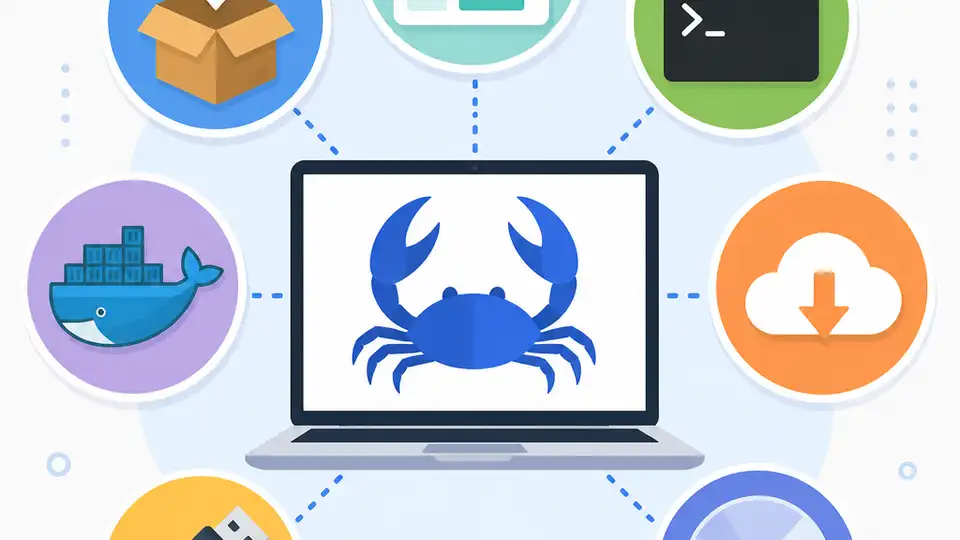
OpenClaw can be installed with a script, package manager, source build, or container.
OpenClaw gives you seven practical install paths, and the docs say the recommended script can detect your OS, install Node if needed, and launch onboarding; Node 24 is recommended, with Node 22.19+ also supported.
1. Installer script
Get the latest AI news in your inbox
Weekly picks of model releases, tools, and deep dives — no spam, unsubscribe anytime.
No spam. Unsubscribe at any time.
This is the fastest path for most people. You run one command, the script checks your system, installs what is missing, and starts onboarding so you can get to the CLI without extra setup.
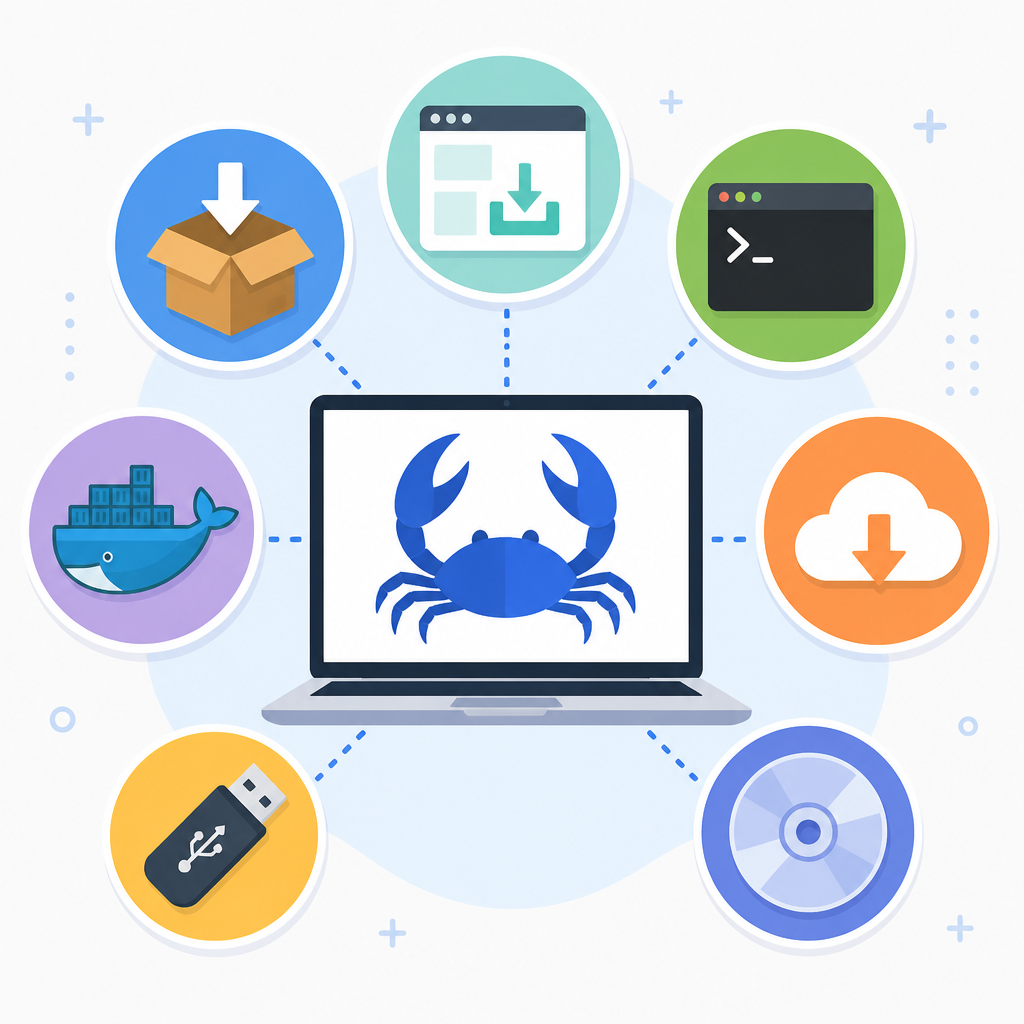
Use the macOS, Linux, or WSL2 command if you want the shortest route from zero to working install. Windows users can use the PowerShell version, or start with the native Windows Hub app if they want a desktop companion with tray status and local MCP mode.
- macOS, Linux, WSL2:
curl -fsSL https://openclaw.ai/install.sh | bash - Windows PowerShell:
iwr -useb https://openclaw.ai/install.ps1 | iex - Skip onboarding with
--no-onboardon either script
2. Local prefix installer
If you want OpenClaw and Node kept under a local prefix instead of relying on a system-wide Node install, use the local prefix installer. The docs call out ~/.openclaw as the kind of layout this flow is meant for.
This option is a good fit for users who want a contained setup, or who prefer to keep the install isolated from the rest of the machine. It also supports npm installs by default, plus git-checkout installs through the same prefix flow.
- Command:
curl -fsSL https://openclaw.ai/install-cli.sh | bash - Best for local-prefix installs
- Useful when you do not want to depend on global Node tooling
3. npm, pnpm, or bun
If you already manage Node yourself, install OpenClaw with your package manager of choice. The docs list npm, pnpm, and bun as supported paths, with a follow-up onboarding command to bring up the daemon.
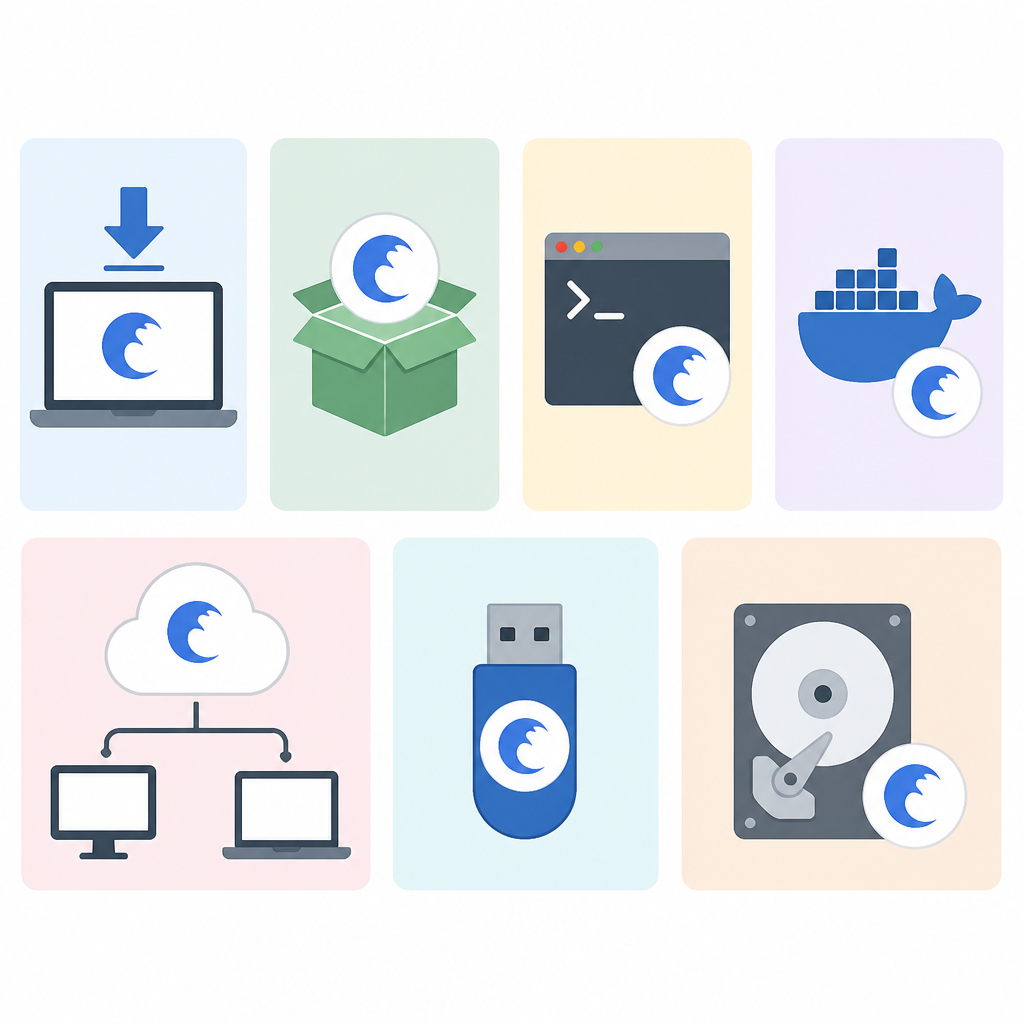
These flows are simple for developers who already have a Node toolchain in place. pnpm needs explicit build-script approval after the first install, and Bun is supported for the global CLI install path, though Node remains the recommended daemon runtime for the Gateway.
- npm:
npm install -g openclaw@latest - pnpm:
pnpm add -g openclaw@latest - bun:
bun add -g openclaw@latest - Then run:
openclaw onboard --install-daemon
4. From source
Choose the source build if you are contributing or you want to run from a local checkout. This path gives you the most control, and it is the one the docs point to for development workflows.
The sequence is straightforward: clone the repo, install dependencies, build the project, build the UI, then link the CLI globally. If you would rather not link globally, you can also run pnpm openclaw ... from inside the repository.
git clone https://github.com/openclaw/openclaw.git
cd openclaw
pnpm install && pnpm build && pnpm ui:build
pnpm link --global openclaw
openclaw onboard --install-daemon
5. GitHub main checkout
This is the closest thing to a moving target install. It uses the installer script, but tells it to pull from the GitHub main checkout rather than the default release path.
Use it when you want the latest main branch behavior for testing or validation. The docs show a version pin to main, which makes this path useful for developers who need to track current changes closely.
- Command:
curl -fsSL --proto '=https' --tlsv1.2 https://openclaw.ai/install.sh | bash -s -- --install-method git --version main - Good for testing current main branch state
- Works through the installer script, not a manual git build
6. Containers and package managers
For headless servers, fleet setups, or environments that already prefer declarative tooling, OpenClaw also supports container and package-manager based installation. The docs group Docker, Podman, Nix, Ansible, and Bun here.
These are the right choices when your deployment style matters more than the install command itself. Docker fits containerized or headless deployments, Podman is the rootless alternative, Nix suits declarative setups, and Ansible fits automated fleet provisioning.
- Docker: containerized or headless deployments
- Podman: rootless container alternative
- Nix: declarative install via Nix flake
- Ansible: automated fleet provisioning
7. Verify and finish setup
After install, confirm that the CLI is available and the Gateway is running. The docs recommend checking the version, running diagnostics, and querying Gateway status before you move on.
If you want managed startup, use the onboarding or Gateway install commands that match your platform. macOS uses a LaunchAgent, Linux and WSL2 use a systemd user service, and native Windows falls back to a Scheduled Task with a Startup-folder item if needed.
openclaw --version
openclaw doctor
openclaw gateway status
How to decide
If you want the least work, pick the installer script. If you want a contained local setup, use the local prefix installer. If you already have Node tooling, npm, pnpm, or bun will feel familiar. If you are building or contributing, install from source. If you are deploying to servers or fleets, choose Docker, Podman, Nix, or Ansible.
For most new users, the script is the best first try; for developers, the source path is the most flexible; for ops teams, the container and package-manager options fit better with existing automation.
// Related Articles
- [IND]
Anthropic's IPO rumor turns into a market watch
- [IND]
Anthropic should not become dependent on Meta for compute
- [IND]
Mistral's robotics model cuts indoor navigation costs
- [IND]
Mistral missile: France’s short-range air defense workhorse
- [IND]
Apple Reclaims No. 1 by Market Cap as AI Costs Spike
- [IND]
Kimi K3 could pressure the middle tier of AI models