How to enroll in Microsoft Partner Center
Enroll a work account in Microsoft Partner Center and complete verification for MAICPP.
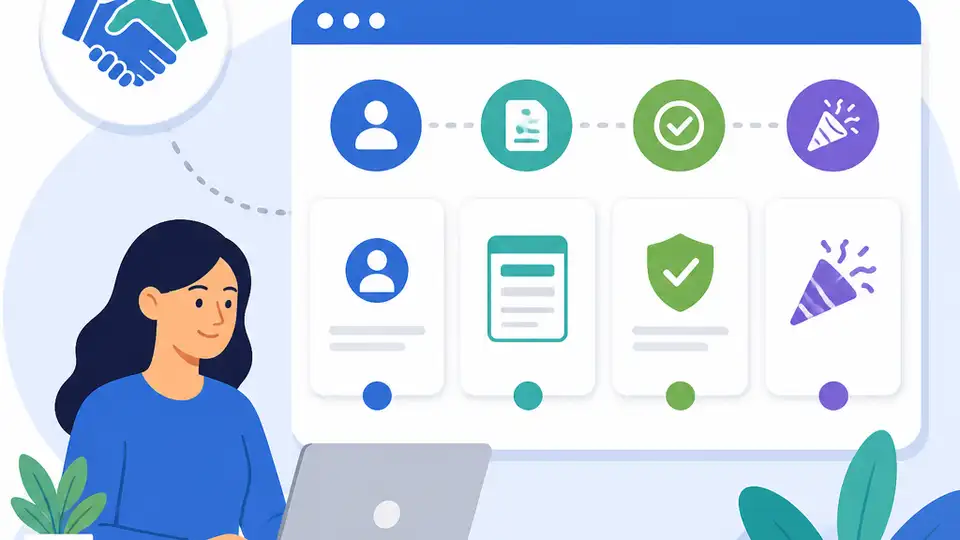
This guide shows how to enroll a work account in Microsoft Partner Center for MAICPP.
This how-to is for a global admin who needs to enroll an organization in the Microsoft Cloud AI partner program (MAICPP) through Microsoft Learn and use Partner Center to finish verification and set up access. After you follow the steps, you will have a submitted enrollment, a way to monitor vetting status, and the first partner identities and workspace access needed to start working in Partner Center.
You will also know which account type to use, what to avoid during sign-up, and where to check legal and role settings after Microsoft starts the review.
Before you start
Get the latest AI news in your inbox
Weekly picks of model releases, tools, and deep dives — no spam, unsubscribe anytime.
No spam. Unsubscribe at any time.
- A Microsoft Entra ID work account, or the ability to create one for your organization
- Global admin role in the tenant that will enroll
- Authority to accept agreements on behalf of the organization
- Access to legal documents for verification
- A supported desktop browser such as Microsoft Edge
- An organization billing account or legal entity ready for selection during enrollment
Step 1: Open the MAICPP enrollment page
Goal: start the Microsoft Cloud AI partner enrollment flow from the official Partner Center experience so the request is tied to the correct program from the beginning.

Go to Partner Center, choose the option to join the program, select Partner, and then continue with Next. If you are using the Microsoft Learn instructions, keep the enrollment page open in another tab so you can follow the exact prompts.
Verification: you should see the MAICPP enrollment path and the first sign-in or account-creation screen.
Step 2: Sign in with a work account
Goal: use an organization identity that can own the enrollment and later manage Partner Center workspaces.
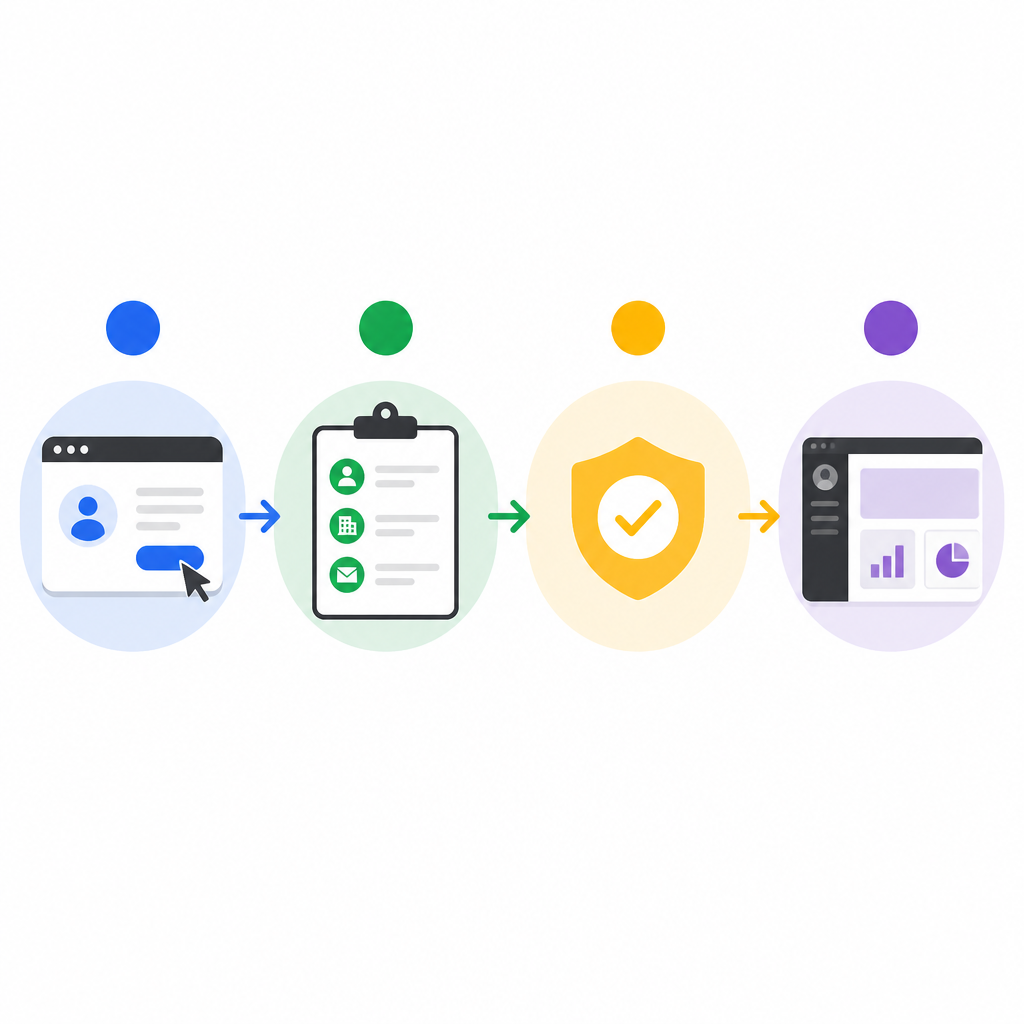
If you already have a work account, sign in with it. If not, create a new work account for the organization. Do not use a personal Azure free or trial account, an Azure Government tenant, a legacy EA-only setup, or a Microsoft account such as Hotmail or Outlook.com.
Verification: you should land in the enrollment flow with a work account tied to your organization tenant, not a personal Microsoft identity.
Step 3: Submit the enrollment request
Goal: accept the MAICPP agreement and send Microsoft the official request for review.
Select the billing account or legal entity, read the Microsoft Cloud AI partner program agreement, and click Enroll. Make sure the person completing this step is a global admin and is authorized to sign for the organization.
Partner Center enrollment flow example:Verification: you should receive confirmation that the enrollment request was submitted and the verification process has started.
Step 4: Track verification in Legal info
Goal: monitor the vetting process and respond quickly if Microsoft asks for more information.
Sign in to Partner Center after submission, then open Account Settings and go to Legal info. Watch the latest vetting status there and provide any requested inputs or documents during the review.
Verification: you should see a status for the enrollment review, and eventually the enrollment should move to Authorized before it becomes active.
Step 5: Assign workspace access
Goal: give the right people access to the Partner Center workspaces they need after enrollment is approved.
Partner Center is organized into workspaces, and access depends on the program and the roles you assign. First, make sure each user is already a member of the tenant in Microsoft Entra ID. Then assign the correct Partner Center roles for the workspaces they will use.
Verification: you should see the invited users in the tenant and confirm they can open the intended workspace without permission errors.
Step 6: Find partner identities and next actions
Goal: record the identifiers Microsoft creates and use them to manage the enrolled organization.
Open Account Settings and then Identifiers to find the Partner Global account and Partner Location account created for the program. From there, review Membership, Benefits, and the available workspaces so you can move from enrollment to active use.
Verification: you should see your partner IDs listed and be able to open the program-specific pages that match your enrollment.
Common mistakes
- Using a personal Microsoft account instead of a work account - fix this by creating or signing in with an organization work account tied to the tenant.
- Trying to enroll without global admin rights - fix this by having a global admin complete the request or by elevating the correct admin role first.
- Ignoring the Legal info page after submission - fix this by checking verification status right away and uploading any requested documents promptly.
| Metric | Before/Baseline | After/Result |
|---|---|---|
| Enrollment readiness | Using an unsupported account type | Using a work account tied to the tenant |
| Verification progress | No status monitoring | Tracked in Account Settings > Legal info |
| Workspace access | Users not assigned roles | Users added to tenant and given roles |
What's next
After enrollment is active, explore Membership, Benefits, incentives, and any additional workspaces such as Cloud Solution Provider or Microsoft Marketplace so your team can start using the program immediately.
// Related Articles
- [IND]
Anthropic's IPO rumor turns into a market watch
- [IND]
Anthropic should not become dependent on Meta for compute
- [IND]
Mistral's robotics model cuts indoor navigation costs
- [IND]
Mistral missile: France’s short-range air defense workhorse
- [IND]
Apple Reclaims No. 1 by Market Cap as AI Costs Spike
- [IND]
Kimi K3 could pressure the middle tier of AI models