Kimi K2.5 works in Claude Code and Cline
I break down Kimi’s agent setup for Claude Code, Cline, RooCode, and OpenCode, plus the config block I’d actually copy.
Copy the Kimi K2.5 setup for Claude Code, Cline, RooCode, and OpenCode.
I've been using agentic coding tools long enough to know when a setup looks tidy but behaves like a mess. You wire up a model, point a tool at it, and for the first five minutes everything feels fine. Then the model starts agreeing with every half-baked idea I throw at it, tool calls get noisy, retries pile up, and token usage climbs like I’m paying for a tiny data center in my terminal. That’s the part nobody puts in the happy-path docs.
Kimi’s agent support page on platform.kimi.ai is the first source that made me stop treating this like a generic API hookup. It’s not just “here’s a model endpoint.” It’s a set of very opinionated instructions for Claude Code, Cline, RooCode, and OpenCode, plus a reminder that agent loops can chew through budget fast. The page also calls out K2 Vendor Verifier and says it has expanded to 12 vendors. That detail matters because this whole story is really about tool-call reliability, not just raw model access.
Stop treating agent coding like a free-for-all
Get the latest AI news in your inbox
Weekly picks of model releases, tools, and deep dives — no spam, unsubscribe anytime.
No spam. Unsubscribe at any time.
When using large models for code generation, due to the randomness and complexity of the model, multiple attempts may be required to generate code that meets expectations. Programming tools will automatically perform multiple rounds of retries and calls, which may lead to rapid token usage growth.
What this actually means is that the model is not the only thing spending your money. The agent wrapper is part of the bill. Claude Code, Cline, RooCode, and OpenCode all retry, re-ask, and branch. If the model is a little too eager, the tool can turn that into a loop before you even notice.
I’ve hit this exact problem with coding agents that looked brilliant in demos and then quietly burned through usage in real work. The issue wasn’t just quality. It was control. A model that keeps “helping” without pushing back is dangerous inside a tool loop because the loop amplifies every bad decision.
Kimi’s docs are refreshingly blunt here: set a daily spending limit, enable balance alerts, and keep an eye on the agent while it runs. I actually like that they say to monitor for infinite loops and excessive retries. That’s not marketing language. That’s someone admitting the thing can run away from you.
How to apply it: before you wire Kimi K2.5 into any coding assistant, decide what failure looks like. Put a budget cap on the project in the Kimi Open Platform, turn on balance reminders, and treat long-running agent sessions like production jobs. If you’re using Claude Code, Cline, RooCode, or OpenCode, don’t assume the UI will save you from runaway retries. It won’t.
The model choice is really about agent behavior
Model Selection : If response speed is not a high priority, you can choose to use the kimi-k2.5 model.
What this actually means is that Kimi is nudging you toward a tradeoff: speed on one side, agent quality on the other. The docs frame Kimi K2.5 as a MoE foundation model with strong code and agent capabilities, so the promise is not “fastest response ever.” It’s “better behavior when the tool chain matters.”
I’ve found that distinction matters more than people admit. A coding assistant that answers quickly but can’t reliably follow tool instructions is mostly a fancy autocomplete. The moment you ask it to inspect files, modify code, retry a fix, or branch through a plan, you care less about latency and more about whether it can stay on task.
Kimi also points to K2 Vendor Verifier, which exists specifically to compare tool-call accuracy across vendors. I appreciate that. It suggests the team is thinking about agent reliability as a measurable thing, not a vibe. That’s the right instinct for this category.
How to apply it: if you’re choosing Kimi K2.5 for Claude Code or Cline, use it for sessions where you want steadier tool use more than instant replies. If you’re doing quick throwaway prompts, maybe don’t overthink it. But if you’re asking the model to edit code, inspect errors, and keep state across steps, that’s where K2.5 makes sense.
- Use Kimi K2.5 when the task involves repeated tool calls.
- Use tighter budgets when you expect retries.
- Keep an eye on sessions that can branch into loops.
Claude Code needs a cleaner wiring job than I expected
export ANTHROPIC_BASE_URL = https://api.moonshot.ai/anthropic
What this actually means is that Claude Code can be pointed at Kimi by pretending Kimi is the Anthropic-compatible backend. That’s the whole trick. You’re not rewriting Claude Code. You’re swapping the provider endpoint and auth token, then telling the client which model to use.
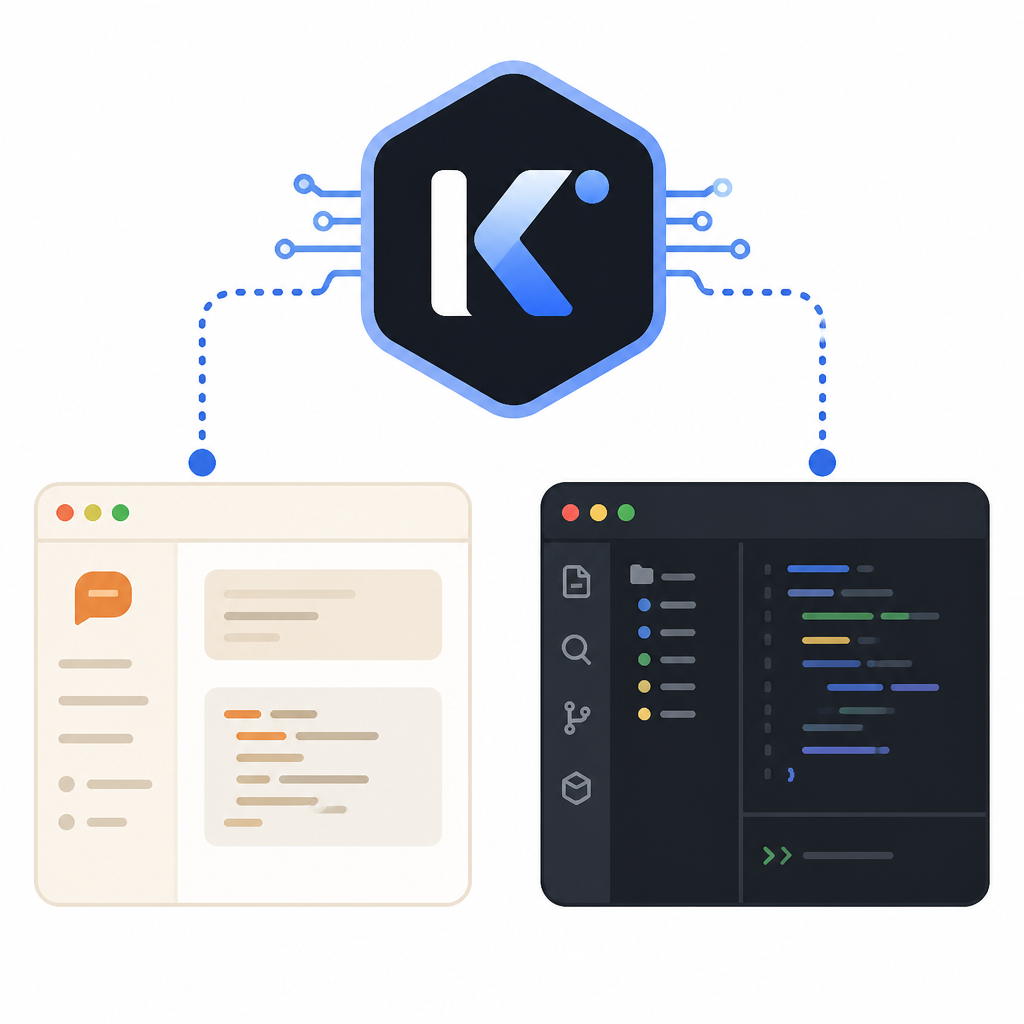
The docs give a full environment setup for macOS, Linux, and Windows. On macOS and Linux, you install Node.js, install Claude Code, then set variables like ANTHROPIC_BASE_URL, ANTHROPIC_AUTH_TOKEN, ANTHROPIC_MODEL, and the default model variables for Opus, Sonnet, and Haiku. They also set CLAUDE_CODE_SUBAGENT_MODEL to kimi-k2.5 and disable tool search.
I like that they also tell you to verify with /status inside Claude Code and use Tab to switch thinking mode. That’s the kind of detail that saves you from staring at a blank terminal wondering whether the model is wired correctly or just silently ignoring you.
How to apply it: if you’re on a Mac or Linux box, install Node 24.3.0 as the docs suggest, install Claude Code, then export the Kimi variables before launching the CLI. On Windows, set the same values in PowerShell. The important part is consistency: every Claude-facing model variable should point at Kimi K2.5, otherwise you’ll end up with mismatched behavior that is painful to debug.
- Set the base URL to Kimi’s Anthropic-compatible endpoint.
- Use your Moonshot API key as the auth token.
- Check
/statusbefore you trust the session.
Cline and RooCode want the same provider, just less drama
Select ‘Moonshot’ as the API Provider
What this actually means is that both Cline and RooCode are happiest when you stop trying to be clever and just configure the Moonshot provider directly. The docs tell you to pick Moonshot, set the entrypoint to api.moonshot.ai, paste your Kimi Open Platform key, choose kimi-k2.5, and disable browser tool usage.
I ran into this kind of setup in VS Code before, and the failure mode is always the same: I assume the extension will “figure it out,” then waste twenty minutes on a provider mismatch. The docs are better than that. They spell out the exact knobs, which is what I want from anything that sits between my editor and a paid API.
There’s also a small but useful note in the Cline section about verifying installation through the left activity bar or the command palette. That sounds basic, but basic checks are what keep you from debugging the wrong layer. If the extension isn’t installed correctly, no model setting in the world will rescue you.
How to apply it: in Cline or RooCode, configure Moonshot as the provider, set the endpoint to api.moonshot.ai, choose kimi-k2.5, and disable browser tools unless you have a specific reason not to. Browser tools add another moving part, and Kimi’s docs clearly prefer a cleaner path for this model.
OpenCode is the least annoying path if you want to move fast
$ opencode auth login
What this actually means is that OpenCode gives you a very direct path: install it, log in with Moonshot AI, then choose the model from inside the app with /models. No giant environment-variable ritual. No pretending to be another provider. Just auth, select, go.
The docs show both the shell installer and the npm install route for OpenCode. After that, you run opencode auth login, pick Moonshot AI, enter your key, launch OpenCode, and use /models to select Kimi K2.5. That’s clean enough that I’d recommend it to anyone who wants to test the model without first building a tiny shrine to environment variables.
I’ve used enough terminal tools to know that the best setup is the one you can reproduce without a wiki page. OpenCode gets close to that. It’s the shortest path from “I want to see what Kimi K2.5 can do” to “I’m actually using it.”
How to apply it: if you want a low-friction test, install OpenCode first. Authenticate with Moonshot AI, switch to Kimi K2.5 in /models, and try a real coding task, not a toy prompt. The docs also point to opencode.ai/docs if you want more detail. That’s the setup I’d use when I don’t want to spend my afternoon debugging the client instead of the model.
The direct API is the backup plan I always want
from openai import OpenAI

client = OpenAI(
    api_key="$MOONSHOT_API_KEY",
    base_url="https://api.moonshot.ai/v1",
)

completion = client.chat.completions.create(
    model="kimi-k2.5",
    messages=[
        {
            "role": "system",
            "content": "You are Kimi, an artificial intelligence assistant provided by Moonshot AI. You are more proficient in Chinese and English conversations. You will provide users with safe, helpful, and accurate answers. At the same time, you will refuse to answer any questions involving terrorism, racial discrimination, pornography, or violence. Moonshot AI is a proper noun and cannot be translated into other languages.",
        },
        {
            "role": "user",
            "content": "Hello, my name is Li Lei, what is 1+1?",
        },
    ],
)

print(completion.choices[0].message.content)
What this actually means is that Kimi is exposing a standard chat-completions style API alongside the agent integrations. That matters because every tool wrapper eventually breaks in some annoying way, and when it does, I want a direct path to the model.
The docs also include curl and Node.js examples, which is exactly what I want from a platform page. I don’t need a philosophical essay. I need a way to prove the key works, the model responds, and the base URL is correct.
How to apply it: keep a direct API test in your toolbox before you blame Claude Code, Cline, or RooCode. If the direct call fails, the problem is likely auth, endpoint, or model name. If the direct call works, your issue is probably in the client configuration. That simple split saves a lot of time.
- Use the direct API to isolate auth problems.
- Use the agent tools only after the base call works.
- Keep a tiny smoke test around for future debugging.
The template you can copy
# Kimi K2.5 agent setup template

## 1) Get your API key
- Open: https://platform.kimi.ai/console/api-keys
- Create an API key in the default project

## 2) Budget guardrails
- Set a project daily spending limit in Kimi Open Platform
- Turn on account balance reminders
- Watch for agent retry loops during long sessions

## 3) Claude Code setup
### macOS / Linux
export ANTHROPIC_BASE_URL="https://api.moonshot.ai/anthropic"
export ANTHROPIC_AUTH_TOKEN="$YOUR_MOONSHOT_API_KEY"
export ANTHROPIC_MODEL="kimi-k2.5"
export ANTHROPIC_DEFAULT_OPUS_MODEL="kimi-k2.5"
export ANTHROPIC_DEFAULT_SONNET_MODEL="kimi-k2.5"
export ANTHROPIC_DEFAULT_HAIKU_MODEL="kimi-k2.5"
export CLAUDE_CODE_SUBAGENT_MODEL="kimi-k2.5"
export ENABLE_TOOL_SEARCH=false
claude

### Windows PowerShell
$env:ANTHROPIC_BASE_URL="https://api.moonshot.ai/anthropic"
$env:ANTHROPIC_AUTH_TOKEN="$YOUR_MOONSHOT_API_KEY"
$env:ANTHROPIC_MODEL="kimi-k2.5"
$env:ANTHROPIC_DEFAULT_OPUS_MODEL="kimi-k2.5"
$env:ANTHROPIC_DEFAULT_SONNET_MODEL="kimi-k2.5"
$env:ANTHROPIC_DEFAULT_HAIKU_MODEL="kimi-k2.5"
$env:CLAUDE_CODE_SUBAGENT_MODEL="kimi-k2.5"
$env:ENABLE_TOOL_SEARCH="false"
claude

## 4) Cline setup
- Provider: Moonshot
- Entrypoint: api.moonshot.ai
- API key: your Kimi Open Platform key
- Model: kimi-k2.5
- Browser tool usage: disabled

## 5) RooCode setup
- Provider: Moonshot
- Entrypoint: api.moonshot.ai
- API key: your Kimi Open Platform key
- Model: kimi-k2.5
- Browser tool usage: disabled

## 6) OpenCode setup
curl -fsSL https://opencode.ai/install | bash
# or
npm install -g opencode-ai

opencode auth login
# choose Moonshot AI, enter your key
opencode
# inside OpenCode:
/models
# select kimi-k2.5

## 7) Direct API smoke test
from openai import OpenAI

client = OpenAI(
    api_key="$MOONSHOT_API_KEY",
    base_url="https://api.moonshot.ai/v1",
)

completion = client.chat.completions.create(
    model="kimi-k2.5",
    messages=[
        {"role": "system", "content": "You are Kimi, an artificial intelligence assistant provided by Moonshot AI."},
        {"role": "user", "content": "Say hello and confirm the model is working."},
    ],
)

print(completion.choices[0].message.content)

## 8) Quick sanity checks
- Claude Code: run /status
- Claude Code: switch thinking with Tab
- Cline/RooCode: confirm Moonshot provider and model selection
- OpenCode: confirm /models shows kimi-k2.5

## 9) What I would remember
- Keep retries under control
- Watch cost while the agent runs
- Use the direct API when the client gets weird
- Prefer the simplest client that gets the job done
The template above is my distilled version of Kimi’s agent-support docs, not a verbatim copy. The original instructions, examples, and platform-specific details live at https://platform.kimi.ai/docs/guide/agent-support. I’ve reorganized them into a workflow I’d actually use at my desk, with the same core setup and a bit more skepticism about runaway agent behavior.
// Related Articles
- [TOOLS]
Spark 4.2 turns AI search into SQL
- [TOOLS]
OpenAI's HF breach story turns into a security template
- [TOOLS]
SAP Design System adds AI and cross-platform UI kits
- [TOOLS]
ChatGPT Health turns general chat into a health layer
- [TOOLS]
Microsoft adds AMD chips to Azure AI and HPC
- [TOOLS]
Kimi K3 vs GLM-5.2: a one-endpoint test