Vibe coding lets you ship a tiny app fast
A practical breakdown of vibe coding, with a copy-ready prompt workflow for building and fixing a small app in AI tools.

A copy-ready workflow for using AI to build and fix a small app.
I've been using AI coding tools long enough to know when something is supposed to feel magical and just doesn't. The demos always look slick: type a sentence, get an app, ship before lunch. But when I tried to use these tools for real work, I kept hitting the same annoying wall. The first draft was either too generic, too pretty in the wrong places, or weirdly opinionated about things I never asked for. Then I'd tweak one thing, and the tool would happily break two others. That is the part nobody puts in the glossy screenshots.
So when I read Business Insider's beginner's guide to vibe coding, it clicked because it described the exact mess I kept running into: the idea is simple, but the execution takes a little discipline. The article is by Aditi Bharade, and it walks through the basic loop using tools like Lovable, Base44, Claude Code, Cursor, and Replit. No mystery, no fake wizardry. Just a better way to ask for software.
Pick a tool that matches the mess you want to make
Get the latest AI news in your inbox
Weekly picks of model releases, tools, and deep dives — no spam, unsubscribe anytime.
No spam. Unsubscribe at any time.
For non-techies looking to build simple tools rather than complex software products, Lovable, Base44, and Replit are your best bet.
What this actually means is I should stop pretending every AI coding tool is interchangeable. They're not. Some are better for quick prototypes and simple internal tools. Others are better when I want more control, more code visibility, or more of a real dev workflow. If I'm building something small and disposable, I want the shortest path from idea to usable screen. If I'm building something that might survive contact with production, I need a tool that doesn't hide everything behind a pretty UI.

I ran into this when I tried to build a tiny admin dashboard for tracking requests. The flashy tool gave me a nice first pass, but I spent more time fighting the generated structure than I would have spent scaffolding it myself. The calmer tool, which let me inspect and adjust more directly, saved me from myself. That is the tradeoff the BI piece gets right: beginner-friendly is not the same thing as simplistic, and more powerful is not the same thing as better for a first project.
How to apply it: start by deciding what kind of pain you can tolerate. If you want a fast toy, use a beginner-oriented builder. If you want to inspect code, wire APIs, or keep control over the app shape, use something like Cursor or Claude Code. Don't choose the tool because it has the prettiest landing page. Choose it because you know what kind of edits you'll need after the first prompt.
- Use Lovable or Base44 when you want a quick app with a polished UI.
- Use Replit when you want a more familiar dev environment with hosting in the loop.
- Use Cursor or Claude Code when you expect to edit the generated code yourself.
Don't prompt the model like a tourist
I've learned that the easiest way to get AI to help you build something is to ask an AI tool like ChatGPT or Claude to generate a custom prompt for your app.
This is the part most people skip, and then they act surprised when the app is vague. The article's advice is dead simple: don't wing the prompt. Use another model, like ChatGPT or Claude, to draft the actual build prompt first. That gives you a more detailed spec than you'd probably write on your own, especially if you're trying to move fast.
What this actually means is the first prompt should read like a product brief, not a vibe check. Say what the app does, who it's for, what data it stores, what screens it needs, and what the user should see first. If I just say, "build me a task app," I get a toy. If I say, "build a task app for freelancers with due dates, priority tags, completed status, and a clean dashboard that highlights overdue items," I get something I can actually test.
I made this mistake constantly when I first tried vibe coding. I assumed the model would fill in the blanks the way a senior engineer might. It doesn't. It fills in the blanks the way a very eager intern does when nobody bothered to write requirements. Helpful, yes. Mind-reading, no.
How to apply it: before you touch the builder, generate a prompt in a separate model. Ask it to include the app purpose, core entities, UI sections, and the main actions. Then paste that prompt into the builder instead of your rough idea. That one extra step usually saves credits and reduces the number of garbage first drafts you have to fix.
Build the first ugly version on purpose
The first version of my vibe-coded app, with its all-white background and pie charts, left me deeply unimpressed.
I love this line because it's honest. The first version is often ugly, boring, or just wrong in a very specific way. That's not failure. That's the price of getting a concrete object in front of you. The article uses a subscription tracker as the example, and that matters because it is small enough to finish but real enough to expose bad design decisions immediately.
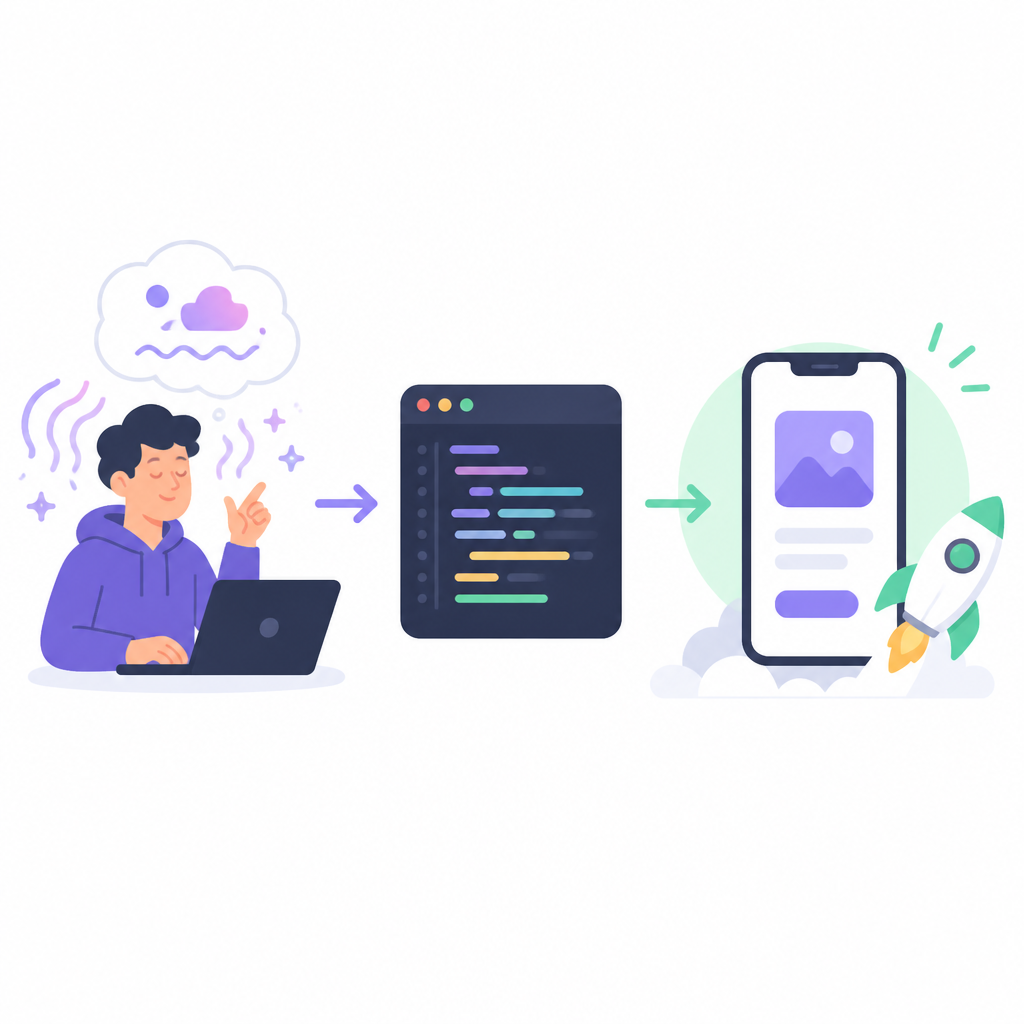
What this actually means is I should stop expecting the first output to be the thing I keep. The first output is a draft artifact. It exists so I can react to it. If the model gives me a sterile dashboard with default charts and a white background that looks like a corporate spreadsheet, good. Now I know what to change.
I ran into this exact thing when I built a lightweight CRM prototype. The model gave me a layout that technically worked, but it felt like a demo from 2018. The data was there. The usefulness was not. Once I treated the first build as a diagnostic, not a deliverable, I started moving faster. I could say, "this is too flat," or "this needs stronger hierarchy," instead of trying to describe the whole app from scratch.
How to apply it: pick a small use case, build it once, and judge it harshly. Do not waste time polishing the first draft. The job is to reveal what the tool thinks your app should be. That tells you what to correct in the next pass.
- Choose one narrow use case, like a tracker, checklist, or internal dashboard.
- Ignore visual taste on the first pass and focus on structure.
- Only after the app exists should you start caring about color, spacing, and visual tone.
Use modifying prompts like you're briefing an intern
What you need are modifying prompts. Think about it like instructing an intern: "Change the colors. Make it more fun."
This is the part I wish more people said plainly. The builder is not done after the first generation. The real workflow is prompt, inspect, modify, repeat. That means you need a second kind of prompt: not "build the app," but "change this specific thing without wrecking the rest."
What this actually means is I need to be specific about edits. Not "make it better." That is useless. I need to say "switch the background to dark mode, replace the default pie chart with a simpler list view, and add brighter accent colors for primary actions." The more concrete I am, the less the model has to guess.
I like the intern comparison because it keeps me honest. If I would not hand a task to a junior teammate with those instructions, I should not hand it to the model either. The model is fast, not psychic. It can do a lot, but it still needs boundaries.
I ran into this when I tried to fix a dashboard that kept over-designing itself. Every time I asked for a cleaner layout, it would strip out useful context along with the clutter. The fix was to describe what to keep, what to remove, and what to replace. That three-part structure made the difference.
How to apply it: write modifying prompts in the format "keep X, change Y, add Z." That gives the model guardrails. If you want a visual refresh, name the color palette, tone, and layout shift. If you want a functional change, name the exact interaction and where it should appear.
Save credits by thinking before you click build
To ration your daily credits, you can toggle between the "plan" and "build" modes.
This is where the article gets practical in a way most tutorials skip. AI coding tools are not free in any meaningful sense. Even when they hand you some trial credits, they still force you to spend them like you are playing a weird little arcade game. If I keep hitting build without planning, I burn through my budget and learn almost nothing.
What this actually means is I should use planning mode to reason about the app before I ask it to generate anything expensive. Planning mode is where I can ask about architecture, feature order, or data model shape without committing to a full rebuild. Build mode is for when I know what I want and I am ready to spend the credit.
I have absolutely wasted credits by skipping this step. I would ask for a feature, get something half-right, then ask for a second feature, then a third. By the time I realized the app needed a different structure, I had spent enough credits to feel stupid. Planning first is cheaper than fixing later. Annoying, but true.
How to apply it: before every build request, spend one planning prompt on the change. Ask what will likely break, what data it needs, and whether the current structure can support it. If the answer is no, stop and redesign the prompt instead of brute-forcing the issue.
Ship the tiny app, then stop babysitting it
Once you're happy with how your website looks, press the "publish" button and enjoy the fruits of your — or AI's — labor.
This is the cleanest part of the whole workflow. The point is not to keep iterating forever. The point is to get from nothing to something useful, then publish it and move on. The article's example is a subscription tracker built in less than 30 minutes. That speed matters because it changes the emotional cost of starting.
What this actually means is vibe coding works best when I treat it like prototyping with a shorter runway. I am not trying to build the next giant SaaS platform in one prompt. I am trying to validate an idea, make a personal tool, or remove a small daily annoyance. That is a much better fit for these tools.
I ran into this when I built a tiny personal finance tracker. I kept trying to make it perfect before sharing it with myself, which is a ridiculous sentence when you think about it. The moment I shipped a rough version, I learned what I actually needed. That feedback loop is the whole point.
How to apply it: define a finish line before you start. Maybe the app only needs three screens, one data table, and a working save flow. When those are done, publish. Do not keep polishing because the model can always generate one more tweak. At some point, the app has to leave the nest.
The template you can copy
Vibe coding workflow for a small app prototype

1) Pick the right tool
- Use Lovable, Base44, or Replit for simple apps and fast prototypes.
- Use Cursor or Claude Code if I want more code control.

2) Generate a real prompt first
Ask ChatGPT or Claude to draft a build prompt with:
- app name
- target user
- core problem it solves
- required fields/data
- main screens
- primary actions
- desired visual style
- any must-have constraints

3) Paste the prompt into the builder
- Choose "build"
- Paste the full prompt
- Let the tool generate the first version

4) Review the first draft like a critic
Check:
- layout
- readability
- whether the data model makes sense
- whether the app solves the actual problem
- whether the visuals fit the use case

5) Write modifying prompts in the format:
- Keep: [what should stay]
- Change: [what needs to change]
- Add: [new feature or UI element]
- Remove: [what is cluttering the app]

Example modifying prompt:
Keep the subscription tracker data table and add form.
Change the interface to dark mode with neon accent buttons.
Replace the pie chart with a cleaner summary list.
Add category tags for streaming, news, music, and fitness.
Remove any default placeholder copy and generic dashboard widgets.

6) Use plan mode before build mode
- Ask what will break if I add a feature
- Ask what data the feature needs
- Ask whether the current layout can support it
- Only then spend build credits

7) Ship when the app is good enough
- Publish the app
- Stop editing once it solves the original use case
- Save a new version for the next round of improvements

Copy-ready starter prompt:
Build a simple subscription tracker web app for personal use.
The app should let me add subscriptions with these fields: name, category, cost, billing cycle, start date, end date, and notes.
I want a dashboard that shows total monthly spending, upcoming renewals, and active subscriptions.
Include filters by category and billing cycle.
Make the UI modern, easy to scan, and mobile-friendly.
Use clear labels, simple navigation, and a visual style that feels energetic rather than corporate.
If a chart is included, keep it simple and readable.
Prioritize usability over decoration.

Copy-ready modifying prompt:
Keep the subscription tracker working as-is.
Change the design to a dark theme with brighter accent colors.
Replace any boring default charts with a simpler summary view.
Make the dashboard feel more playful and less corporate.
Add a clear button for creating a new subscription.
Keep the app easy to scan on mobile.

Copy-ready credit-saving prompt:
Before building, tell me what this change will affect, what data it needs, and whether it can be done without restructuring the app.
Give me the smallest safe change set first.
Then I will decide whether to use build mode.
The reason I like this template is that it bakes in the boring parts people usually skip: planning, specificity, and restraint. Those are the parts that keep vibe coding from turning into prompt roulette. If I use this workflow, I get a usable first draft faster and waste less time pretending the model will infer my intent.
If I had to reduce the whole Business Insider guide to one sentence, it would be this: vibe coding works when I treat AI like a fast junior collaborator, not a mind reader. That is a much less glamorous story than the hype, but it is the one that actually ships software.
Source attribution: This breakdown is based on Aditi Bharade's Business Insider guide, The beginner's guide to vibe coding. My template and commentary are original, but the workflow follows the article's structure and examples.
// Related Articles
- [TOOLS]
Spark 4.2 turns AI search into SQL
- [TOOLS]
OpenAI's HF breach story turns into a security template
- [TOOLS]
SAP Design System adds AI and cross-platform UI kits
- [TOOLS]
ChatGPT Health turns general chat into a health layer
- [TOOLS]
Microsoft adds AMD chips to Azure AI and HPC
- [TOOLS]
Kimi K3 vs GLM-5.2: a one-endpoint test